


Merge Ahead: Choosing the Right Tool for Variable Data Jobs
Which tool will smooth the road for the variable data that drives your customized designs?


This article appears in Issue 61 of CreativePro Magazine.
Today, designers have more options than ever to expand one design into a multitude of custom, message-focused pieces with the help of variable data, whether that data is text, images, graphs, QR codes, or even heat maps.
Adobe’s big three (InDesign, Illustrator, and Photoshop), as well as Affinity and CorelDRAW, all offer tools for the task,each with its own advantages and pain points.
In this article, I’ll compare these five applications as if they were freshly installed. To keep it fair, I won’t be using any plug-ins or scripts to enhance or expand the apps’ built-in data merging features.
What’s in a Name?
All five programs can merge variable data with your documents, but each has its own name for the feature (Table 1).
| InDesign | Affinity | CorelDRAW | Illustrator | Photoshop |
| Data Merge | Data Merge | Print Merge | Variables | Variables |
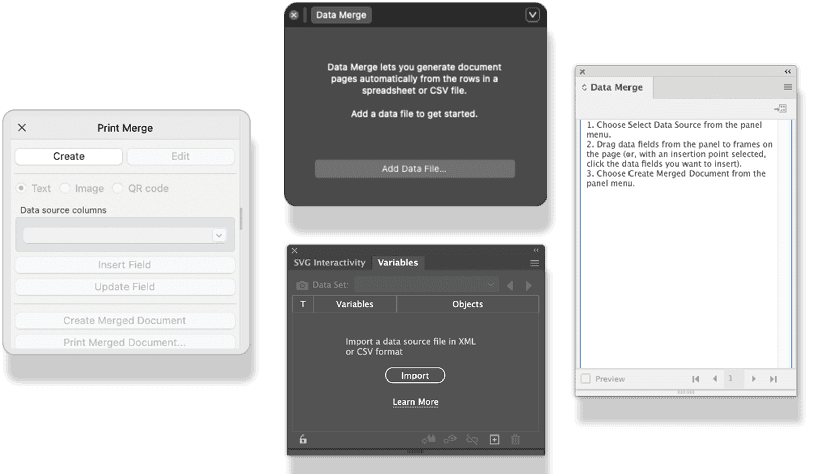
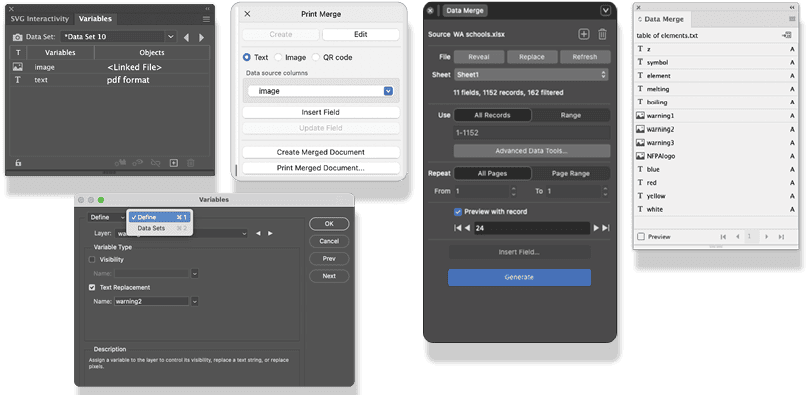
In each of the five applications, when you open the feature, the program displays a brief explanatory prompt, in case you’ve never used the merge features before (Figure 1). All the apps offer a dedicated panel for working with variable data (Figure 2).
Data Types and Import Methods
All five apps can accept CSV files as data, and each accepts at least one additional format (Table 2). Both CorelDRAW and Affinity can use Excel files as data, but they might not necessarily import formula results properly or be able to handle files with many sheets.
| InDesign | Affinity | CorelDRAW | Illustrator | Photoshop |
| CSV, TXT | CSV, TSV, XLSX, JSON, Canva Sheets | CSV, TXT, XLSX, Sources through ODBC (Windows only) | CSV, XML | CSV, TXT |
Use caution, and try to keep the files as plain as possible. Although none of these apps can use Google Sheets as a source directly, all will let you export CSV files from your spreadsheet.
All apps can import text and images as variables, but how it ends up in your document will vary (Table 3).
| InDesign | Affinity | CorelDRAW | Illustrator | Photoshop | |
| Text within a frame | Yes | Yes | Yes | No | No |
| Text as its own object | Yes | Yes | Yes | Yes | Yes |
| Image replacement | Yes | Yes | Yes | Yes | Yes |
| Graph creation | No | No | No | Yes | No |
| Visibility | No | Text only via the Data Merge Data Viewer | No | Yes | Yes |
| QR Code | Yes | Yes | Yes | No | No |
Type Handling and Effects
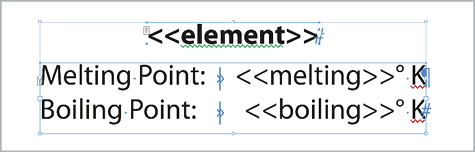
Even among the Adobe apps, imported type is handled differently. Photoshop and Illustrator enable you to place type only as an item on its own—that is, not as part of a larger paragraph. InDesign does not have this restriction (Figure 3) and lets you combine multiple fields into continuous text.
Because InDesign is the only app to offer GREP styles, it is the only app that allows variable type to change appearance as the data changes. This is a huge advantage that allows you to make effects such as heat maps dynamically.
All the applications support live variable type effects, enabling you to apply graphic styles to live type and turn otherwise plain data into design elements.
Although InDesign offers some great effects, it limits the number you can apply. You can create a block shadow effect for text in Illustrator with the Specified Steps setting of the Blend tool, but the result is a very heavy and point-bloated file (as explained in this CreativePro video).
The other applications perform better here.
For instance, CorelDRAW has its own native Block Shadow tool.
Variable Visibility
Both Photoshop and Illustrator can show or hide a variable field (or group of fields). You simply create a field dedicated to turning the visibility on or off using the words TRUE or FALSE. Illustrator needs the field to begin with the # symbol, but Photoshop does not.
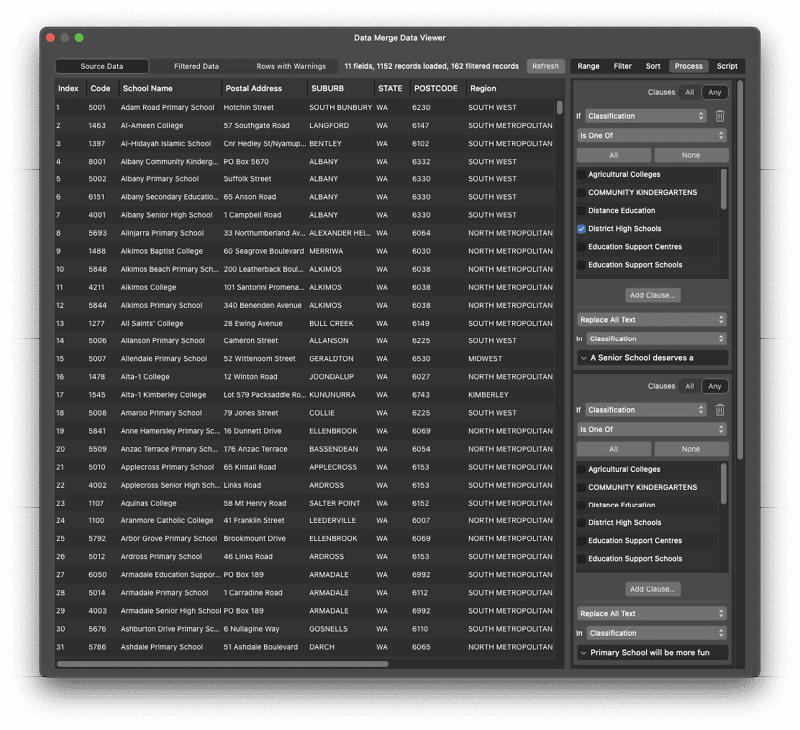
Affinity does not offer this level of control, but it enables you to hide or replace text on the go using the Process function from the Data Merge Data Viewer (Figure 4).
QR Codes
InDesign, Affinity, and CorelDRAW can create QR codes from supplied data (Table 4), while Illustrator and Photoshop cannot.
| InDesign | Affinity | CorelDRAW | |
| Color fill | Black fill only | Any one specific fill or gradient | Any one specific fill or gradient |
| Assign any field as a QR code | Only those with # at start of field name | Yes | Yes |
| White space control | No | No | Yes |
| Error correction type | No | No | Yes (four levels) |
| Change appearance | No | No | Yes |
InDesign’s variable QR codes have the most limitations out of the three. Although you can change background, for example, the codes show as black. (InDesign can change a QR codes fill color using this technique, but that is extra effort not built into its Data Merge feature.) In addition, to create a QR code in InDesign your data must have a separate column header that begins with a # symbol (e.g., #QRcode or #GetDiscount) and the content of that column can only be represented as a QR code and nothing else.
Affinity and CorelDRAW let you change the fill color of a QR code and make any field of the database into a QR code.
The app with the most control is CorelDRAW, because it also allows you to:
- Modify the encoding (for less or more error correction)
- Change the appearance of the data dots (square, circle, star, or diamond; rounding the corners) (Figure 5)
- Add an outline to the dots and position/alignment markers
- Change the thickness of the quiet zone
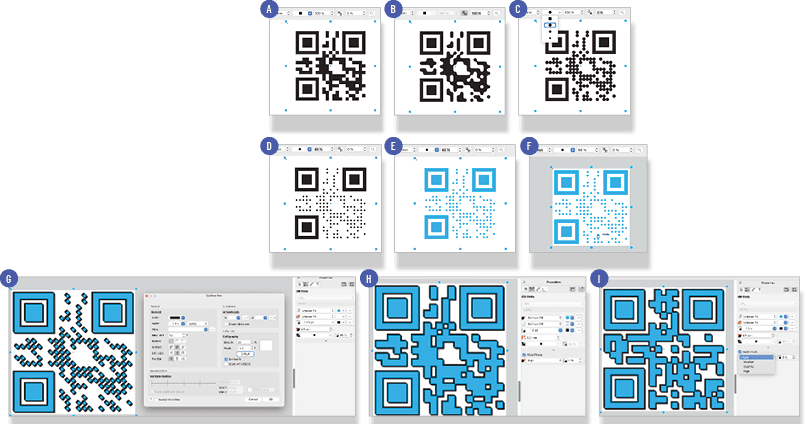
If you scan the figure’s QR code, you’ll notice it doesn’t work! Once the code is merged, however, it will work fine. Why? The next section holds the answer.
Previewing the Live Artwork
The apps all offer live previews of the actual data in place of the placeholder data/field labels, except for CorelDRAW. As a workaround, Corel advises you use the Print Preview dialog box to scroll through records.
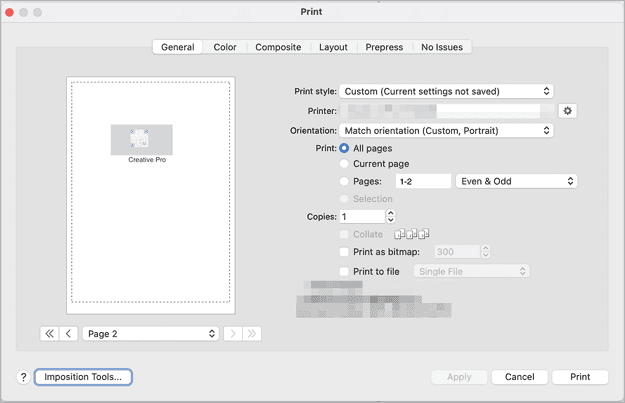
When I tested this on my Mac, however, CorelDRAW didn’t have a Print Preview option in the File menu. I could click the Print Merged Document button in the Print Merge panel, but the preview was too small (Figure 6).
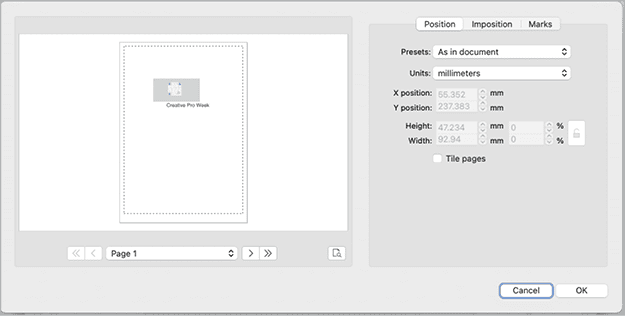
When I clicked the Imposition Tools button, I was taken to a similar dialog box with the familiar Print Preview button (Figure 7) but clicking it didn’t do anything. Hopefully, this bug will get patched by the time you read this, but I would still prefer an actual live preview option instead.
That said, other apps’ live previews are not without their own problems.
In the Affinity preview, I found that if an item on the page was selected, only that item would reflect the preview when I’d scroll through the records (Figure 8). You can work around this behavior by selecting everything and toggling through a couple records, and despite the preview problems, the file I used did merge to a new file correctly.
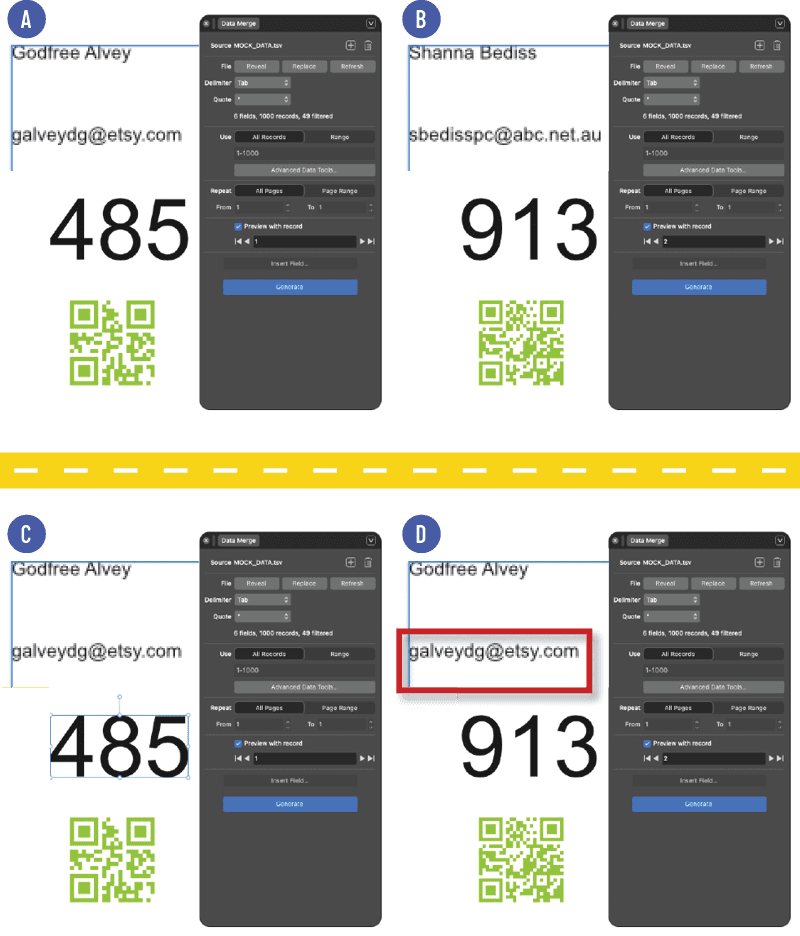
The preview works well in InDesign, but if the Remove Spaces Blank Lines From Empty Fields option is turned on in the dialog box prior to previewing, InDesign may apply unwanted formats to lines below. A change request for this issue has been submitted to Adobe on the InDesign User Voice page.
Support for Variable Images
All five apps can insert variable images, and they all can:
- Import BMP, GIF, HEIF/HEIC, JPE/JPEG/JPG, PNG, TIF/TIFF, and WEBP formats
- Use a database that has the path to the image written out in full (e.g., /Users/myComputer/Documents/images/image.jpg)
- Import the image at its size assigned in the file (e.g., 5″ × 2″ @ 150ppi)
Apart from that, their import capabilities vary greatly, as you can see in Table 5.
| InDesign | Affinity | CorelDRAW | Illustrator | Photoshop | |
| Image field requires an @ symbol in its header row | Yes | No | Yes | Yes | Yes |
| Relative or full file path to images | Either | Either | Full | Full | Either |
| Other raster formats supported | CT, JP2, PCT, PCX, PSD*, SCT | HDR, JP2, PSD*, TGA | PCX, PSD*, SCT, TGA | JP2 | HDR, JP2, PCX, PSD*, SCT, TGA |
| Vector formats supported | AI*, EMF, EPS, PDF*, SVG, WMF | AF*, AI*, DXF, EPS, PDF*, SVG | AI*, EPS, PDF*, SVG | AI^, EPS^, PDF^, SVG^ | |
| Digital Negative formats supported | CR2, DNG, NEF, NRW | CR2, DNG, NEF, NRW | CR2^, DNG^, NEF^, NRW^ |
* Places only page/artboard 1 ^ Launches the Import filter or Adobe Camera Raw for each entry
What about image size?
Illustrator imports images at their native size only, but the other apps enable you to resize the variable image in various ways (Table 6).
| InDesign | Affinity | CorelDRAW | Photoshop |
| Fill frames proportionally | Scale to max | Fill proportionally | Fill |
| Fit frames proportionally | Scale to min | Fit proportionally | Fit |
| Fit images to frames | Stretch | Stretch to fit | Conform |
| Preserve frame and image sizes | None | Actual size | As is |
| Fit frames to images | Size frame to content | ||
| Content-aware fit | |||
| Use existing frame fitting |
My biggest takeaways from researching variable image handling were:
- CorelDRAW cannot import vector graphic formats for Print Merge. I confirmed this with Corel and was told that currently the Print Merge Image Fields feature supports bitmap images only.
- Illustrator offers no control over the size of the variable images; they appear at their native size.
- InDesign and Illustrator cannot import Digital Negative image files. They can import the low-resolution preview, but not the high-resolution file that the preview represents.
Support for Multiple Records per Page
Both InDesign and Affinity can create multiple records per page, which is great for making basic catalogs or contact sheets at fixed sizes. However, InDesign can preview only one record at a time. Affinity provides a live preview of the entire page.
You could use this full-page, multi-record preview as a print imposition, but note that the next record will appear on the same page as the record before it. In other words, it would not be suitable for items like raffle tickets or numbered stationery where the next number should be the page underneath (known as “cut and stack”). InDesign does not support creating print impositions.
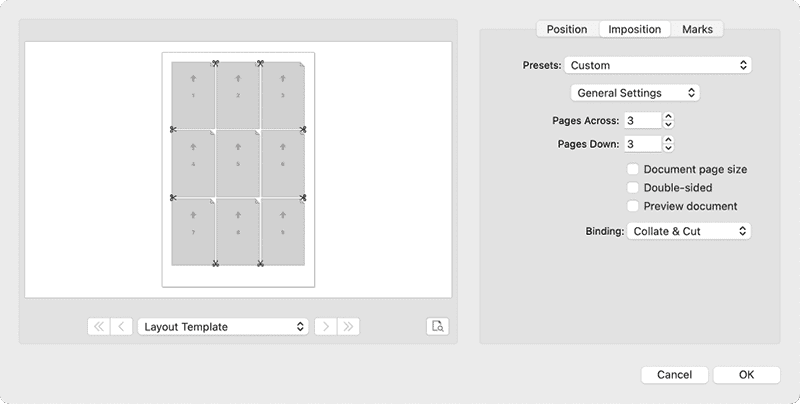
CorelDRAW can create only one record per page, but you can use its Print to PDF feature in combination with the Imposition tool in the Print dialog box (Figure 9) to lay out the records so that several records are on a page. Although you could not use such a document for catalog or contact sheet layouts, it would be ideal for impositions. Plus, the Imposition tool offers options for cut-and-stack impositions.
Despite both Illustrator and Photoshop supporting multiple artboards, neither support exporting to a single native file with multiple artboards, nor do they support merging many files together on one artboard.
None of the five apps can insert records sequentially in same text frame, which would be handy for preparing catalogs or lists.
Exporting
Once your data is merged, how well do the tested programs export the results?
InDesign creates a merged document as an INDD or export to a PDF directly. The PDF is a variant of its Adobe PDF (Print) format, a watered-down version that prohibits you from applying several features when exporting directly, such as:
- Merge to an interactive PDF
- Specify a page range (not the record range)
- The ability to display as spreads
- Create Tagged PDF
- Create Acrobat Layers
- Create Hyperlinks
CorelDRAW and Affinity export to their native file formats only, although CorelDRAW offers a Print To PDF option that uses the Imposition tool in the Print dialog box.
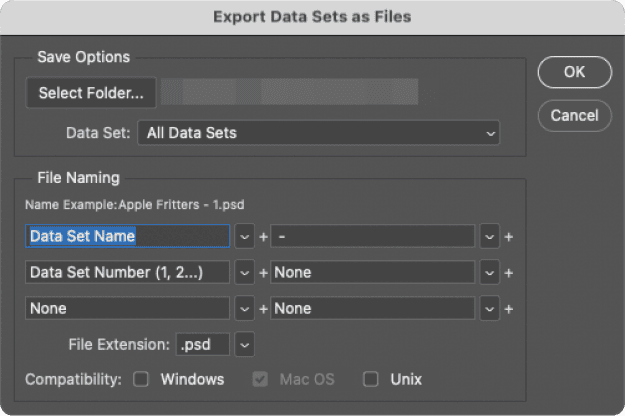
Photoshop exports to native file formats only, but not from the Variables dialog box. Instead, you choose File > Export > Data Sets As Files (Figure 10).
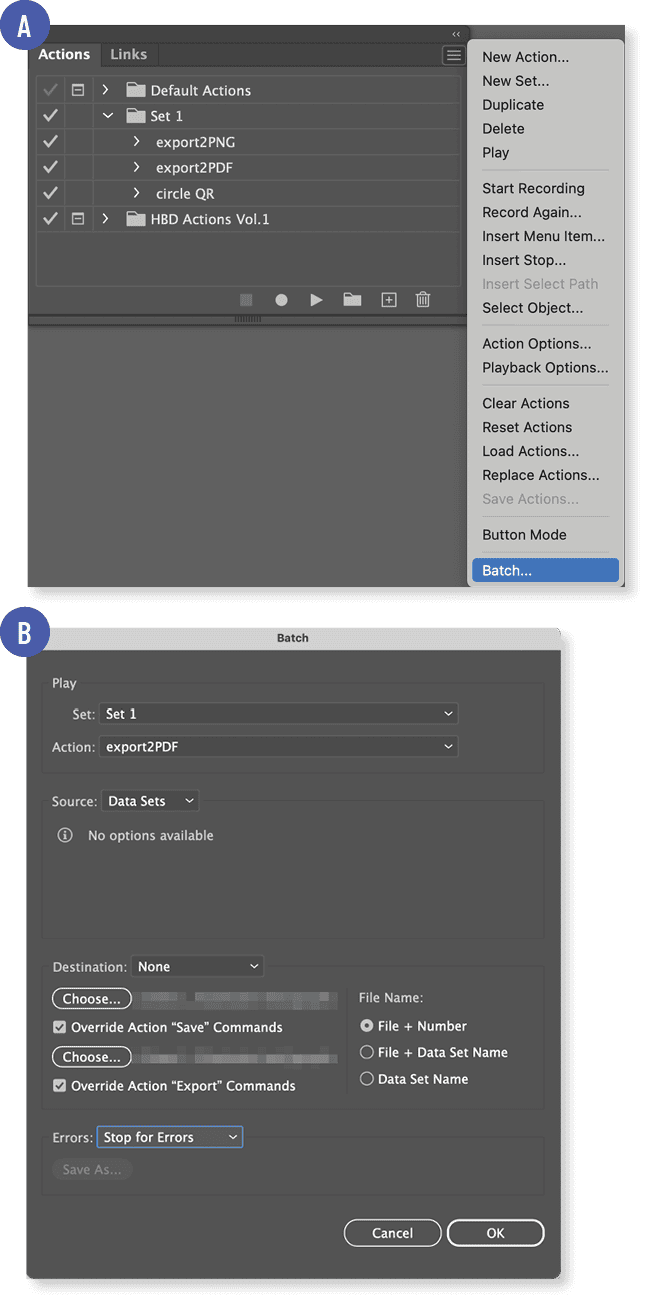
Illustrator provides the most file formats to export to but is the most frustrating app to export from, because it offers no default format. Instead, you must first make an export action in the Actions panel, and then select Batch from its panel menu (Figure 11a). In the Batch dialog box, you can export the data to any format that Illustrator supports for export, including SVG, PNG, or PDF (Figure 11b).
Where Each Program Shines
The mark of a good app is that its best features meet your most pressing needs and priorities. To recap, here’s how InDesign, Illustrator, CorelDRAW, Affinity, and Photoshop excel at handling variables and the data merge process.
InDesign
- Direct export to PDF. Keep in mind, however, that the resulting PDF has limitations (previously mentioned) compared to usual PDF creation.
- GREP styles. You can use GREP styles to change the formatting of the variable text fields.
- Multiple copies and customized record sequencing. You can make multiple copies of the same record upon export (e.g., entering 1,1,1,1,1 in the Export Range will yield an INDD/PDF file with five merged sets of record 1) or export records out of sequence (e.g., entering 3,2,1 in the Export Range will yield the records in that order).
Illustrator
- Variable graphs. You can bind a graph drawn with the Illustrator Graph tool to a field that has graphing information. Note, however, that the process of making variable graphs is very complicated.
- Live type effects with graphic styles. This can turn ordinary, boring type into amazing art that will really grab a reader’s attention.
CorelDRAW
- Imposition for printing. From a newly merged CorelDRAW file or from a direct print merge, you can take advantage of the Imposition tool to set up single or double cuts, n-up printing, or cut-and-stack printing for items such as numbered stationery.
- Greater QR code control. You can change the appearance of the code in terms of color, dot shape, and quiet zones.
- Creates numbered lists without a database. Even without a database, you can make numbered stationery by creating a new document, adding a numeric column via the Configure Data Source dialog box, and then applying a format, as well as specifying start and end values. (Figure 12).
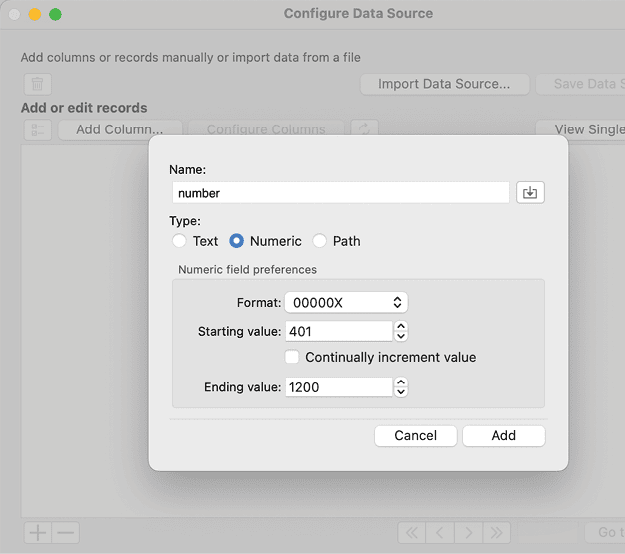
You can create a numbered list without a database in CorelDRAW.
Affinity
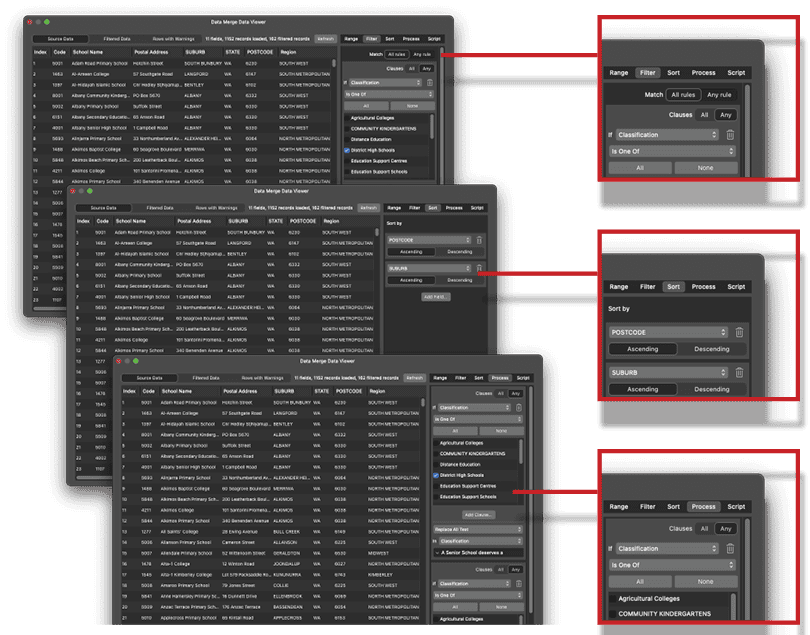
- Filtering. The Data Merge Data Viewer allows you to sort the data, filter the data, and process the data based on specific rules (Figure 13). Tread carefully here, though, the feature was prone to crashing Affinity during my tests.
- Type effects. Because Affinity can apply photo and vector filters to type, all from within the same app, you can easily take your type effects to another level.
Photoshop
- Layer control. Photoshop enables you to toggle many layers at once, which is ideal for setting up a single Photoshop file as a branding template.
Improvements Each Program Needs
Recognizing potential pain points before you start will make the data merge processes smoother. Here’s a recap of upgrades and fixes I’d like to see for each app.
InDesign
- Add the ability to import Excel files as data. The competitors can do it, yet this option still isn’t available for InDesign.
- Enable greater flexibility for QR codes. At least provide an option to change the QR code’s color, or at best add similar functionality to the options available for creating QR codes with Adobe Express.
- Improve direct exporting to PDF. Enable export to Adobe PDF (Print) format or as an interactive PDF.
Illustrator
- Improve how the merge process works. For starters, provide a default export format. Also, make the controls more intuitive to find.
- Support QR codes. Add QR codes to the list of items that variables can produce.
- Simplify the procedure for producing variable graphs. If the process were easier, more users would almost surely take advantage of this feature.
- Support variable type within a text element. Not being able to place data into of a larger paragraph is a huge drawback.
- Provide more options for resizing a variable image. All competitors offer more flexibility and customization.
CorelDRAW
- Provide a live preview. Going through the Print Preview dialog box is awkward, and live previews are standard for all the competitors.
- Support vector images during data merge. The inability to use vector files as an image type is a major limitation.
- Provide direct export to a PDF. Limiting direct export to only CorelDRAW files makes the merge results harder to share.
Affinity
- Add direct export to a PDF. Again, direct export to only the app’s own format is limiting.
- Fix filtering and preview bugs. During testing, Affinity crashed my machine several times because of these instabilities.
- Support GREP styles. Affinity does support regex, but adding a feature similar to GREP styles in InDesign would broaden what you could achieve with Data Merge.
- Provide sample scripts. While users can use Claude to write their own scripts to automate the filtering functions of the Data Merge Data Viewer, having some built-in scripts to tackle common tasks would save time.
Photoshop
- Refine the process for applying data to a variable project. Currently, it is unforgiving—headers must be identical to variables already set up in the PSD file, and header naming rules are outdated.
- Add QR code support. The competitors can produce QR codes from variables; even basic support would be welcome in Photoshop.
- Simplify and expand. Just like for Illustrator, make the export function easier to find and use and provide some other file formats as options.
- Allow smart objects to contain variable fields. Most cool Photoshop graphic effects use smart objects, but unfortunately they cannot be variable.
The Comfort Factor
So which of these five competitors do I recommend? The one you’re comfortable with.
If you use Illustrator all day and are familiar with variables in Illustrator, then use that. If InDesign is your bailiwick, keep on using it. I say this because there’s nothing like embarking on a project using unfamiliar software, only to become stuck on a technical issue that you don’t know how to solve but would know how to solve if you were using what you’re used to.
Commenting is easier and faster when you're logged in!

Recommended for you

Index Fixes: No Styling in Topic Names
Topic names cannot natively be styled in the Index panel. However, a simple solu...
Using Align to Key Object in Illustrator
The Align panel in Adobe Illustrator is a quick and easy way to align or distrib...

Quick Wins: Handling Images in InDesign
Use these five resources to boost your image-handling skills in InDesign