




If you’re an experienced InDesign user, you know that using keyboard shortcuts is one of the best ways to boost your efficiency. The more you can keep your hands on the keyboard, the faster you work.
So, you might know that when when your cursor is in the first cell of a table, pressing the left arrow will move the cursor out of the table into the containing text frame.
But this is a one-way street. When your cursor is before the table, pressing the right arrow will not move your cursor into the table. Instead, it jumps the table entirely. Boo!
But there are some ways to get around this.
The first is to use the Story Editor (Command/Ctrl+Y).
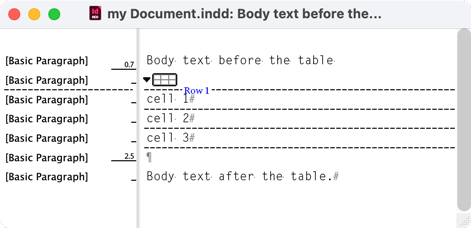
When you’re working in the Story Editor, you can move your cursor into and out of table text with the arrow keys.
The other option is to run a script using a keyboard shortcut. This question came up recently in our forums and David Blatner jumped in with a simple script that he vibe coded in no time.
Read more about the script, download it, and join in the discussion here.
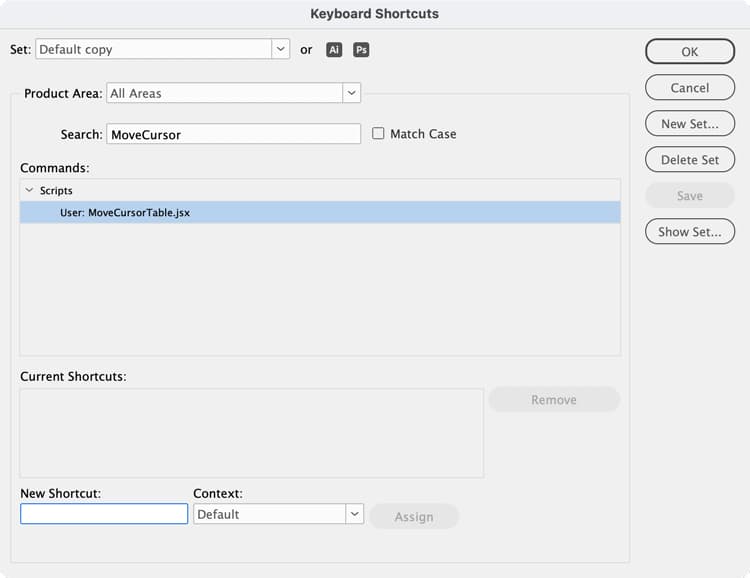
To assign a keyboard shortcut to a script, Choose Edit > Keyboard Shortcuts. Type the name of the script into the Search field to locate the script. Then in the New Shortcut field, type in the shortcut you want to use.
This article was last modified on August 23, 2026
This article was first published on August 23, 2026
Commenting is easier and faster when you're logged in!

Recommended for you

The Peter Kahrel Script Repository Gets a CreativePro Makeover
Peter Kahrel is one of the most prolific and influential InDesign scripters of a...

The 5 Rules of Efficiency for InDesign
You'll rake in the efficiency jackpot every time with these five basic rules.
