



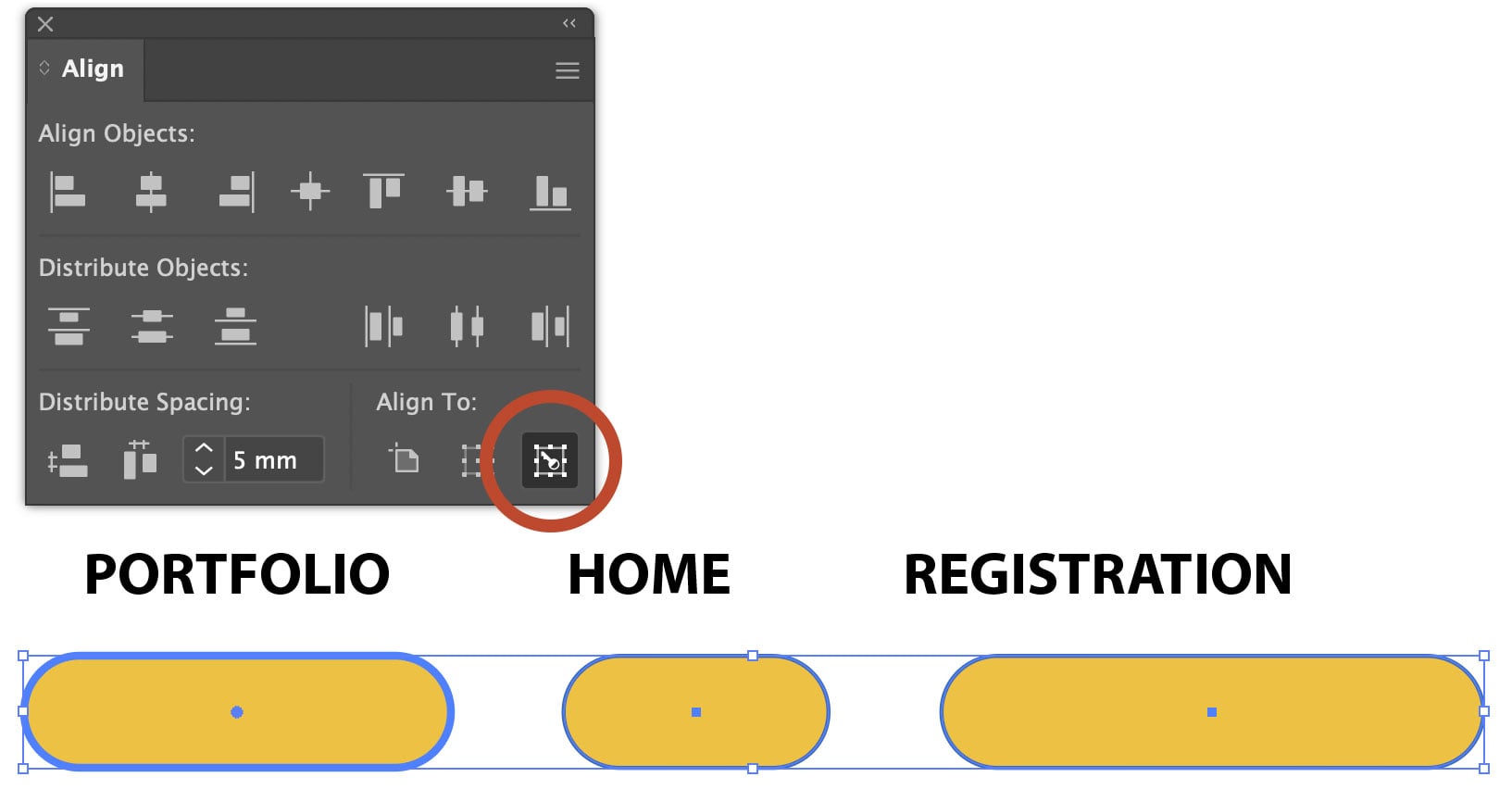
The Align panel in Adobe Illustrator is a quick and easy way to align or distribute objects. The Align to Key Object button allows you to perform the same function relative to a specific object, without moving it – and this makes the tool very much more powerful.
Open the Align Panel
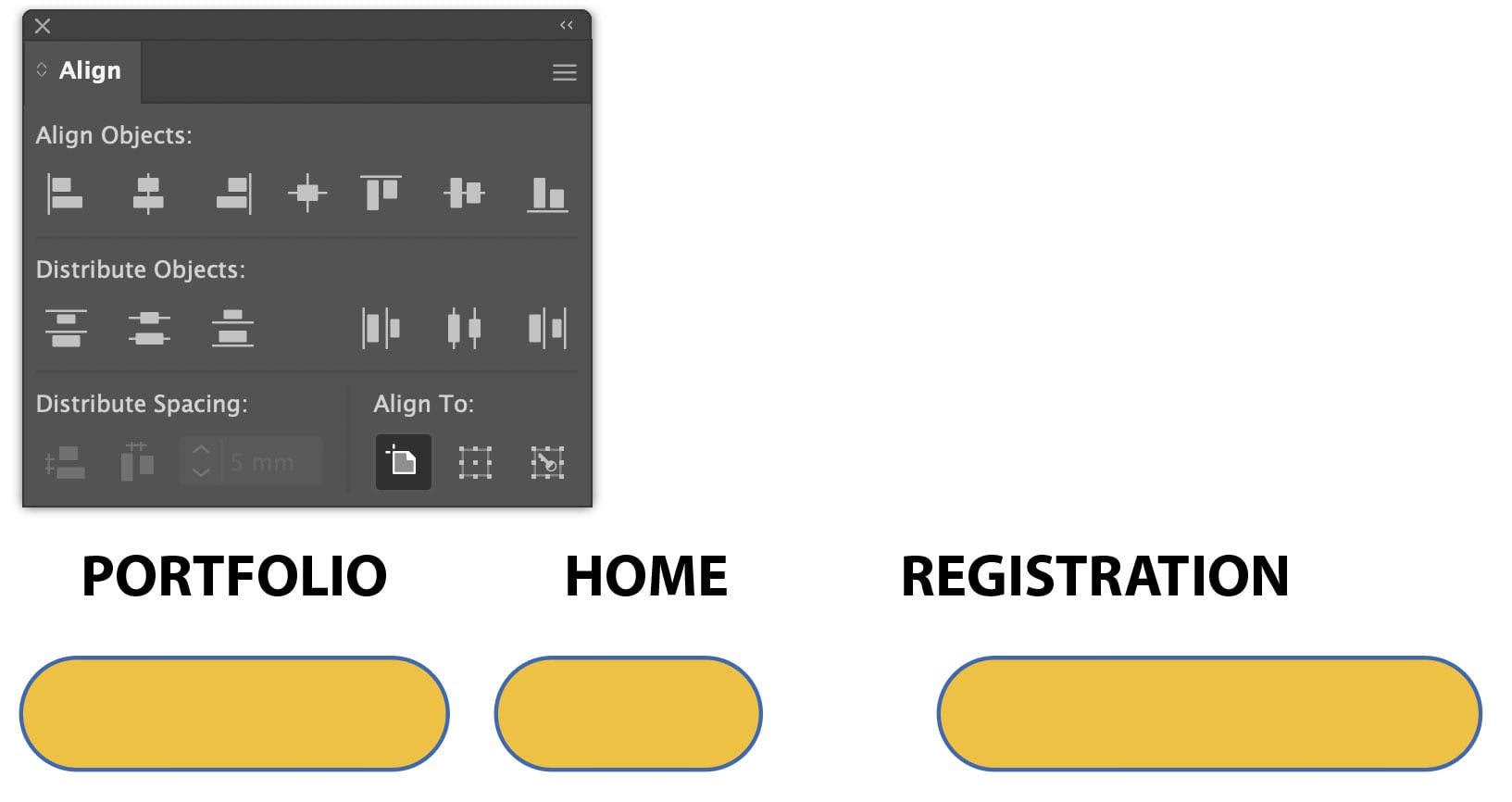
This artwork comprises six objects: three buttons, and three labels. We’re going to use the Align Panel (you’ll find it in the Window menu) to combine them.
Aligning the Buttons
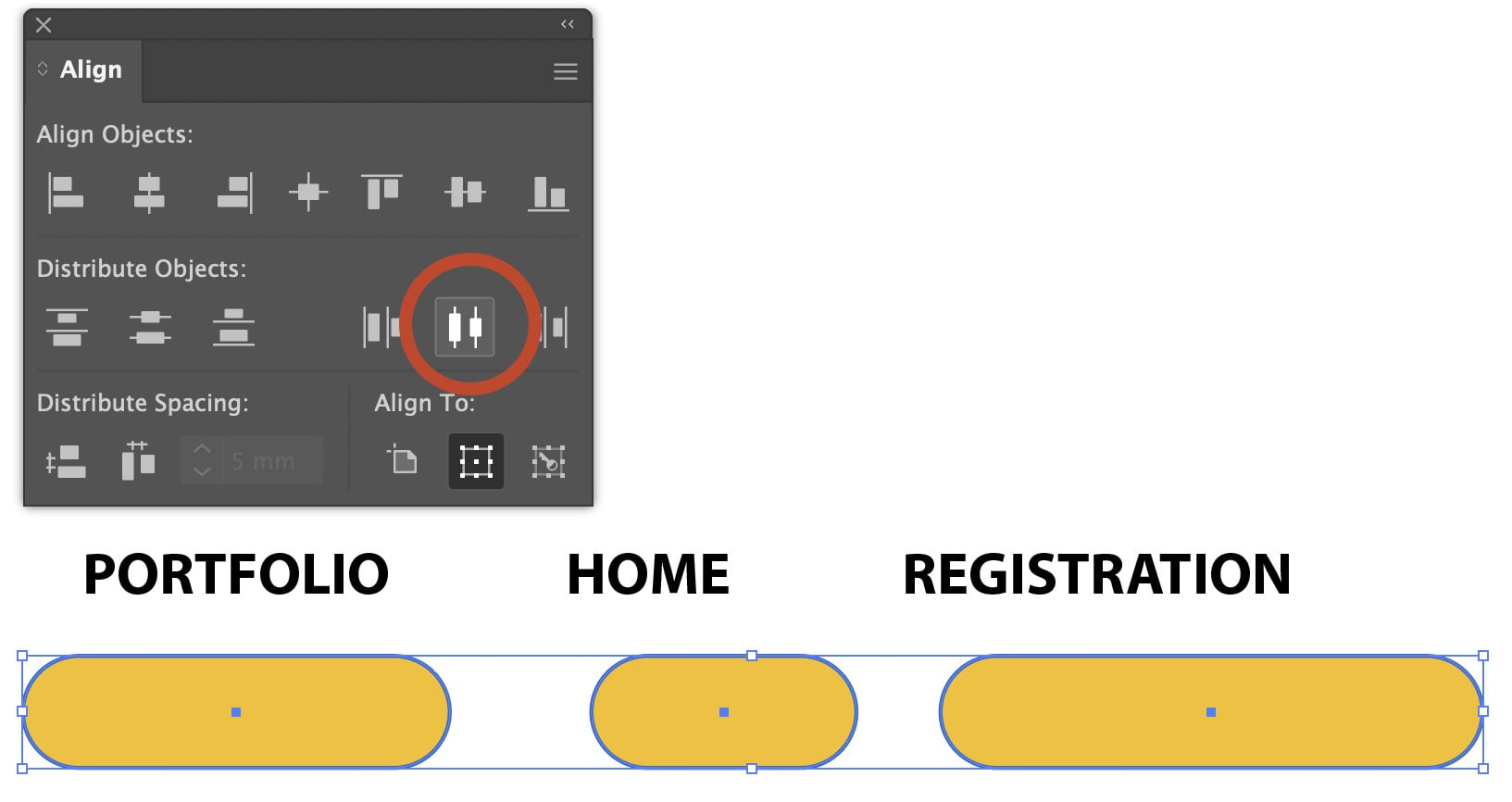
Select the three buttons. Simply clicking the Distribute Objects Center icon in the panel will apply equal spacing between the centers of the buttons. But because the buttons are different widths, the result is that the middle button is too far to the right.
Distribute Spacing
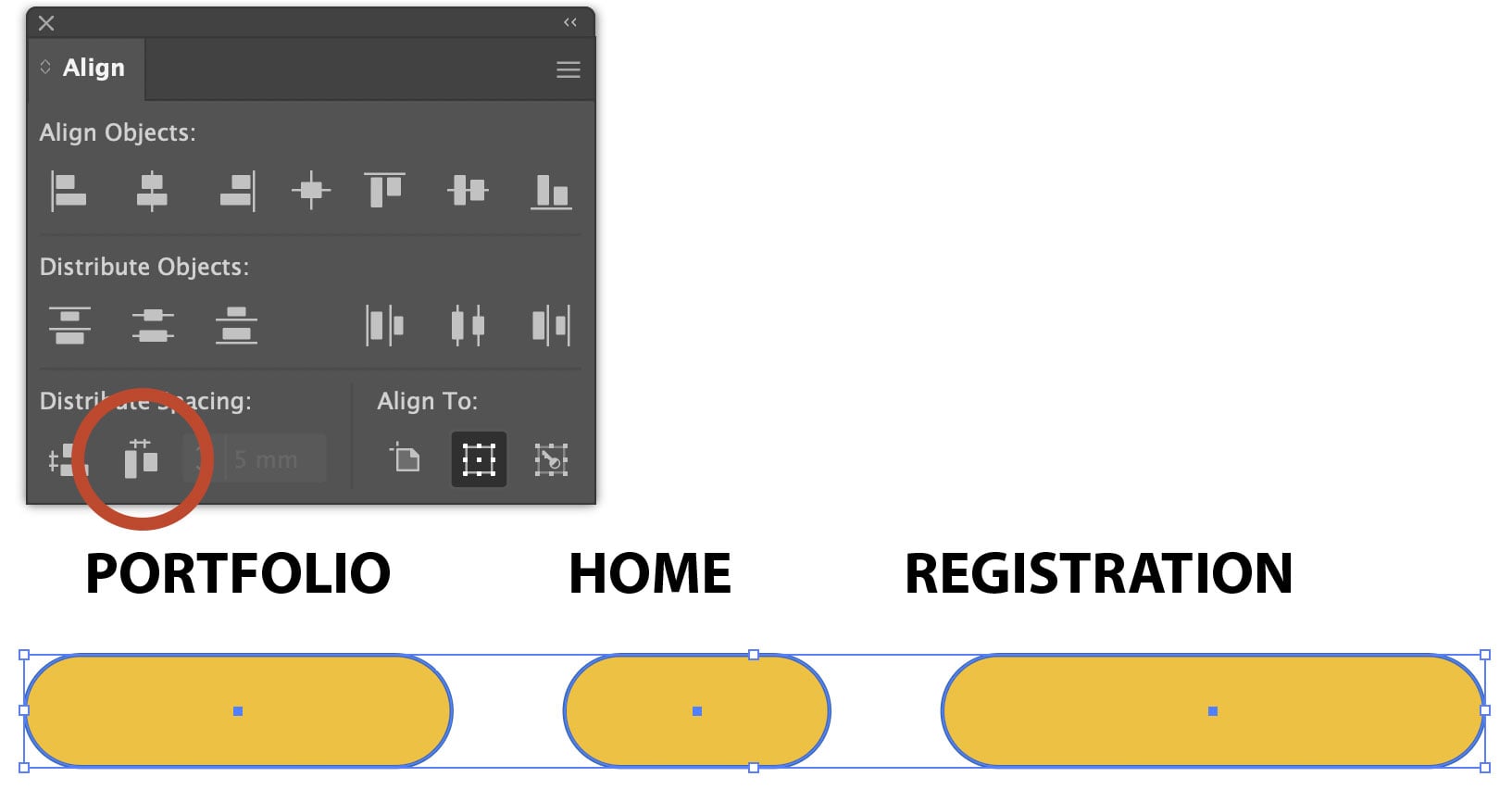
Instead, click the Horizontal Distribute Space icon in the Distribute Spacing section at the bottom of the panel. This will correctly apply spacing between the objects themselves, rather than their centers.
Making a Key Object
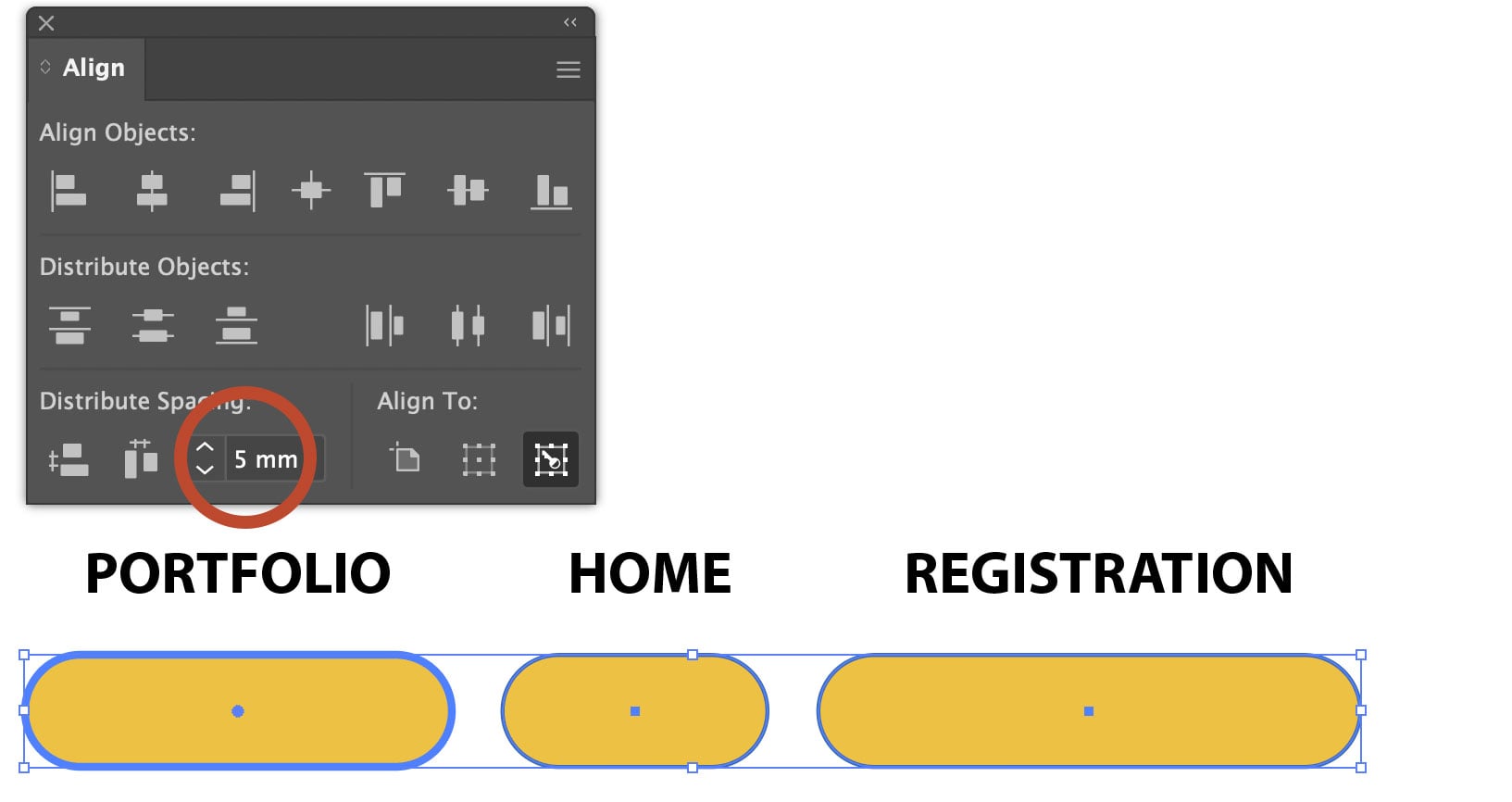
Select the three buttons as before, then click on the first button. It will be highlighted in blue, and the Align to Key Object icon will automatically be selected at the bottom right of the panel.
Set the Distance
If you wish, you can now use the Distribute Spacing section to set the precise amount of spacing required. When you click any of the alignment icons that value will be used to set the space between them.
Aligning the Text
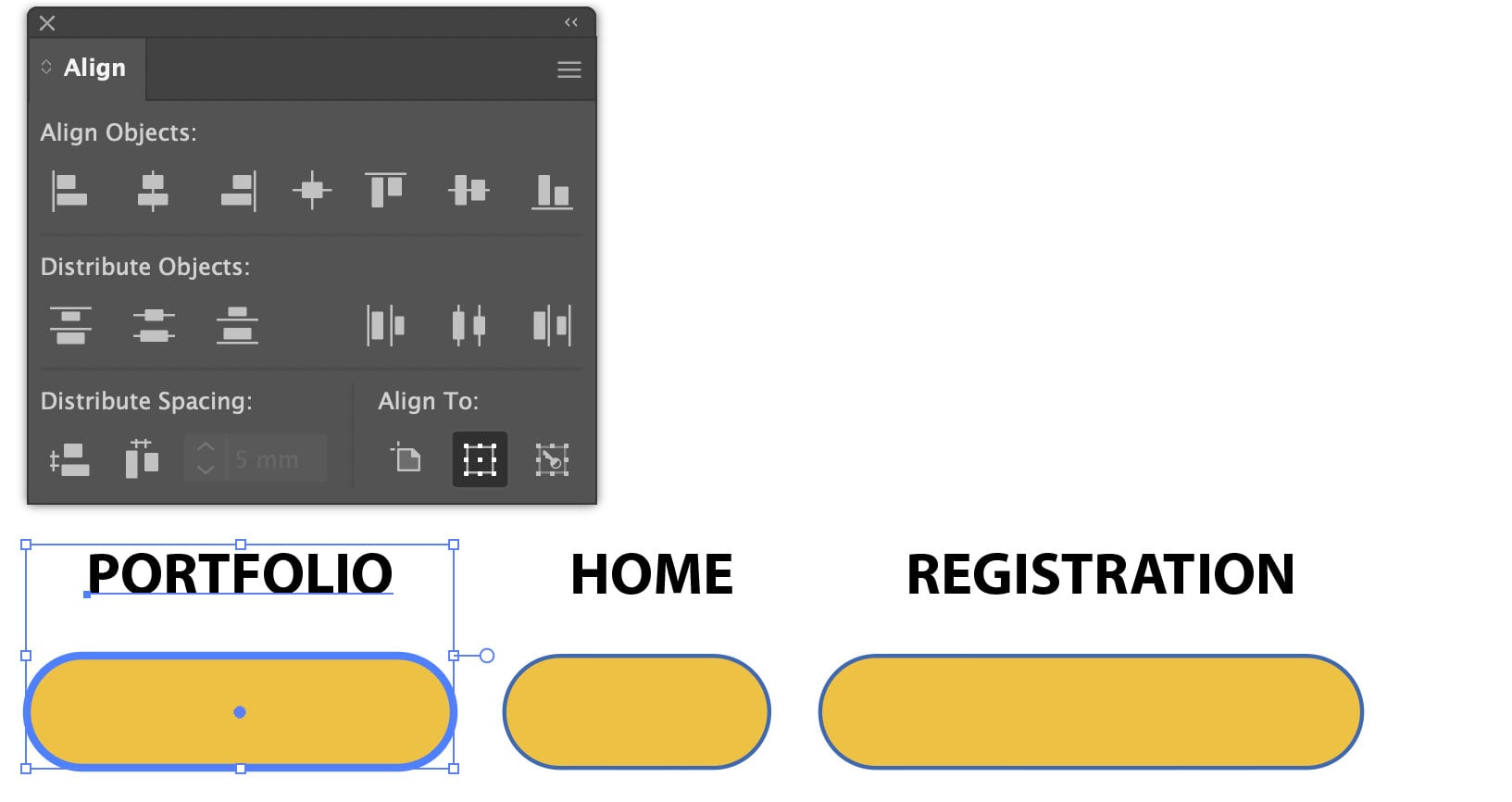
The next step is to align the text with the buttons. Select the first text and its button, then click again on the button. It will be outlined in blue, indicating that it is now a Key Object.
Aligning the Objects
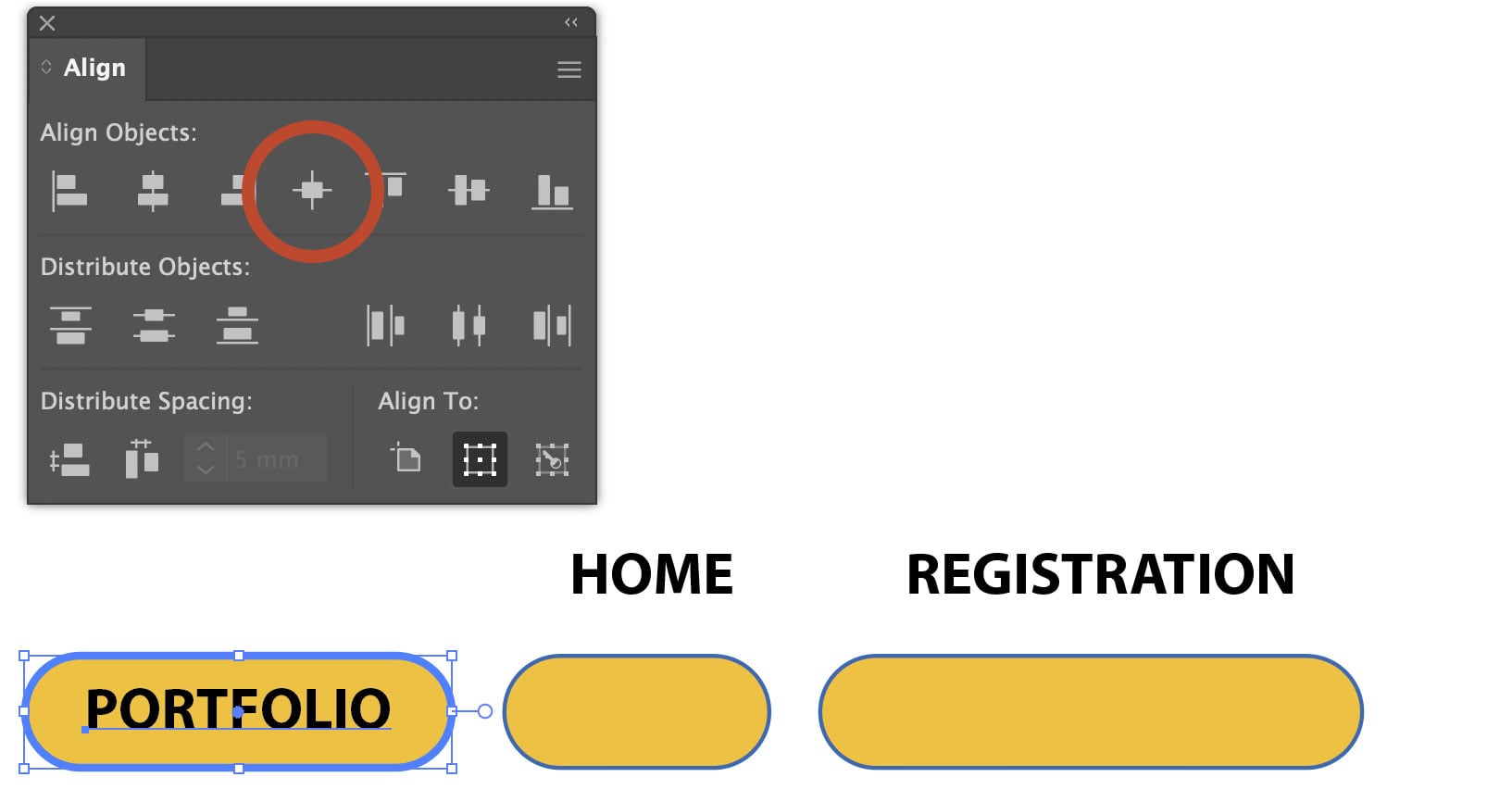
The June 2026 update to Illustrator includes a new icon that will align objects both vertically and horizontally simultaneously. When you click it the text will be aligned with the button, but the button itself will not be moved. As a Key Object, all alignments take place relative to that object.
Complete the Process
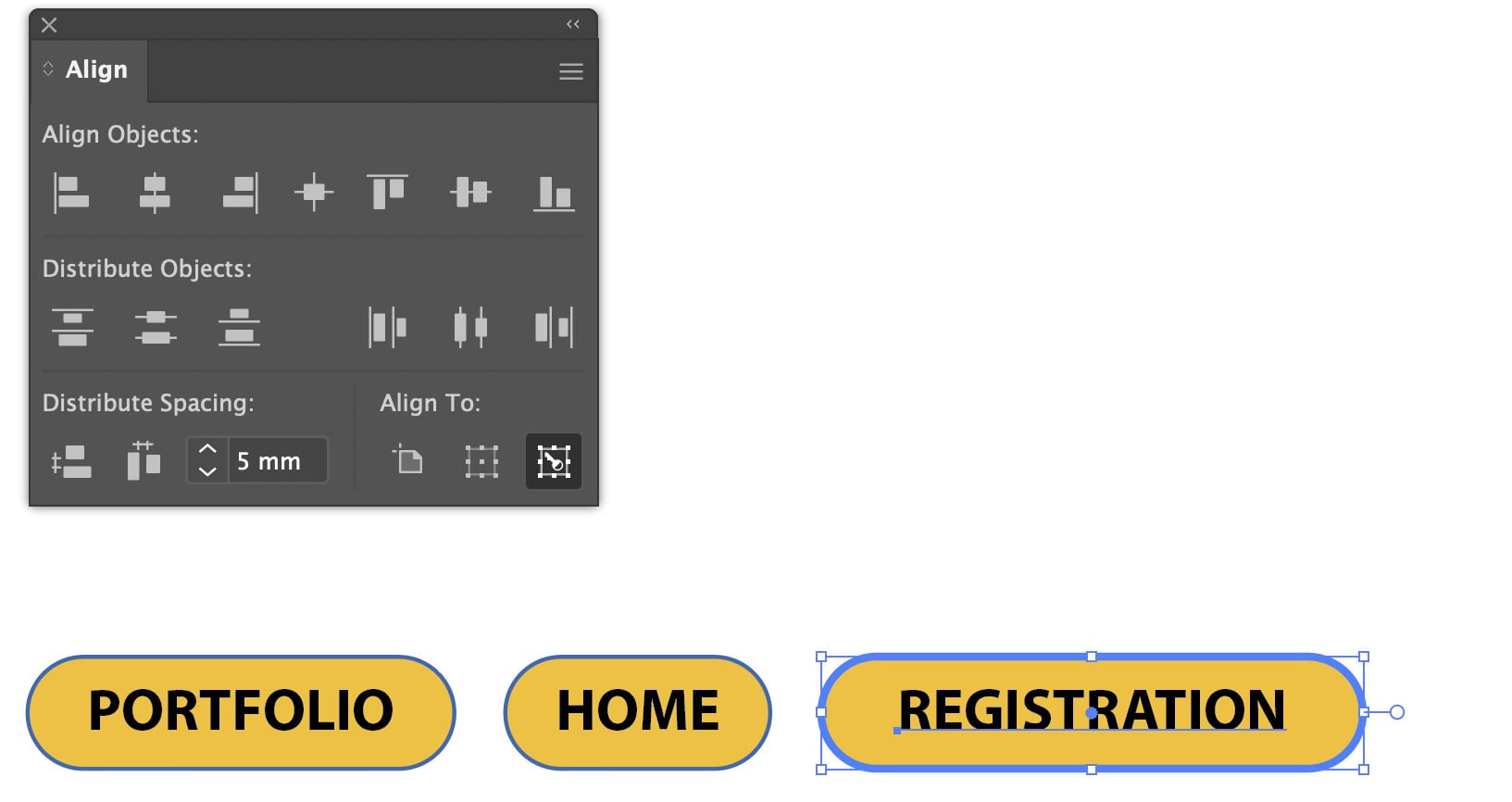
It’s now a simple task to select the remaining text and buttons, clicking each button again to make it a Key Object before using the Align Objects icon to line them up precisely.
This article was last modified on July 14, 2026
This article was first published on July 14, 2026
Commenting is easier and faster when you're logged in!

Recommended for you
Work Week Projects: File-Handling Features in Adobe Bridge
Five quick exercises to do while you're at work to learn important skills in Ill...

How to Smooth and Refine Paths in Illustrator
Learn how to easily smooth rough or bumpy paths in Illustrator using the Smooth...
Poll Results: Which programs do you wish you knew better?
The results of our poll asking if you still use Flash (SWF) and a new poll on wh...