



When you launch InDesign’s command for making QR codes (Object > Generate QR Code), you get a dialog box listing five options:
- Web Hyperlink
- Plain Text
- Text Message
- Business Card
So, you might think that those are the only things you can do with QR Codes generated in InDesign. But you can do lots more, if you know the proper syntax.
Here are some examples:
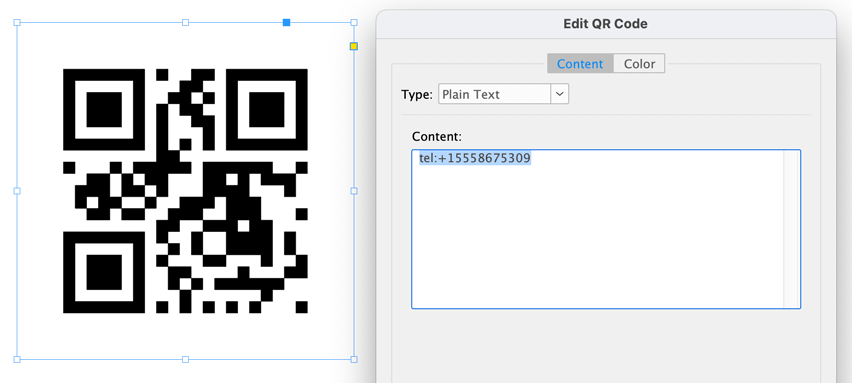
To make a QR code that dials a phone number, choose Plain Text and enter tel: followed by the phone number. (e.g. tel:+15558675309)
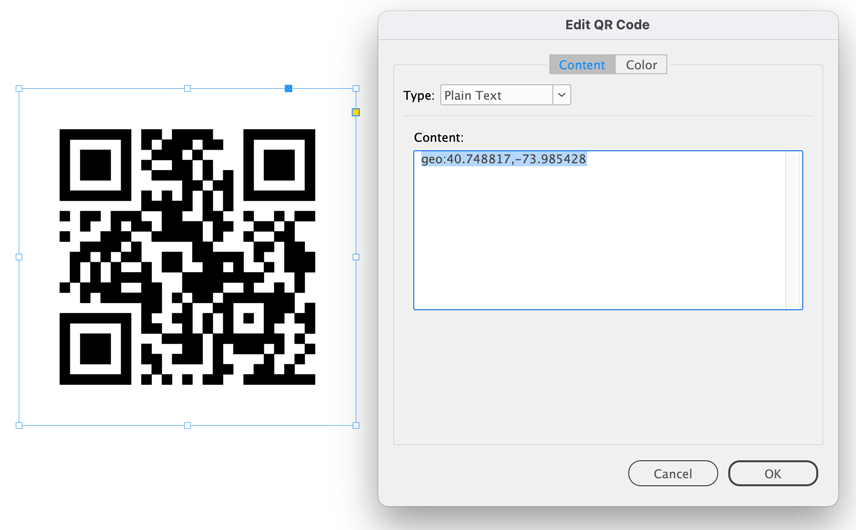
To make a QR code that opens your maps app to a specific location, choose Plain Text and enter geo: followed by the latitude and longitude coordinates (e.g. geo:40.748817,-73.985428)
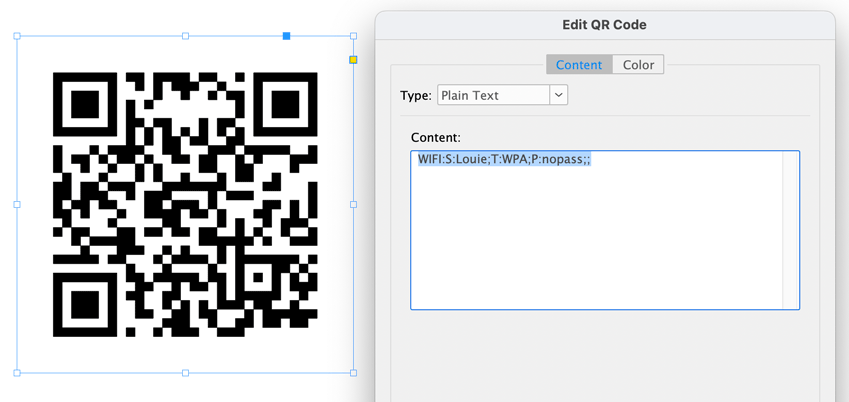
To make a QR code that logs onto a wifi network, choose Plain Text and enter WIFI:S:[network name];T:WPA;P:[password];; If it’s an open network with no password, enter nopass after the P:
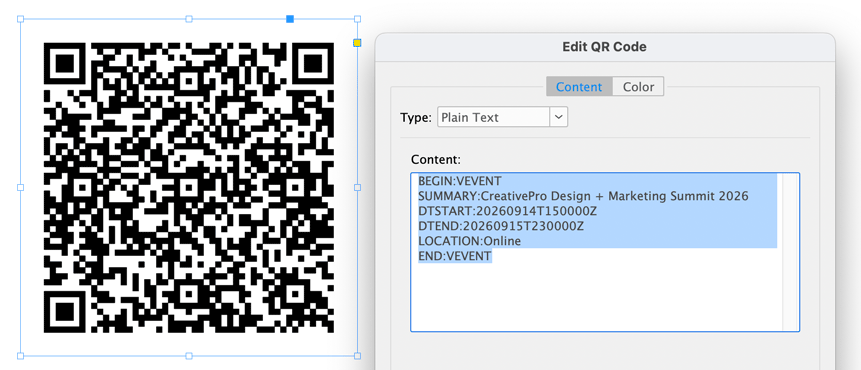
To make a QR code that creates a calendar event, use this syntax:
BEGIN:VEVENT
SUMMARY:CreativePro Week 2026
DTSTART:20260629T130000Z
DTEND:20260703T210000Z
LOCATION:JW Marriott Nashville, TN
END:VEVENT
To make a QR code that creates a new contact in the MECard format (simpler and easier to scan at small sizes than the Business Card option built into InDesign), use this syntax:
MECARD:N:LastName,FirstName;TEL:PhoneNumber;EMAIL:EmailAddress;NOTE:JobTitle;;
To make a QR code that sends a WhatsApp message, choose Web Hyperlink and use this syntax:
https://wa.me/15558675309?text=Hello
To make a QR code that launches a Facetime call, choose Plain Text and use this syntax: facetime:15558675309
This article was last modified on May 25, 2026
This article was first published on May 25, 2026
Commenting is easier and faster when you're logged in!

Recommended for you

GREP Editor
InDesign's Find what field must be one of the smallest and unfriendliest places...

A Closer Look at Check Spelling
Take the deep dive into the sometimes mysterious inner workings of InDesign's Ch...
Menu Actions
The script displays a list of menu actions, which can be filtered and sorted for...