



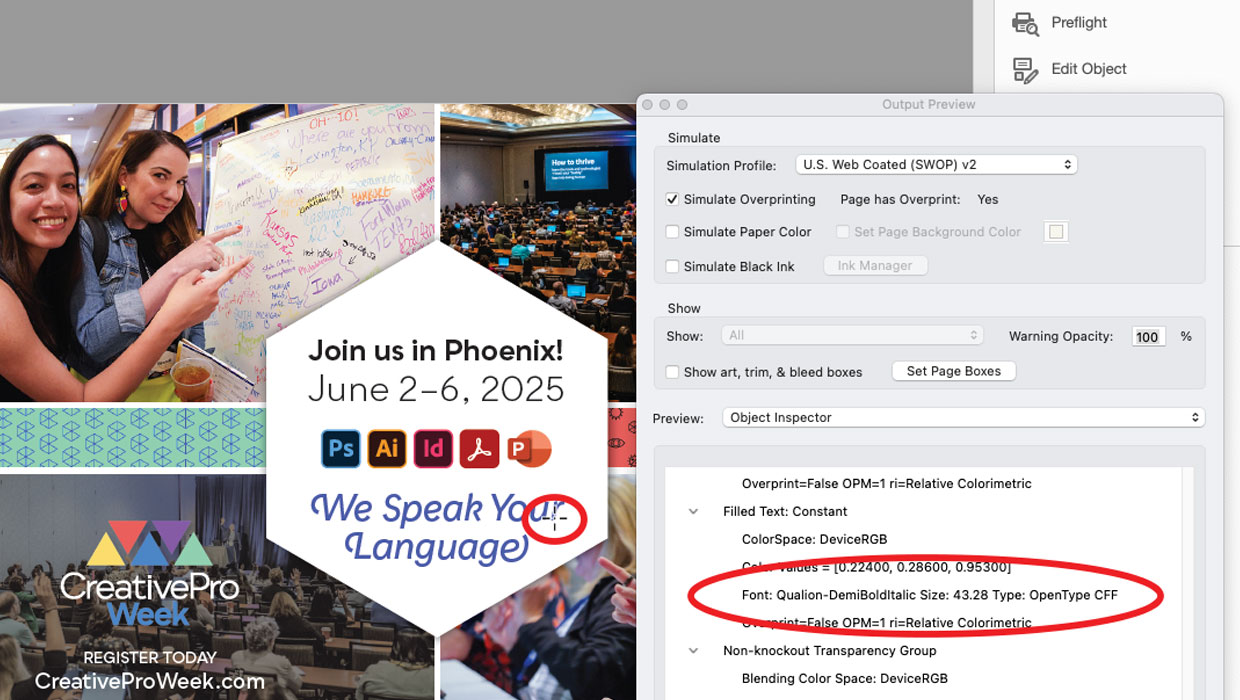
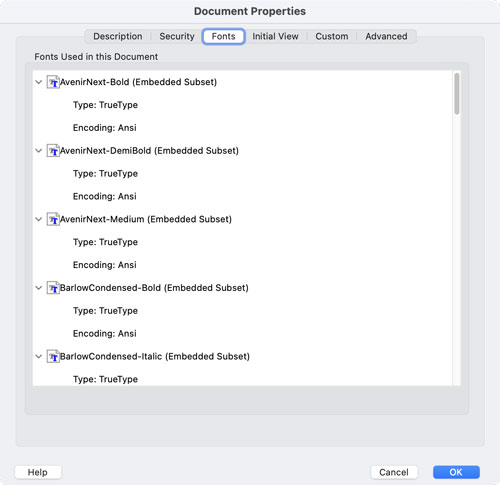
Have you ever looked at a PDF and wondered what fonts were used in it? A quick and easy way to do this in Adobe Acrobat is to choose File > Properties (Command/Ctrl+D). In the dialog box, click the Fonts tab to view a list of all the fonts used in the PDF.
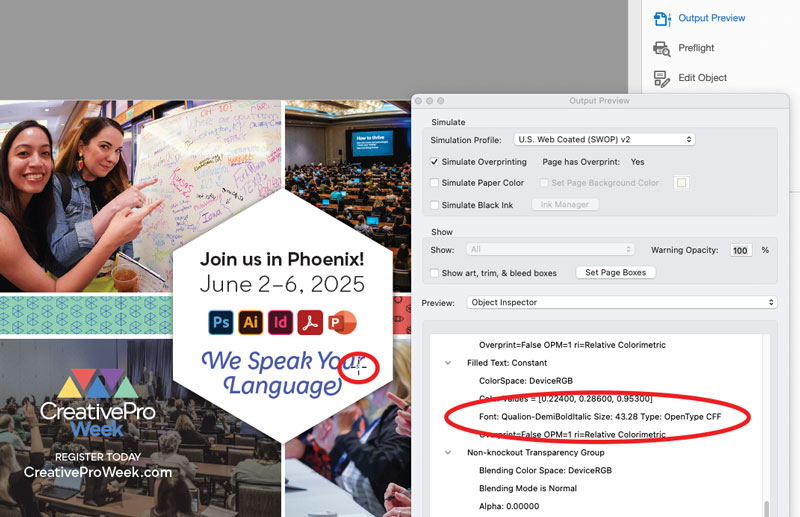
But this may not help much if you’re viewing a PDF that contains lots of fonts. To find the name of a specific font, open the Print Production tools and choose Output Preview. In the middle of the dialog box, there’s a Preview menu. Choose Object Inspector. Move your pointer over the type formatted with the font you want to identify and click. The font name, size, and type will be displayed.
The Object Inspector can only identify fonts used in live text. It won’t be able to identify fonts if the type has been rasterized or converted to outlines. Instead, it will (correctly) identify the object as a filled path or image. Likewise, if you go to Document Properties and don’t see any fonts listed, that means there’s no live text in the PDF.
This article was last modified on February 2, 2025
This article was first published on February 2, 2025
Commenting is easier and faster when you're logged in!

Recommended for you

Index Fixes: No Styling in Topic Names
Topic names cannot natively be styled in the Index panel. However, a simple solu...

The Peter Kahrel Script Repository Gets a CreativePro Makeover
Peter Kahrel is one of the most prolific and influential InDesign scripters of a...

Remove Blemishes in Photoshop With a Click
Khara Plicanic shows us how to remove blemishes from skin in Photoshop with just...