




In this “Three Minutes Max” video, Mike Parkinson shows how to create a scrolling timeline in PowerPoint with a parallax effect. He demonstrates that by moving the background image slightly between slides and the foreground timeline elements quite far, it gives the illusion of depth. Mike adds in the morph transition for a seamless look as elements glide between slides.
Three Minutes Max comes from a fun—yet very competitive—session at our annual CreativePro Week conference. Speakers have three minutes to wow the audience with the tip and win a prize for a lucky conference attendee.
Subscribe to the CreativePro YouTube channel for more helpful design tips!
This article was last modified on August 29, 2025
This article was first published on August 9, 2024
Commenting is easier and faster when you're logged in!

Recommended for you
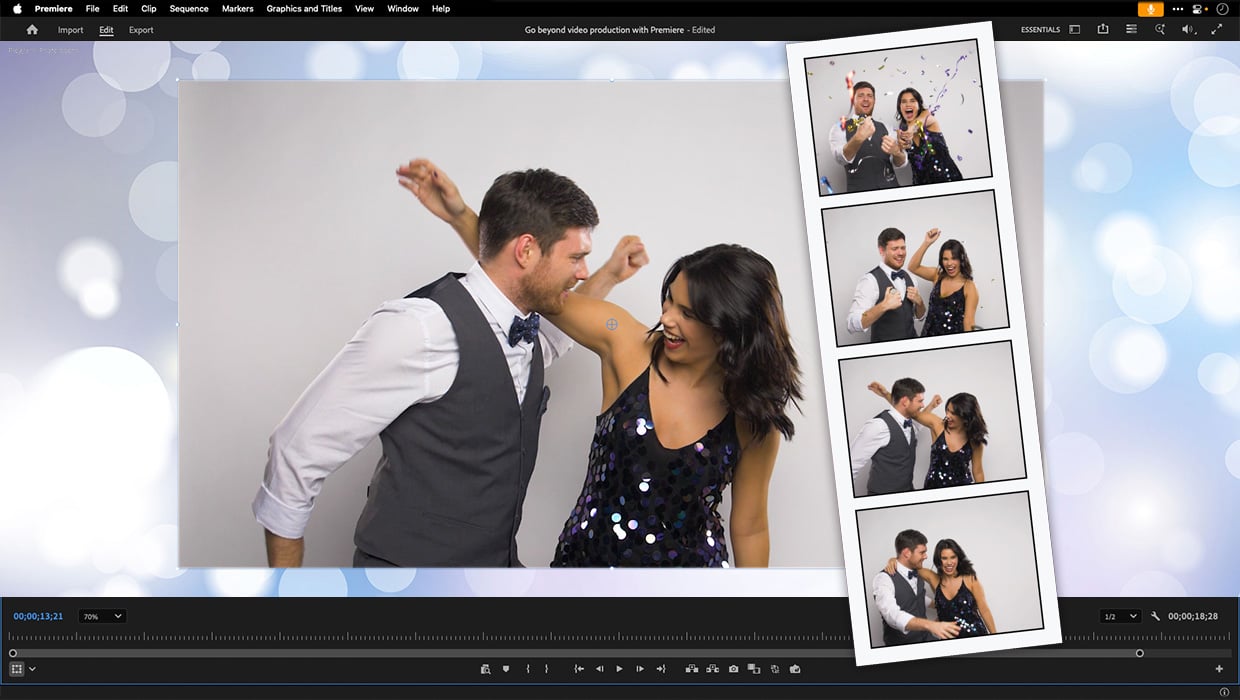
Premiere: It’s Not Just For Video
Designers using InDesign and Photoshop can look at Premiere as a surprising reso...

CreativePro Conversations: Visual Storytelling with Microsoft PowerPoint
Learn how PowerPoint enables people to tell compelling stories using strong visu...

PowerPoint for Print Documents
Using PowerPoint to make documents for print output is not as crazy as you might...