



Employing scripts in your Photoshop workflow can save you a huge amount of time and hassle over the long run. And with the scripts you run often, you can make things go even faster and smoother by assigning them custom keyboard shortcuts. That way, you can just press a couple keys and your script will launch instantly and do its thing.
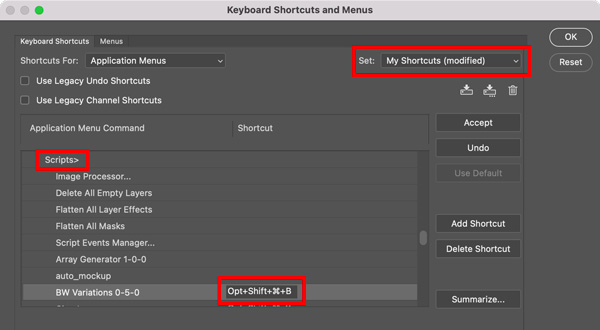
To assign a shortcut to a script you have installed in Photoshop, follow these steps:
Choose Edit > Keyboard Shortcuts
Click the New Set button ( ) to create a copy of the current set.
Choose Shortcuts For > Application Menus.
Click the Disclosure triangle next to File to reveal the all commands in that menu.
Scroll down to the Scripts submenu.
Locate the script you want to add a shortcut for.
Click in the Shortcut column and press the shortcut you want to assign to the script. Note that Photoshop requires you to include modifier keys (Command/Ctrl or F keys) in your keyboard shortcuts. The program also contains many default shortcuts, so you might have to try a few combinations before you find one that’s unused. You can also override the default command, if it’s not something you care about having a shortcut for.
Click the Accept button.
When you’re done click OK to close the dialog box.
Commenting is easier and faster when you're logged in!

Recommended for you

InDesign How-to Video: How to Use Spring-Loaded Tools
In this week’s InDesignSecrets video, Mike Rankin shows off an easy way to switc...

Updated Custom Zoom Script for InDesign
New script makes it easier than ever to zoom to any magnification level in InDes...

Resize Objects with a Keyboard Shortcut
This InDesign tip on How to Resize Objects with a Keyboard Shortcut was sent to...