




These InDesign keyboard shortcuts for positioning text are not only fast, but they’re fun to do, too—so try ’em out!
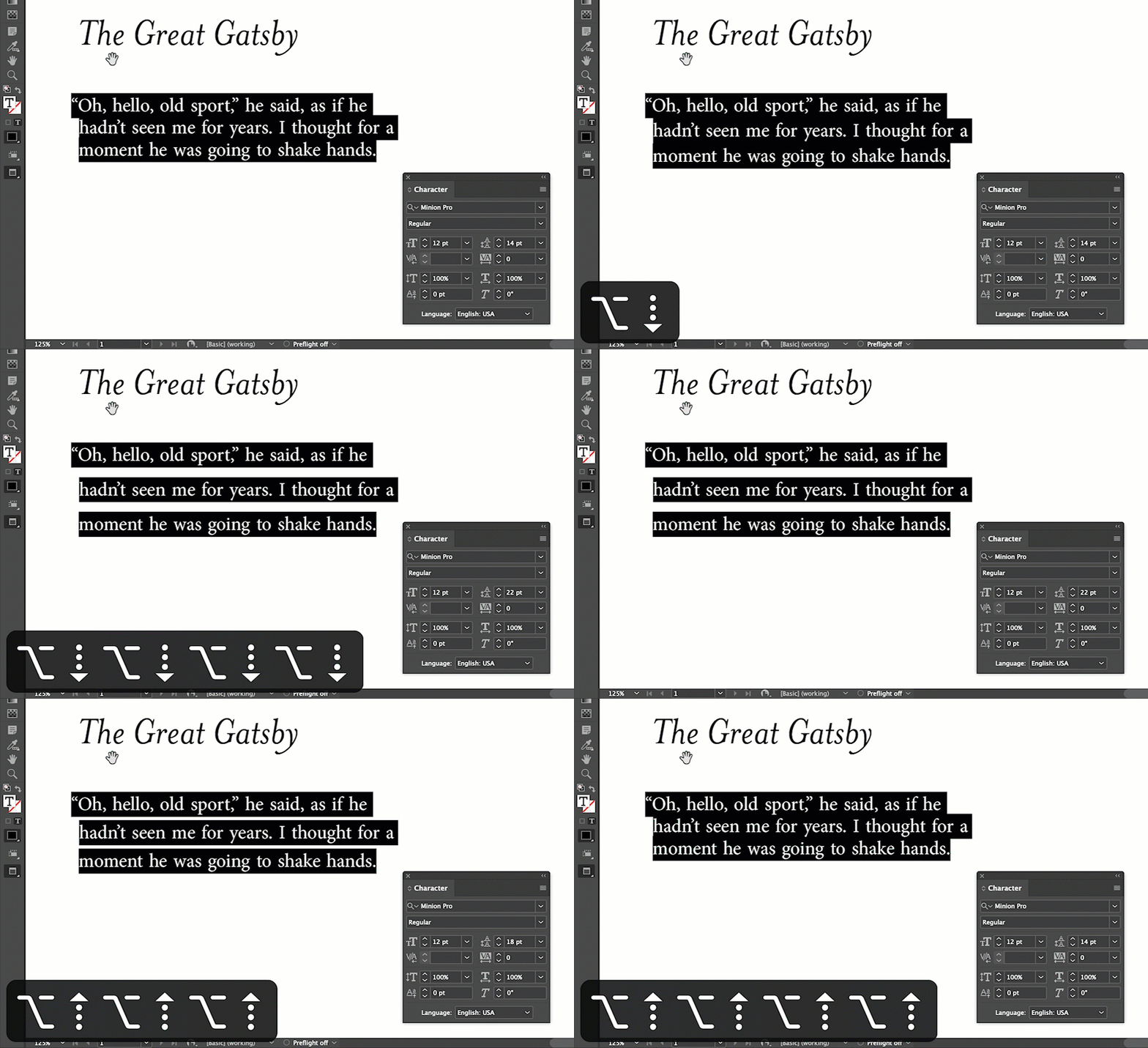
1. Leading: To increase leading, select the text then press Option+Down arrow; to decrease leading, use Option+Up arrow.
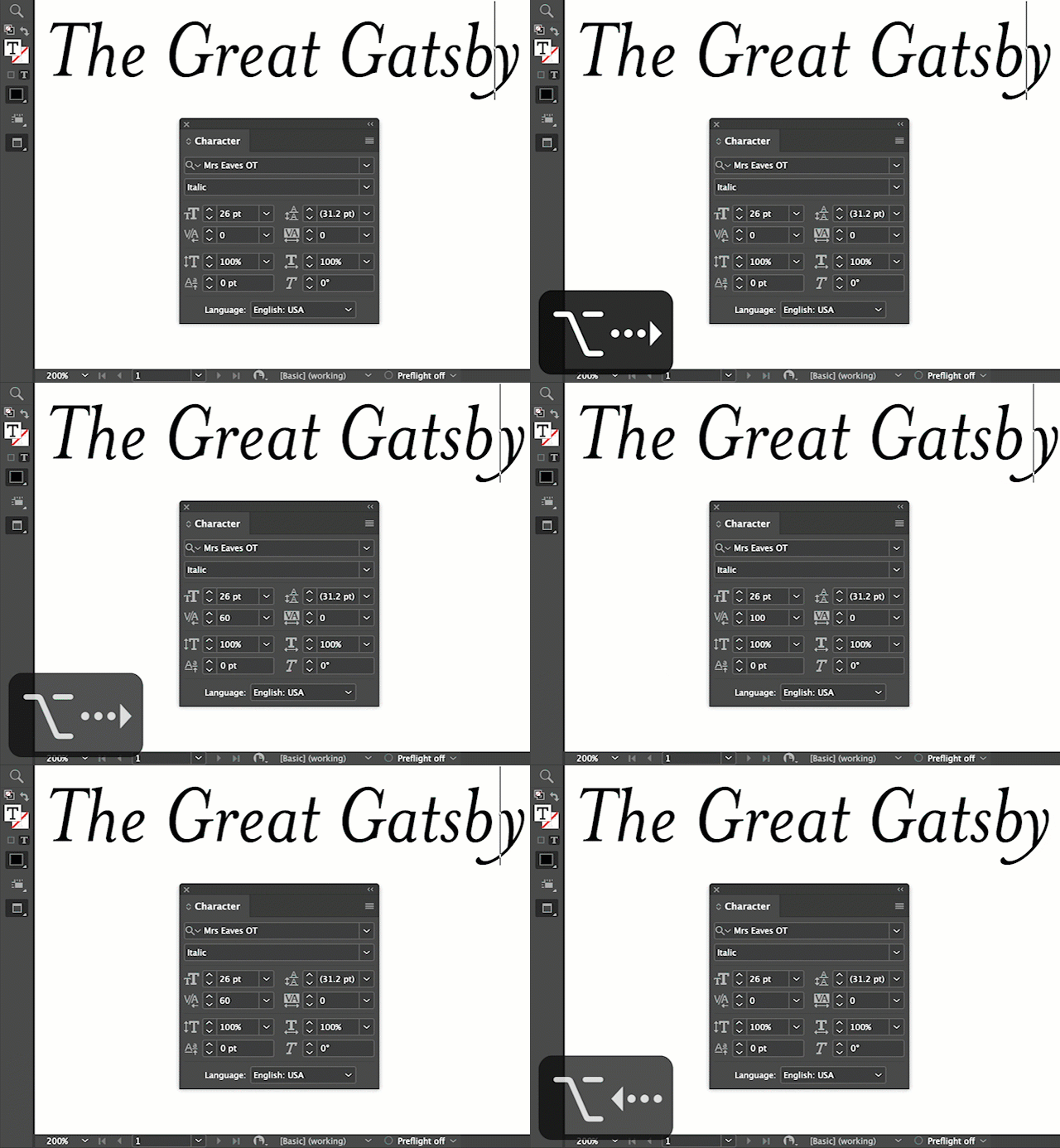
2. Tracking: To increase tracking, select the text then press Option+Right arrow; press Option+Left arrow to decrease it.

3. Kerning: To increase tracking, place your cursor between two characters then press Option+Right Arrow; press Option+Left Arrow to decrease it.
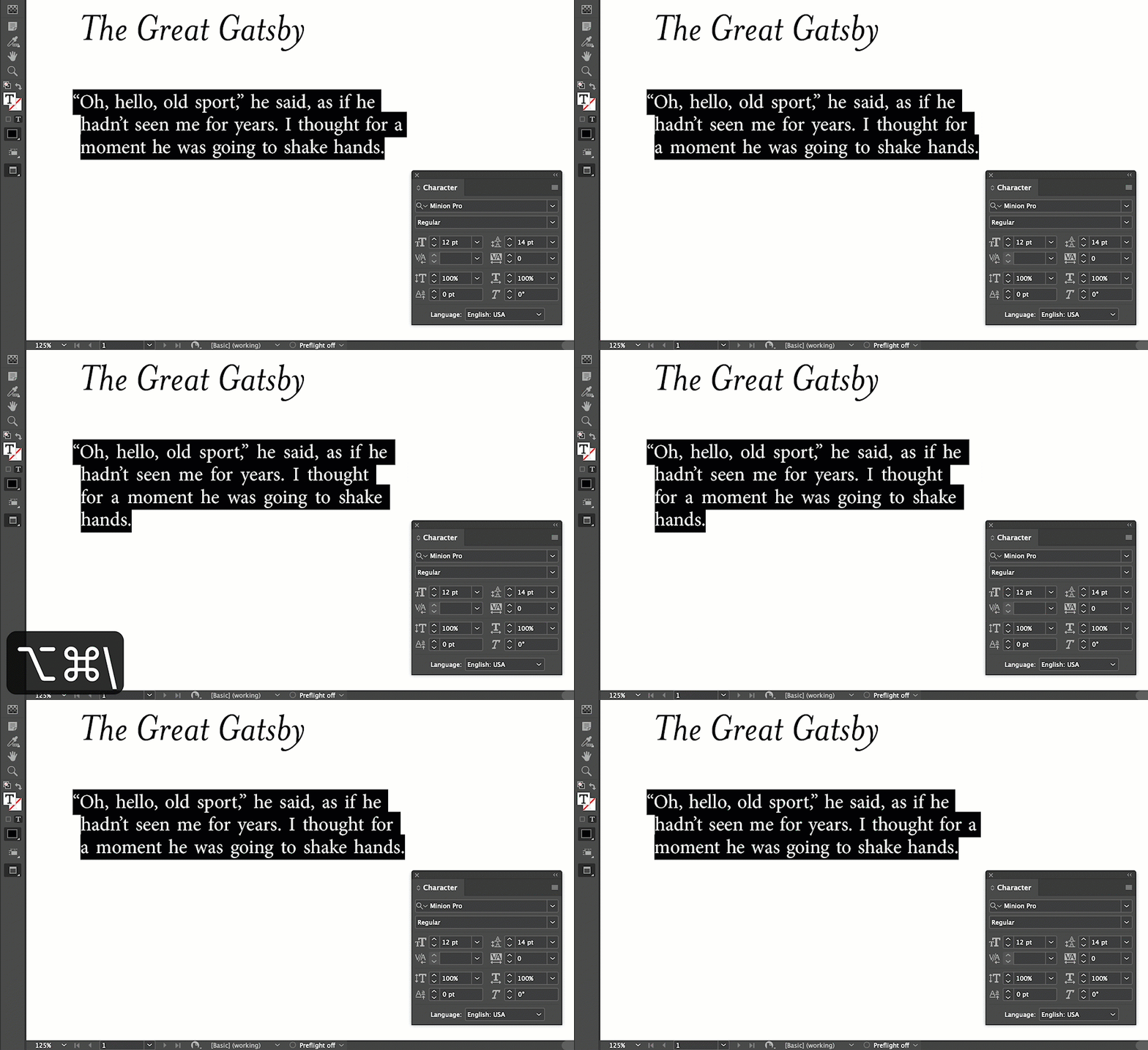
4. Word Spacing: To change spacing between words (but not the characters within those words), press Command+Option+\ to increase word spacing; press Command+Option+Delete to decrease it.
This article was last modified on February 16, 2022
This article was first published on February 16, 2022
Commenting is easier and faster when you're logged in!

Recommended for you

All-Time Favorite InDesign Tips
Mike Rankin and David Blatner team up to share two dozen of the most useful InDe...

Top Tips from The InDesign + Long Documents Summit 2024
Our Editor in Chief lists his favorite tips from The InDesign + Long Documents S...

CreativePro Speaker Spotlight: Deke McClelland, the Photoshop Nerd
Well, this is our last post of the 2016 series of posts called Speaker Spotlight...