



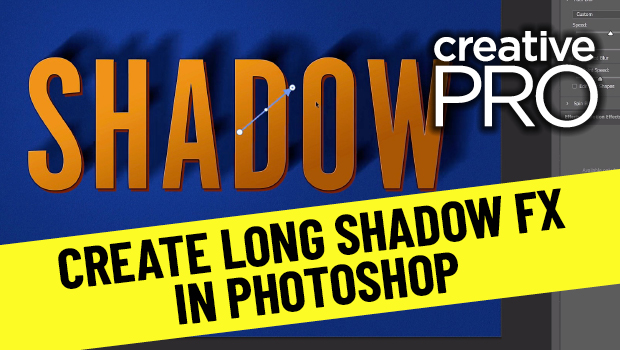
In this “Three Minutes Max” video, Jesús Ramirez shows a quick way to create a long shadow effect on type—or any Photoshop element. Using a Smart Object and Path Blur options, he gives his text a more realistic cast shadow in just a few easy steps.
New videos every other Tuesday on our CreativePro YouTube channel. Be sure to subscribe so you don’t miss any!
This article was last modified on August 29, 2025
This article was first published on October 5, 2021
Commenting is easier and faster when you're logged in!

Recommended for you

InDesign How-to Video: Move Layers From InDesign to Photoshop
In this week’s InDesignSecrets video, David Blatner shows off a script to send a...

Photoshop CC 2015.5 New Features
Adobe has promised subscribers to its Creative Cloud plan that it will release m...

Helpful Tips I Learned at PePcon 2016
I won’t go on and on about how wonderful an event The Print + ePublishing...