



I just received a question from a reader asking if there is any way to link numbers in a list to numbers over an image, so that if the numbers in the list change, the numbers on the image change, too. The answer is: It depends on how much work you’re willing to put into it!
There are a couple of ways to do this, but I wanted to share one way to do it that popped into mind: text variables.
Here’s an example that I threw together quickly:
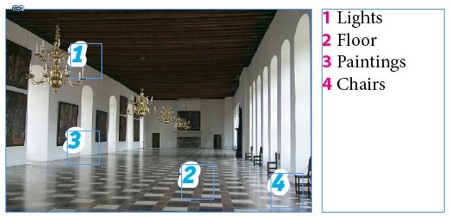
In this image, the numbers on the image are linked to the numbers in the list. To do it, I first created a different character style for each item in the list:
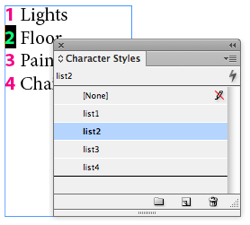
Notice that the numbers in this list are real numbers (not from automatic paragraph numbering).
Then I created a different text variable for each number, each one pointing to the proper character style. For example, my list2 text variable looks for any text on the page tagged with the character style “list2”:

Finally, I inserted each of these text variables in the proper text frames over the image:

Now, whenever I change the values in the list, the text variables update, too:
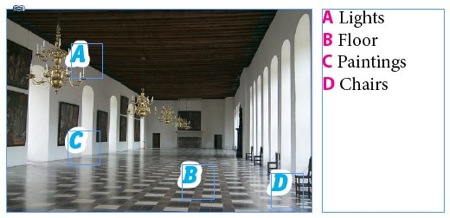
Actually, the text variables don’t update immediately. Text variables only update when the screen redraws. So to force the numbers to update, you have to zoom in or out, or change pages, or use the “redraw screen now!” keyboard shortcut: Command/Ctrl+Alt+/ (slash).
Obviously, if you aren’t going to update the numbers very often, it’s not worth all this work. But you can see how a little work upfront could save a lot of time downstream in a situation where edits had to be made frequently!
There are other ways to do this, including the Edit > Place and Link feature. How would you do it?
This article was last modified on December 21, 2021
This article was first published on June 20, 2012
Commenting is easier and faster when you're logged in!

Recommended for you

InDesign Magazine Issue 65: Long Documents
We’re happy to announce that InDesign Magazine Issue 65 (September, 2014) i...

InDesign Magazine Issue 144: Stealing Great Design
Issue 144 has articles on stealing great design, designing with rules, borders,...

Managing Tips Between Numbered Lists
You don't want to have to reset numbers manually when two numbered lists collide...