


InDesign Template Essentials: Page Size Starters
This is a single document comprised of a number of different page sizes that you can use to start your own mixed-size projects: A booklet spread comprised of back cover,...

This file, Page Size Starters, was suggested by an email that we received from a long-time InDesign user. She was wondering how best to create a single PDF that was comprised of multiple page sizes. Export multiple InDesign files to PDFs and then combine them in Acrobat? Create a single InDesign layout with a page size large enough to contain the largest page, and then use crop marks inside the other pages to define the smaller ones?
Well it turns out, as some of you have surmised, that this reader did not know that InDesign can mix page sizes in the same document (and it has been able to do so since CS5) via the Page tool or the button at the bottom of the Pages panel. And when you export said mixed-page-size InDesign file to PDF, the different page sizes stay intact in the PDF.
To prove this point, this month’s Template Essentials, “Page Size Starters,” is a single document comprised of a number of different page sizes that you can use to start your own mixed-size projects: A booklet spread comprised of back cover, spine, and front cover; a tri-fold brochure, a 3-piece identity system (business card, letterhead, and #10 envelope), and a large poster.
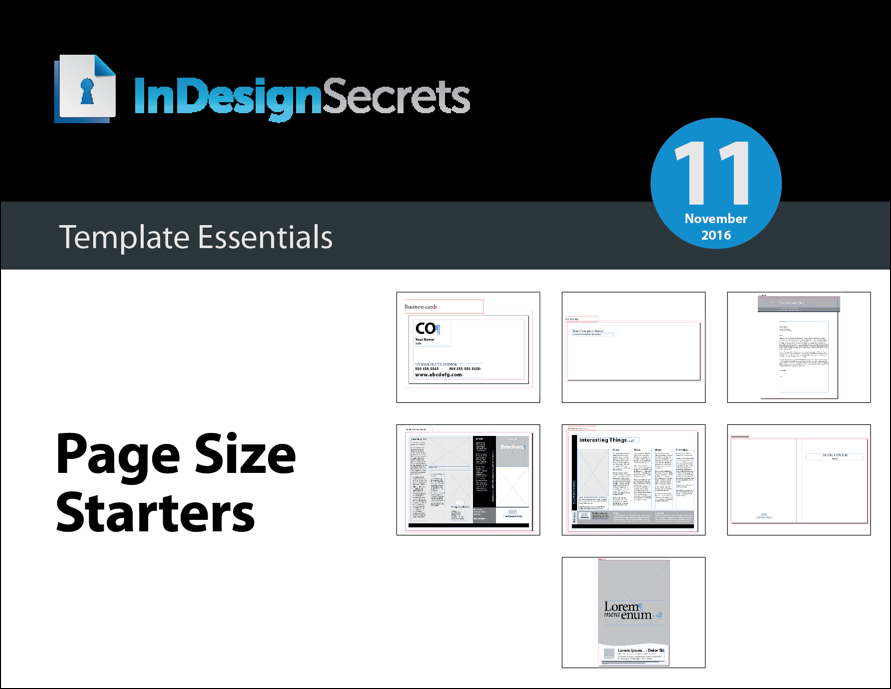
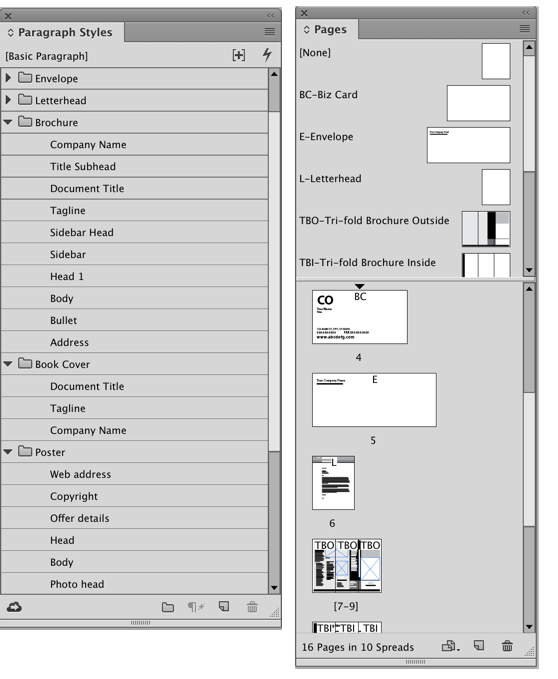
To use this in your own projects, simply open the Template Essentials file, delete the pages you don’t need, and do a Save As. Voila! You have a correctly-sized page/spread for your project. That’s doing it old-school style, baby. We made sure to include some basic instructions in the beginning, clearly labelled Master pages, placeholder text on each page to get you going, and useful Paragraph and Character styles for each one.
Commenting is easier and faster when you're logged in!

Recommended for you

Review: Adobe InDesign CS3
Since Adobe released InDesign CS2 — the fourth version of the company...
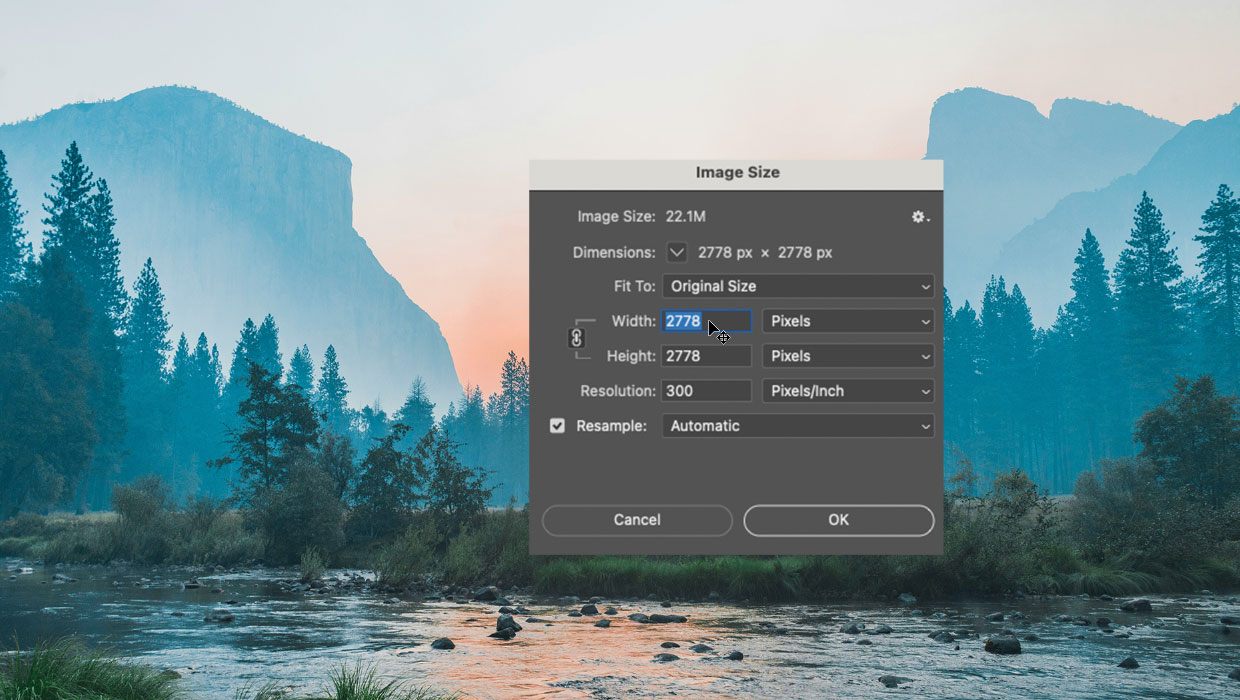
Livestream Video: Understanding Size & Resolution in Photoshop
Learn how to resize and resample images, and use the Crop tool Photoshop to get...

Tip of the Week: Decimal Align Numbers in Table Cells
This tip was sent to Tip of the Week email subscribers on October 9, 2014. Sign...