




Photoshop users have been enjoying the ability to shuffle around layers since version 3.0 was released in 1994, right around the same time as the debut of the Power Mac, O.J. Simpson’s infamous ride in a white Ford Bronco, and Justin Bieber being born. If you’re a geek of certain vintage, that last one may make you feel a tad old. In any case, enjoy these tips and tricks for working with Photoshop layers. And try not think too much about The Biebs.
1. Speed Layers Press Command+Shift+N/Ctrl+Shift+N to create a new layer (and open the New Layer dialog box). Press Command+Shift+Option+N/Ctrl+Shift+Alt+N to immediately create a new layer and bypass the dialog box.
2. Background Layers Double click the background layer to convert it to a regular layer. Hold Option/Alt while you double click to bypass the New Layer dialog box. To make a regular layer into a background layer, choose Layer > New > Background From Layer. The layer moves beneath all other layers and any transparent pixels are converted to the background color.

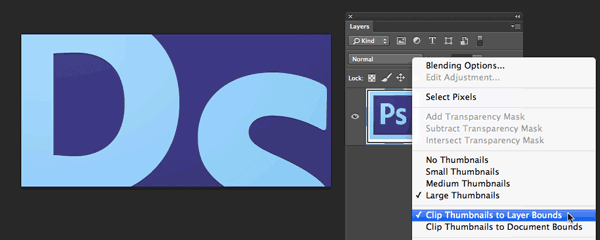
3. Revealing Big Data To make a layer’s thumbnail show all the content on the layer, including pixels that extend beyond the edge of the canvas, right click on a layer thumbnail and choose Clip Thumbnails to Layer Bounds.
4. An under-handed command By default, a new layer is created above the current layer, or if no layer is selected, at the top of the layer stack. To create a new layer below the current layer, hold Command/Ctrl while you click on the New Layer icon in the Layers panel. If no layer is selected (and the document contains no background layer), the new layer will be created at the bottom of the layer stack.
5. File to Smart Object Layer To create a new Smart Object layer from a file, simply drag the file icon from your desktop into an open image in Photoshop. The new Smart Object layer is created above the current layer and is named with the file name (minus the extension).


6. New Layer From Selection There are two ways you can make a new layer from a selection. You can copy the selection to a new layer by pressing Command+J/Ctrl+J or you can cut the selection to a new layer by pressing Command+Shift+J/Ctrl+Shift+J.

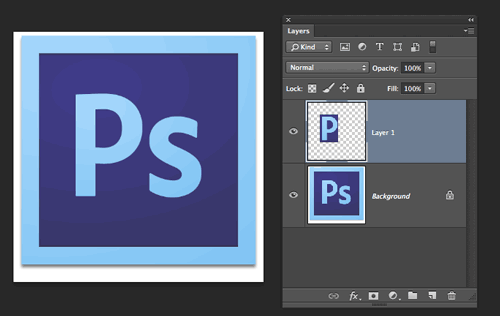
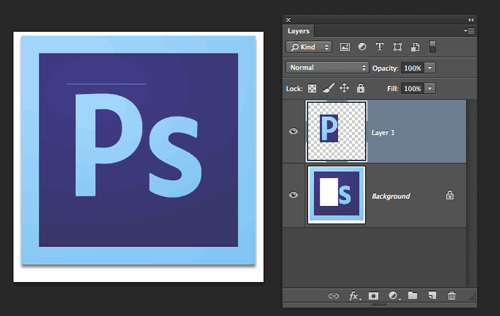
7. Arranging Layers On the Mac, press Command+] or Command+[ to move a layer up or down in the layer stack. On Windows, press Ctrl+] and Ctrl+[ Add Shift to move a layer to the top or bottom of the layer stack.
8. New Document from Layer(s) To create a new document from one or more layers, select the layers in the Layers panel. Choose Duplicate Layer from the Layers panel menu. Then in the dialog box choose Destination > Document > New.

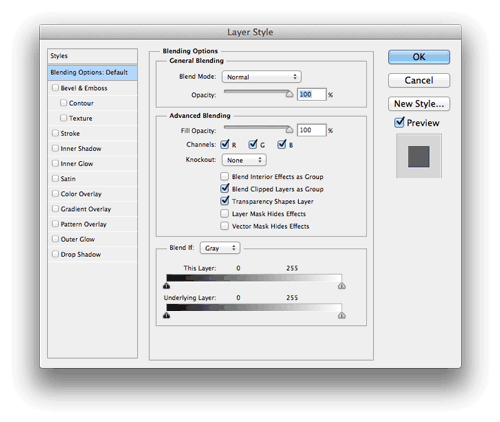
9. Double-click for Layer Styles Double click anywhere on a layer other than the layer name to open the Layer Style dialog box where you can apply layer styles, effects, and more. BTW, double-clicking the name of a layer allows you to rename it.
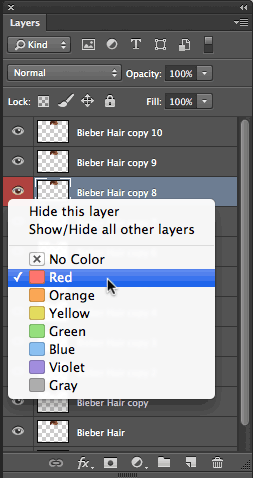
10. Color-coded layers If you work with a lot of layers, color coding them in the layers panel can help you quickly find the one you’re looking for. Simply right click in the area around the layer’s visibility icon (the eyeball), for a neat menu of layer color choices.
Of course, this isn’t even the tip of the icebieb, er, iceberg. There are tons more Photoshop layer tips and shortcuts. If you have a cool one, please share it in the comments.
This article was last modified on June 16, 2024
This article was first published on May 21, 2013
Commenting is easier and faster when you're logged in!

Recommended for you

Photoshop CC 2015.5 New Features
Adobe has promised subscribers to its Creative Cloud plan that it will release m...

Scanning Around With Gene: When Printers Went to War
Editor’s Note: We recognize that some of you will feel strongly about this...

Basic Tips for Color Management
In early December, a community of conference-goers explored best practices and n...