



This article is excerpted from “Real World Adobe InDesign CS.”
At the heart of any good page layout is formatting and perhaps none is more critical than paragraph formatting. Bad indents, careless alignment, tight line-spacing, misused tabs — all these combine to disrupt page harmony.
Thankfully, Adobe InDesign gives you a full complement of controls to apply to paragraphs. You’ll find the basics such as alignment, indents, tabs, hyphenation, drop caps,
and so on, But InDesign CS also offers such whizzy features as hanging indents, multi-line composition, and — best of all — nested styles, which let you apply multiple styles to a block of text with one click.
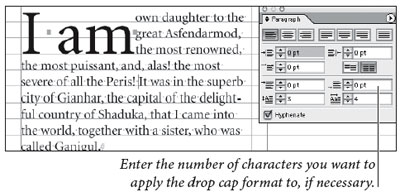
In this excerpt from “Real World InDesign CS,” layout maestros Olav Martin Kvern and David Blatner take you inside InDesign’s paragraph-formatting controls .
We’ve posted this excerpt as a PDF file. All you do is click this link “Paragraph Formatting” to open the PDF file in your Web browser. You can also download the PDF to your machine for later viewing.
To open the PDF, you’ll need a full version of Adobe Acrobat (5 or higher) or the
Adobe Reader..
To learn how to configure your browser for viewing PDF files, see the Adobe Reader tech support page.
Excerpted from “Real World InDesign CS” © 2004 Olav Martin Kvern and David Blatner. Reproduced by permission of Pearson Education, Inc. Publishing as Peachpit Press. ALL RIGHTS RESERVED.
This article was last modified on March 10, 2025
This article was first published on November 10, 2004
Commenting is easier and faster when you're logged in!

Recommended for you

This Week in InDesign Articles, Number 109
I should be getting work done, especially as Anne-Marie is out teaching epub stu...

Times Roman vs. Times New Roman
Times Roman and Times New Roman are very similar, but not quite identical fonts.

First Automatic Font Organizer
Advanced Font Viewer is the first product on the market of font tools that can s...