



I love the Notes panel. It allows me to communicate with my copy editor or others who review my InDesign documents.
It’s very easy to insert a note. Click inside the text where you want the note to appear and then click the New Note icon in the Notes panel. (Window> Editorial> Notes). Then type your note in the panel window. A little icon indicates where the note is in the copy.

There is a problem. You can only insert a note into text. You can’t apply a note to an entire text frame or image.
Fortunately there is a trick to get notes?or something close to them?applied to objects.
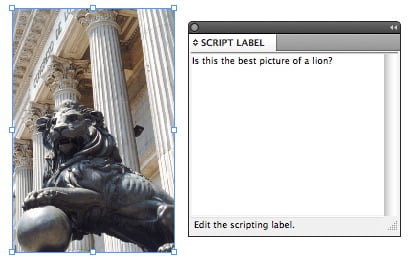
Go to Window> Utilities> Script Label. This opens the panel that scripters use to label things that are to be modified in a script. We’re going to use it for our own purpose.
Select the object that you want a note applied to and then type the note in the Script Label window.

This applies the note to the object. Unfortunately there is no easy way to flag that this object has a label applied to it. One thing you can do is put objects that have script labels on their own layer. The distinctive layer color lets the next person know that a script label has been applied.
(While I said there’s no easy way to flag that the object has a label applied to it, I thoroughly expect one of the eagle-eyed scripters who visit these boards to come up with a script that finds individual objects that have script labels applied. If so, I thank you now.)
This article was last modified on December 21, 2021
This article was first published on November 29, 2011
Commenting is easier and faster when you're logged in!

Recommended for you

Designing with Text Reflections and Cast Shadows
Maya P. Lim shows how to add lighting effects like cast shadows and reflections...

macOS Catalina is the End of the Road for InDesign CS6
As the saying goes, time waits for no one. Nor does it wait for our favorite sof...
Using Conditional Text in an Unconventional Way
This past week, I received a message from an InCopy user who wanted to know if t...