




Peachpit Press is offering this book at a discount to creativepro.com readers. Follow this link.
Tip: Use TIFFs, not EPS Files
Sure, XPress can automatically convert your document’s TIFF and EPS pictures into GIF or JPEG files upon export. However, because EPS graphics contain “encapsulated” data, XPress can’t really get in and convert them properly, so you end up with GIF or JPEG versions of the low-resolution screen previews you see in XPress. Yuck! If you’re going to repurpose your XPress pages, stick with TIFF files. (Though to be painfully honest, you’ll often get a better result if you convert images yourself in Photoshop and import them into XPress as GIF or JPEG.)
Tip: Don’t Crop GIFs and JPEGs
If you use another program such as Photoshop or Fireworks to create your GIF or JPEG images, make sure the picture box you draw for the image is the exact size as the image (or larger than the image). That way, XPress just uses the original GIF or JPEG image. However, if you rotate, scale, or crop the image in any way, XPress has to re-export the image with the settings in the Export tab of the Modify dialog box. That means further image degradation, and often larger image sizes (XPress doesn’t do as good a job at compressing as Photoshop and Fireworks do). You can ensure the picture box is the same size as the picture by using the Fit Box to Picture feature in the Style menu.
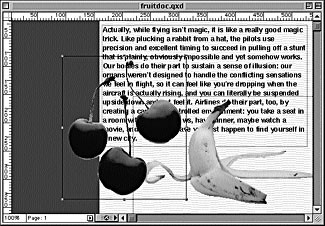
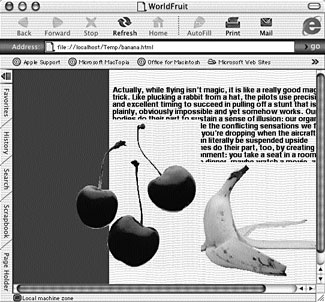
When it comes to HTML, you should never trust that what you see in XPress (above) will be what you get in a Web browser (below)!
Tip: Careful with Transparency
You can import a TIFF image with an embedded clipping path into a Web document and use the Clipping feature to make the background appear transparent. However, when you export your page as HTML, you need to be careful. The GIF format handles transparency like this just fine, but JPEG does not (there’s no such thing as transparent pixels in a JPEG image). So, if your TIFF is being exported as a JPEG (which it is by default), XPress has to fake the effect by merging whatever is behind the image into the image itself. If the image is on top of a flat colored background, it usually works okay (though there may be some color shift). If it’s on top of a pattern or text or another image, then watch out! In some cases, the result is pretty icky (see images above).
Read more Real World Tips for QuarkXPress 5 here.
Peachpit Press is offering this book at a discount to creativepro.com readers. Follow this link.
This article was last modified on February 22, 2022
This article was first published on August 20, 2002
Commenting is easier and faster when you're logged in!

Recommended for you

InDesign Magazine Issue 73: The Food Issue
We’re happy to announce that InDesign Magazine Issue 73 (May, 2015) is now avail...
Tips for Filling Type with Gradients
How to make fun effects by filling type (regular or curved) with gradients.
InDesign Tip: Page Guides vs. Spread Guides
Here’s the trick for creating guides on just one page or the whole spread...