





Peachpit Press is offering this book at a discount to creativepro.com readers. Follow this link.
Tip: Web-Safe Colors in Xpress
In the “bad old days,” most people had 8-bit color monitors which could only display 256 colors at any one time, and colors would often get dithered (which looked kind of mottled and ugly). In order to counteract this, people tried to pick colors from a palette of 216 “Web-safe” colors, which wouldn’t dither on screen. Today, every computer is sold with a 24-bit color card, few colors are ever dithered on screen, and many designers simply choose whatever RGB color they want. However, if you really care about using Web-safe colors, XPress can give ’em to you.
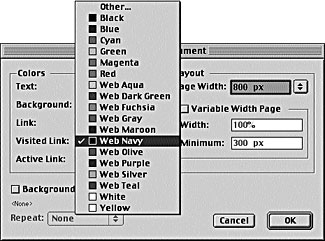
Figure 1: Web-safe color popup menu
When you have a Web document open, XPress automatically displays a bunch of Web colors in the Colors palette, like Web Navy and Web Maroon. However, these are not necessarily Web-safe colors. If you want to add a Web-safe color to your document, you can select Web Safe Colors from the Model popup menu in the Edit Color dialog box (see figure 1) for more on how to create and edit colors. Or, use my favorite method.
- Pick any RGB color in the Edit Color dialog box.
- Change the percentage values in each of the Red, Green, and Blue fields to the nearest 20-percent mark-0, 20, 40, 60, 80, or 100 percent. For instance, if the Red field reads 24 percent, change it to 20 percent. If the Blue field reads 71 percent, change it to 80 percent.
- Save the color (you might include “Web safe” in its name to remind you).That’s all there is to it.
Read more Real World Tips for QuarkXPress 5 here.
Peachpit Press is offering this book at a discount to creativepro.com readers. Follow this link.
This article was last modified on February 22, 2022
This article was first published on August 14, 2002
Commenting is easier and faster when you're logged in!

Recommended for you

PageProof Introduces Automated Link Checking for Creative Approvals
PageProof’s link scanner surfaces URLs, internal jumps, and email links automati...

InType: Tiny Type
Ilene Strizver enlarges on the importance of using the clearest text for the sma...

The Art of Business: 'Tis the Season to Give Gifts… Thoughtfully
How fast time flies. It’s that time of year again to find the right gift f...