




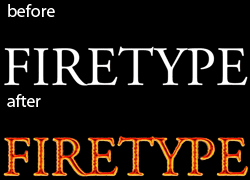
Have you ever noticed that when some objects get really hot, the edges are bright, the centers are burnt dark, and you can see heat rippling upward? That’s what I’m going to teach you how to do, in Photoshop, with type.
You’ll use a smoldering combination of Smart Objects, four layer effects, the Ripple filter, and the Bas Relief filter. While the results will be positively smoking, you can also tweak a few steps to make type that looks like neon.
And it’s all editable, which means you can change the letters at any point in the process without fear of getting burnt.
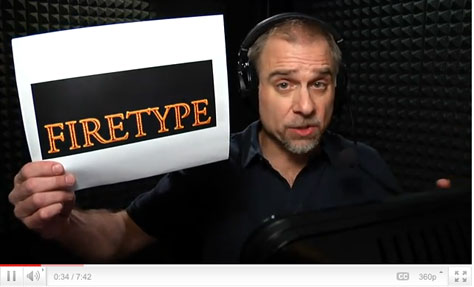
Click the screenshot below to view the step-by-step Photoshop tutorial on YouTube:
This article was last modified on January 6, 2023
This article was first published on February 3, 2011
Commenting is easier and faster when you're logged in!

Recommended for you

Halloween Photoshop Techniques
Looking to whip up some quick Halloween fun in Photoshop? Over at the lynda...

TypeTalk: Ambigrams
TypeTalk is a regular blog on typography. Post your questions and comments by cl...
TypeTalk: What Are Web Fonts?
TypeTalk is a regular blog on typography. Post your questions and comments by cl...