



Most InDesign users know the simple keyboard shortcut for toggling fill/stroke of an object: Shift+X. Press it, and a selected frame with black stroke and no fill becomes a frame with a black fill and no stroke.
But what about live text? Naturally, if you press Shift+X, any selected text will be replaced with a capital X.
Fortunately, there’s an easy fix: create a custom keyboard shortcut for toggling stroke and fill colors.
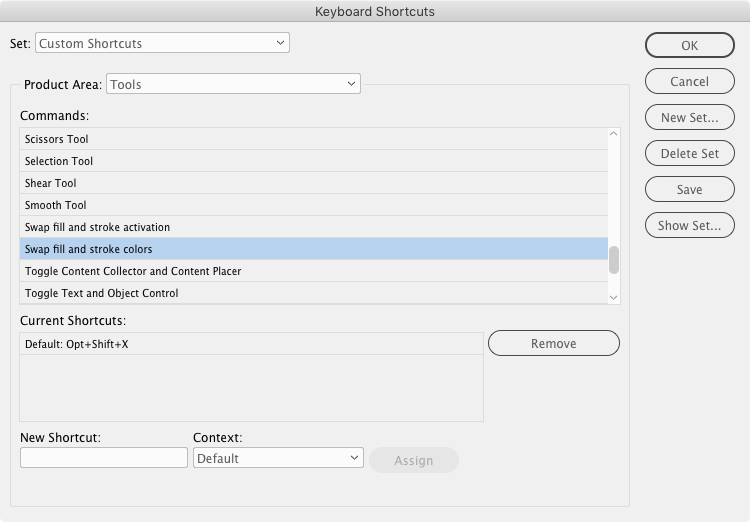
1. Choose Edit > Keyboard Shortcuts
2. Choose or create a new custom set.
3. From the Product Area menu, choose Tools.
4. Select the Swap Fill and Stroke Colors command, and in the New Shortcut field, type your desired shortcut. Naturally, it must contain a modifier key like Command/Ctrl or Option/Alt. Shift+Option+X is close enough to the original shortcut that you’ll probably have an easy time remembering it.

5. If you like, you can remove the original Shift+X shortcut. If you leave it in place, you just have to remember to use your new shortcut when toggling text colors.

Or just get in the habit of using your new shortcut whenever you want to swap stroke and fill colors.
Thanks to Andreas Norén for sharing this cool tip!
This article was last modified on July 7, 2021
This article was first published on November 6, 2018
Commenting is easier and faster when you're logged in!

Recommended for you

Create a Flat-bottomed Stroke
Our guru of strokes reveals another trick: How to create a stroke that has round...

How to Make a Quick Align Shortcut in Powerpoint
Learn how to set up a quick align shortcut in PowerPoint using the Quick Access...

Tip of the Week: A Shortcut to View All Available Font Styles
This InDesign tip how to view all available font styles was sent to Tip of the W...