



Recent versions of InDesign have made it the hub application for digital publishing. You can export an InDesign publication to interactive PDF, or to a SWF file to view in your browser. You can create an EPUB file to view in a eBook reader, and you can create a version for tablets with the Adobe Digital Publishing Suite. All of these formats support, to varying degrees, the inclusion of video files as part of the output.
What is the best video format to use for most digital publishing output? Surprisingly, there is usually one answer?H.264 files. H.264 files are the most widely supported: Adobe InDesign CS 5 and 5.5 let you place them, and you can control their viewing with the Media panel. They are supported in Adobe Flash Player, and they are embedded into Acrobat 9 and X, and Reader 9 and X. Apple has supported the format on its very popular devices (iPad, iPhone and iPod Touch), and it’s equally viewable on Macintosh or Windows computers. When you view videos on YouTube, Vimeo, or other sources on the internet, you’re viewing H.264.
Acrobat guru Dave Merchant pointed out some advantages of the format in a PDF file:
If you embed a video file into a PDF page using Acrobat X Pro, the only formats it will permit are Flash or H.264. The resulting object is called a Rich Media Annotation (RMA), and plays using the embedded copy of Flash Player when viewed in Adobe Reader 9+ or Acrobat 9+. It does not use any external software whatsoever, and will play back identically on Windows and Mac. Even if you have the standalone Flash Player installed on your computer, it will not be used. This ensures the highest possible levels of security, and a guaranteed user experience when viewing PDFs with the Adobe Acrobat Family. There is certainly no bias between Windows and Mac; in fact H.264 is so popular precisely because the videos don’t care what platforms they run on.
What’s confusing is that the standard can appear as several different file extensions?MP4, F4V, MOV, and M4V are some of the most common. You can create a file in H.264 format either by using the Adobe Media Encoder 5 or 5.5 (included with Adobe Creative Suite 5 or 5.5), with QuickTime 7 Pro or QuickTime X on the Macintosh, and other products that can encode video files. James Fritz covered the transition of Adobe InDesign CS5 to what he called “Flash media” in a posting in August 2010. He compared them to the older “legacy media” which required external players like QuickTime. But while H.264 is supported in Flash, it’s not at all exclusive to the Flash player. And that’s why it will work on devices like the iPad which don’t support “Flash files.”
Probably any of the flavors of H.264 listed above would work in an interactive PDF or SWF file created by InDesign (I didn’t have time to extensively test each flavor).
But video is now becoming available for EPUB files as well. It is not part of the EPUB 2 specification, but with the recent development of EPUB 3 (now a proposed specification), properly created video can now be viewed in Apple’s iBooks application on iPad and iPhone, and on the Barnes & Noble Nook. Liz Castro, author of EPUB: Straight to the Point, did some testing of different formats on Apple’s iOS devices. She found that the format which worked the best is “H.264 video compression, AAC compressed audio, all contained in an MPEG4 container, with a .m4v extension. While there is not much difference between .mp4 and .m4v, the latter is specifically for Apple and works in both iPad and iPhone.” (In addition to her original eBook, she has also has available on her website a small eBook about creating files with video and audio for playing on iOS devices and the Nook.) As shown below, I found that MP4 seemed to work just fine.
H.264 can also be used on the iPad and other tablets for video in publications created by the Adobe Digital Publishing Suite. According to the User Guide, “Supported video and audio files you place in InDesign play when tapped in the Viewer. For video files, use a format that is compatible with Apple iTunes, such as an MP4 file with h.264 encoding.”
I started creating a test file in InDesign CS5.5. I wanted a file I could output to interactive PDF, to a SWF file, and to an EPUB file. I used the Adobe Media Encoder 5.5 to convert an old QuickTime movie file that I had to an MP4. That was the format the Encoder suggested when I targeted an iPad an an appropriate resolution for an EPUB file. I placed the movie into InDesign and used the Media panel to turn on the controller on rollover, and set a skin for the controller. I used the new Anchored Object feature in InDesign CS5.5 to anchor it after the second paragraph of the article.
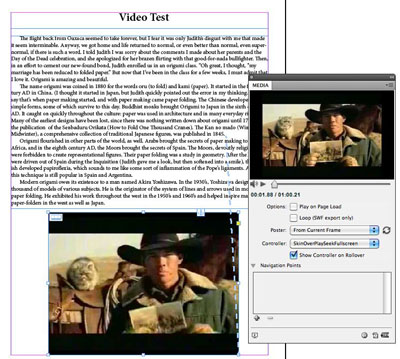
Placed MP4 in InDesign CS5.5
I exported the InDesign file to Interactive PDF using the default settings. When I opened up the PDF in either Acrobat 9 or X, it played fine, and the controller appeared on rollover. It would work equally well in Reader 9 or X on either Mac or Windows. Keep in mind that it will not play in earlier versions of Acrobat or Reader.
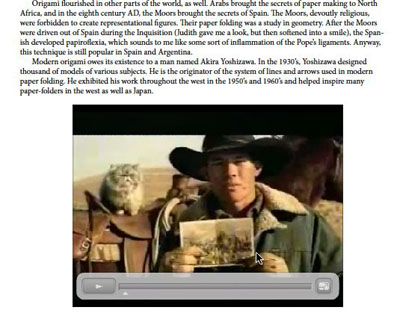
Video in Interactive PDF
Similarly, when exported to a SWF file using default settings, the movie played with a controller within a web browser.
Finally, I exported to EPUB using default settings. With no CSS editing, I sideloaded it to my iPad and my iPhone. It played on both devices (the iPhone version is illustrated below):
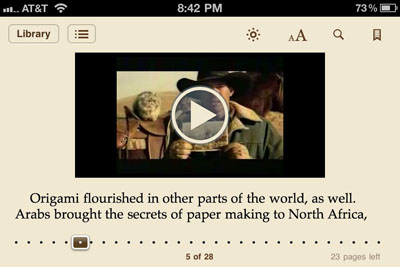
Video in iBooks on an iPhone
I haven’t been doing much testing yet with the Adobe Digital Publishing Suite, but I’ve seen a sample file with an MP4 file which played fine.
This article was last modified on December 21, 2021
This article was first published on June 21, 2011
Commenting is easier and faster when you're logged in!

Recommended for you

Adobe TV is On the Air
Adobe TV debuted today with a wealth of ready-to-view video content, much of it...
InDesign Eye Candy, part 5: Blending a la Mode
What's black and white or red all over? Your document in a blender (mode).
HELP! New Ways to Find It in CS3
Everyone needs help sometimes. InDesign CS3 and the CS3 applications now give yo...