


Sampling Colors from Multiple Page Items in InDesign
How to use the Color Theme tool to quickly create custom color palettes by sampling colors from multiple page items in InDesign.


The Color Theme tool might be one of the most underrated tools in InDesign, especially if (like me) you do a lot of quick, design-on-the-fly type projects. It gives you tremendous flexibility in creating color palettes from page items.
If you click on any page object with the Color Theme tool, you get a set of colors sampled from that one item.
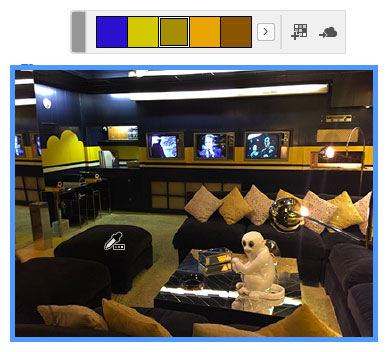
But if you have overlapping items,

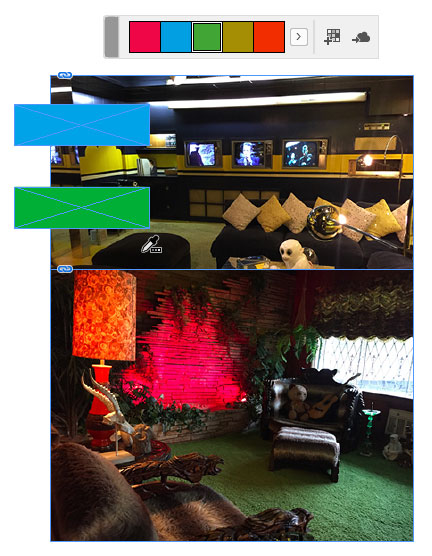
and click on the bottom item, you get a set of colors sampled from all the items.

In other words, the item you click on sets the boundary of the area being sampled, and everything within that area contributes to the set of colors you get. And it’s not just photos, anything with color counts.
If you want even more control, click and drag with the Color Theme tool to define the area from which colors are sampled.

This InDesign tip on sampling colors from multiple page items was sent to Tip of the Week email subscribers on November 30, 2017.
This article was last modified on October 22, 2025
This article was first published on December 5, 2017
Commenting is easier and faster when you're logged in!

Recommended for you

Tip of the Week: Viewing Color-blind Previews of Your Pages
How to view an InDesign layout as it would appear to someone with color blindnes...
Use Split Window when Applying Colors to Text
How to fix the problem of seeing selected text in inverted colors in InDesign.
The Mystery of the Empty Swatches Panel Contest Answer and Winner
Solve this InDesign mystery for a chance at winning a great prize.