



In typography, a “runt” occurs when the last line of a paragraph ends with a short word or part of a hyphenated word, creating an undesirable look. You can prevent hyphenated runts by turning off the Hyphenate Last Word option in the Hyphenation Settings dialog box.

But to prevent whole short words from showing up on a line by themselves, you need to do something extra. Here are 3 options:
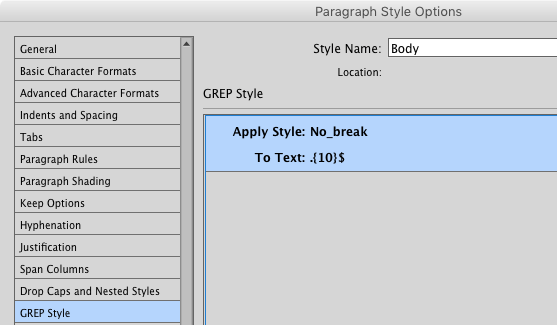
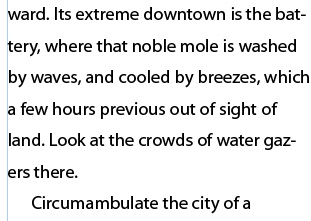
GREP Style #1: .{10}$ This expression will target the last 10 characters before the end of a paragraph. Use it with a character style that applies the No Break option, and you’re guaranteed that the last line of each paragraph will have at least 10 characters. Adjust the number in the brackets if you want more or fewer characters to be “no breaked.”

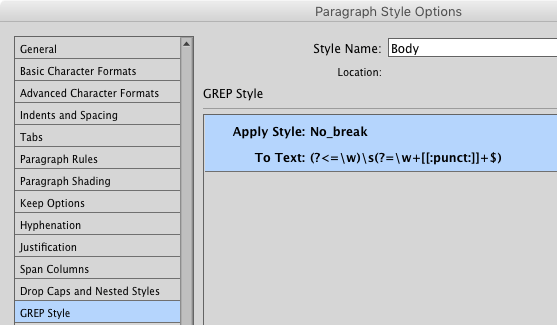
GREP Style #2: (?<=\w)(?=\ w+[[:punct:]]+$) This one’s a bit more complex and subtle. It matches just the space between the last two words in a paragraph. Used with a No Break character style, it glues the last word in a paragraph to the final syllable of the penultimate word. Put another way, the last word in a paragraph will always have some company on the last line, even if it’s just part of another word.
Edit the text. This simple, but often overlooked option can fix all kinds of typographic problems. True, you may not be allowed to make edits if the text was authored by someone else. But even a small tweak can work wonders, so it might be worth seeking approval for an edit instead of spending a long time fiddling with settings and banging your head against the keyboard.
In the video below, Erica Gamet shows the GREP Style #1 solution in action:
Do you have a different way of fixing runts? Share it in the comments!
This article was last modified on April 13, 2023
This article was first published on November 9, 2016
Commenting is easier and faster when you're logged in!

Recommended for you
The Five Worst Web Type Crimes
Type crimes don’t only exist in print. You’ll find them on the web a...

InType: Making Text Fit
When you have too much text to fit a given space and editing is not an option, u...

The End of the Line
As job descriptions and responsibilities have been telescoped over the past coup...