


10 Ways AI Can Help Designers
Behind the scenes, AI can dramatically reduce non-creative time sinks and grunt work for you.

This article appears in Issue 53 of CreativePro Magazine.
Let’s address the cybernetic elephant in the room right away: AI is not your replacement, but it can be your assistant and a significant help to you. It can shore up your weaknesses. It can help protect you from mistakes that cost you money or even the rights to your own work. AI can speed up the less sexy areas of graphic design work, too: managing assets, making content accessible, and translating client-speak into designer-ese. Even at this early stage when AI is more of a predictive answer engine with no actual reasoning capability, it can offer real assistance to creative professionals.
Still skeptical? Read on for 10 ways AI can help graphic designers.
1. Generating Alt Text and Accessible Descriptions
If someone can’t see a photograph, illustration, chart, infographic, or other visual information element, their understanding of the content presented will be incomplete. To address this, accessibility law (Section 508 in the United States, EN 301 549 in Europe, and similar legislation in other countries) requires that information presented visually in an image also be available in alternate, equivalent form. Most often, that form is alt text, which is an alternate textual description of the important information presented by an image. Screen readers, Braille keyboards, and other assistive technology interpret and present the alt text to users, and every major application that can create publicly distributable electronic documents has a mechanism for inserting alt text. Although these tools make adding alt text straightforward and easy, knowing what to write can be a time-consuming challenge.
Enter AI to help: Most LLMs (large language models) include the entirety of the Web Content Accessibility Guidelines (WCAG) and know all about accessibility laws, rules, guidelines, and best practices. And they can “see” images.
Instead of agonizing over the most important information to convey about an image in alt text, upload the image to your favorite AI tool and try the prompt:
Please write WCAG-compliant alt text for the attached image.
If the results are not exactly what you think they should be, or you just want to hedge against the AI making mistakes or making up information (called hallucinating), then use a more specific prompt. For example, the following prompt reinforces what the AI tool already knows and constrains its response to the narrow realm of that knowledge.
You are an accessibility expert.
Write concise, WCAG-compliant alt text for the attached image.
Follow these rules:
Describe only what is visually present and relevant.
Do not include phrases like "image of" or "picture of."
Keep it brief but meaningful (generally one sentence).
Convey the image's purpose or intent, not decorative details.
If text appears in the image, include it verbatim.
If the image is purely decorative, say so explicitly.
Return only the alt text.
The resulting alt text might be perfect the way it is, but just as likely it might need a little human editing. Either way, it provides faster results than staring at the screen with a bad case of blank-screen-itis.
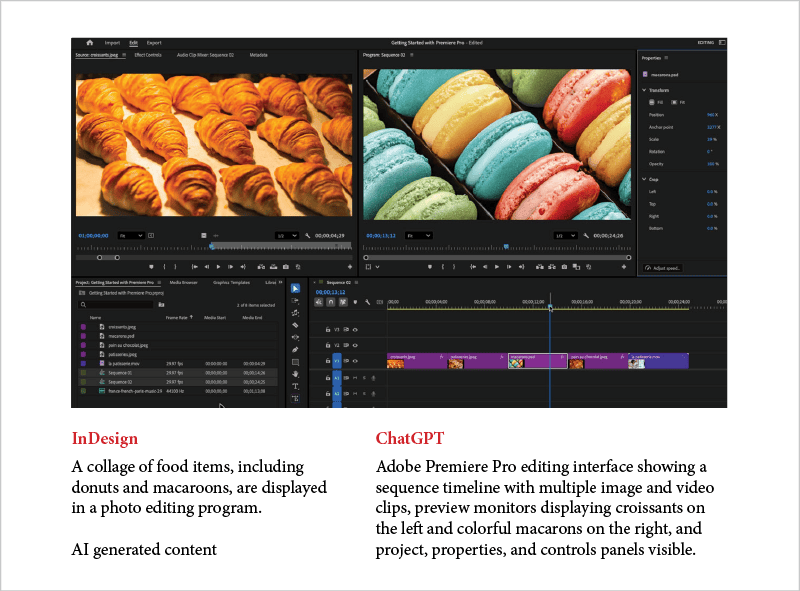
If you’re using InDesign 2026, you might wonder: Why not just use the built-in feature for generating alt text? Simply put, using ChatGPT and a prompt like the one above will yield a much better result. The built-in feature works well enough for very simple images but fails miserably when presented with more complex content (Figure 1).
2. Translating Client-speak into Designer-ese
Whether internal to your organization or external, clients tend to speak in subjective phrases—“Can you make it pop? Jazz it up a bit. I want it to stand out.”—rather than using design-school vocabulary that would convey exactly what they want. That lack of common language can be frustrating for both of you. One of the areas where AI shines is translation, including translating from client-speak back and forth to designer-ese. Upload the phrase you want to translate, and try a prompt like:
I am a professional graphic designer with years of experience. Clients often use the following statements and phrases when talking or corresponding with me. Please help me understand what the client is saying and what they might mean.
You might get back something like I did from ChatGPT model 5.2:
"Make it pop."
Increase contrast, saturation, scale, or hierarchy so one element draws attention faster.
"Can you jazz it up?"
Add visual interest: color accents, imagery, texture, or more dynamic layout.
"It’s too busy."
Too many competing focal points; needs simplification or clearer hierarchy.
"It feels flat."
Needs more visual hierarchy, depth, contrast, or variation in scale/weight.
"Can we make the logo bigger?"
The client feels their brand is under-represented or not immediately recognizable.
"I want it to stand out."
Differentiate from competitors through contrast, layout, color, or messaging.
"I don't know, it just doesn’t feel right."
The design doesn't match their mental reference, brand expectation, or emotional goal—but they can't articulate why.
If you want to get a translation in context with your design, copy and paste the actual correspondence from your client, upload one or more images to which the client is responding, and ask your AI tool to try to translate the comments in context with the design. Then, you can ask it to rephrase your explanation of your design choices or changes into client-friendly terms. You might be surprised at how clarifying the conversation can be.
3. Writing Internal and External Communications
When facing a tight deadline and mounting frustrations, we’ve all sent an email that we thought conveyed our thoughts and questions in a clear, well-reasoned manner, but it came across as vague, abrupt, or even combative. Before you click Send on a correspondence that might be misconstrued, paste it into an AI chatbot to quickly check if it’s the best way to express your thoughts to another human being. Pair it with a prompt such as:
Please evaluate the following email draft before I send it.
Review it for:
Clarity and intent: Is my purpose obvious? Explicitly state what you believe my purpose is.
Tone: Does it match the situation and audience? If the situation or audience is not clear from context, ask me before evaluating tone.
Brevity: What can be cut without losing meaning?
Risk: Anything that could be misread, escalate tension, or create unintended obligations?
Effectiveness: Will this likely get the response I want? If my desired outcome is not clear, ask me to clarify before assessing effectiveness.
After the critique:
1. Identify specific issues, if any, with brief explanations.
2. Suggest concrete improvements.
3. Provide a revised version that preserves my voice and intent.
Do not rewrite the email unless you explain why each change helps.
Here is the email: [email text]
Tip: You can also send the AI-revised result to another AI tool with the exact same prompt to get a second opinion!
4. Revising Marketing Copy
Say you get client copy that’s too lengthy and rambling for your layout or doesn’t have the punch it needs. AI can quickly trim and strengthen copy, saving you time and helping your design shine with tight, impactful messaging. Try a prompt like:
Please revise the following client-provided copy so it:
Fits a smaller layout without feeling cramped
Is more concise and impactful
Preserves the client's original meaning, facts, and intent
Avoids hype, clichés, or exaggerated marketing language
Constraints:
Do not invent claims, features, or benefits.
Do not change the tone unless instructed.
Do not add buzzwords or salesy language.
Output requirements:
1. Provide a tightened version that is roughly [X]% shorter (or fits within [Y] words/characters).
2. If helpful, provide an alternate version that is slightly more assertive but still accurate.
3. Briefly explain what was cut or consolidated and why.
Here is the original copy: [marketing copy]
Providing a Constraints section is essential in many contexts to avoid hallucinations and the legal troubles they could spawn.
5. Interpreting Contracts
Because designers are rarely trained in legalese, we are at risk of falling victim to contract pitfalls that lose us money, our rights, or both. AI chatbots like ChatGPT, Claude, and Perplexity, as well as specialty AIs like NotebookLM and Copilot Notebook, can clarify contract language, answer pointed questions about copyright ownership or payment terms, and flag missing clauses before you sign.
Try one or more of the following prompts paired with your contract uploaded as a common file format (PDF, DOCX) or pasted entirely into the chat below the prompt.
Prompt Option 1
This one translates the legal language to plain English that’s safe and approachable.
Explain the following contract to me in plain English.
For each section:
Summarize what it means.
Tell me what I am agreeing to do.
Tell me what the other party is agreeing to do.
Flag anything that could cost me money, limit my rights, or affect ownership of my work.
Assume I am a designer, not a lawyer.
Do not give legal advice. Just help me understand what the language says and what questions I should consider asking before signing.
Here is the contract (or clause): [legal text]
Prompt Option 2
Practical and protective, this prompt scans the contract for risks to the designer (that’s you).
Review the following contract from the perspective of a freelance designer.
Please identify:
Any clauses related to copyright, ownership, licensing, or work-for-hire
Payment terms, timing, and penalties (or lack thereof)
Anything missing that designers typically expect (kill fees, revision limits, payment schedules, credit, termination terms)
Any language that is unusually one-sided or risky
For each issue you flag, briefly explain why it matters to a designer.
Do not rewrite the contract or give legal advice.
Here is the contract (or excerpt): [legal text]
Prompt Option 3
If you prefer an efficient, surgical approach, try this prompt that asks targeted questions.
I am reviewing a contract as a designer. Based on the text below, please answer these specific questions:
Who owns the final work, and when?
Am I granting a license, and if so, how broad is it?
When and how do I get paid?
Are there any clauses that survive termination?
What risks or ambiguities should I clarify before signing?
Answer only based on the text provided. If something is unclear or missing, say so explicitly.
Do not speculate or invent terms.
Here is the contract (or clause): [legal text]
6. Improving Your Contracts
What about the contracts you write and provide to your clients?
AI can help you update old contracts, identify holes like what happens to “work product” files (like PSDs, Illustrator documents, RAW image files, InDesign INDD layout files if you’re delivering PDFs, and so on) after delivery, and urge you to clarify terms that protect your rights and income. A prompt like the following can go a long, long way to helping you protect yourself, as well as prepare you to meet with (and spend as little as possible on) an actual attorney to finalize your contract.
Review the following client contract from the perspective of a freelance graphic designer.
Your role is not to provide legal advice, but to help me understand and evaluate the language.
Specifically, please:
Explain key sections in plain English.
Identify clauses related to:
Copyright, ownership, licensing, and work-for-hire
"Work product" and source files (e.g., INDD files, raw assets)
Payment terms, timing, late fees, and kill fees
Revisions, scope creep, and additional work
Termination, survival clauses, and reuse of work
Flag anything that is unclear, missing, unusually one-sided, or potentially risky for a designer.
If something important is not addressed at all, call that out explicitly.
Do not invent terms, speculate, or rewrite the contract.
If appropriate, suggest questions I should ask a real attorney before signing.
Here is the contract (or clause): [legal text]
Remember, however, that AI is not a replacement for an attorney! The only way to have anything resembling real legal protection in contract language is to consult a qualified legal professional authorized to practice in your jurisdiction and subject to your state or country’s professional regulatory bodies.
7. Writing Project Proposals and Estimates
Designers often struggle with the business writing required for proposals. We know what we’ll deliver but have trouble articulating the scope, process, and value in persuasive business language. AI can help structure proposals, suggest language for describing deliverables, and even help calculate realistic time estimates by breaking down complex projects into discrete tasks. This helps designers win more work and set appropriate expectations.
To respond to a request for proposal, for example, start with the following prompt and customize it as needed. The result could potentially save you hours of effort and frustration, even with the need to carefully review (and potentially revise) the AI output.
I'm a graphic designer responding to a project request. I need help writing a professional proposal that positions my skills effectively and sets clear expectations.
CLIENT'S REQUEST: [Paste the client’s RFP, project brief, email inquiry, or description of what they need]
MY BACKGROUND & STRENGTHS: [Describe your relevant experience, specialty areas, notable past projects, technical skills, or unique approaches. Examples:
“10 years experience in nonprofit branding, especially healthcare organizations”
“Specialize in publication design for technical/scientific content”
“Strong at translating complex information into clear infographics”
“Expert in Adobe Creative Cloud, particularly InDesign and Illustrator”]
PROJECT SCOPE I'M PROPOSING: [List what you plan to deliver, like:
Logo design with 3 initial concepts, 2 revision rounds
16-page annual report with custom layout template
Brand identity package: logo, color palette, typography system, 2-page brand guidelines]
MY ESTIMATED TIMELINE: [Your realistic timeline, e.g., “3 weeks from kickoff to final delivery” or “Phase 1: 2 weeks, Phase 2: 1 week”]
MY BUDGET/RATE: [Either “I charge $X for this scope” or “I bill at $X/hour and estimate Y hours” or “I need guidance on pricing this appropriately”]
TONE PREFERENCE: [Choose: Professional/corporate, Warm/approachable, Creative/personality-forward, or “Match the client’s tone from their request”]
Please write a proposal that:
1. Opens with a brief, engaging acknowledgment of their needs that shows I understand their project
2. Positions my relevant experience without overselling—highlights why I'm a good fit for this specific project
3. Clearly outlines deliverables with enough detail that we both know what's included (and what's not)
4. Breaks down the process/timeline into logical phases so they understand how the project will unfold
5. Addresses any potential concerns or questions they raised in their request
6. Sets professional boundaries around revisions, timeline dependencies on their feedback, and scope
7. Closes with a clear next step (call to discuss, approval to proceed, etc.)
8. Stays concise—around 400-600 words unless the project complexity demands more
Avoid:
Generic designer clichés ("I'm passionate about design," "I think outside the box")
Overselling or hype language that sounds desperate
Vague deliverables that could lead to scope creep
Making promises about outcomes I can't control ("This will increase your sales by 50%")
Write the proposal in a format I can customize and send, with [BRACKETS] around any sections where I should add specific details.
If relevant, you might even choose to include these optional additions:
SPECIFIC QUESTIONS/CONCERNS TO ADDRESS: [Example: “They mentioned a tight budget—acknowledge this and explain what’s feasible” or “They seem uncertain about timeline—help them understand why quality work takes time”]
WHAT MAKES THIS PROJECT INTERESTING TO ME: [This helps AI write a more genuine-sounding opening. Example: “I love working with environmental nonprofits” or “This product launch timeline is ambitious and I enjoy that challenge”]
DEAL-BREAKERS OR BOUNDARIES: [Example: “I don’t offer unlimited revisions” or “I require 50% upfront for new clients” or “I need final files and copy by [date] to meet their deadline”]
8. Expanding and Filling Out Images
I’ve been focusing on how AI can assist creative professionals with writing, but generative AI, such as the Adobe Firefly AI model, can give designers a hand with imagery as well. The Generative Expand and Generative Fill features in Adobe applications offer huge benefits.
Like me, you’ve probably bemoaned many images that were absolutely perfect… except they didn’t go far enough up, down, left, or right to fill a bigger space or to show a little more of the background that your design needs. If only the photographer had taken one step back or tilted their camera a few degrees this way or that!
For example, I created Figure 2 in Photoshop but used Filter > Render > Clouds to create the background before I resized the overall image to fit the titling. That left me with empty space on all four sides. In this case, using the Clouds filter again would have been trivial, but by using Generative Expand on the Contextual Task Bar in Photoshop (Figure 3), I was able to instantly fill in the empty space without having to select, set the foreground and background swatches again, and then run Filter > Render > Clouds.
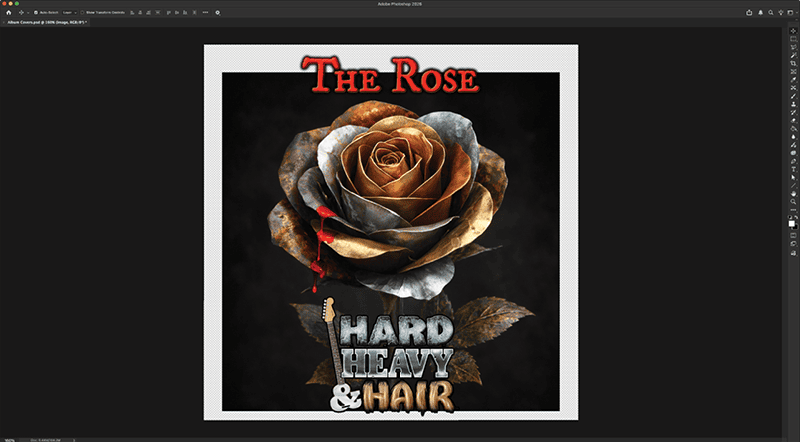

Figure 4 is an even more striking example: The photograph didn’t include the space I needed to add to my composition. By using Generative Fill, I had Photoshop (powered by Firefly) realistically create additional details that weren’t in the original photograph, allowing me to complete my scene (Figure 5).
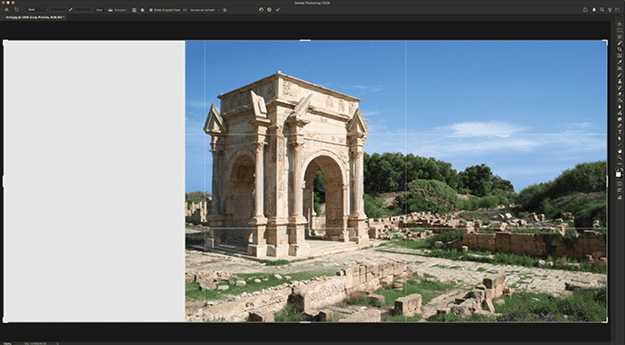
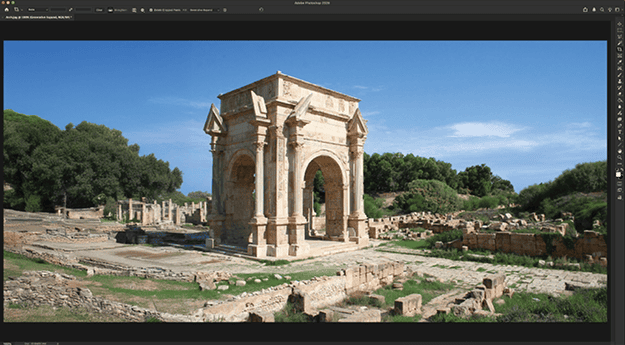
Here’s the Photoshop workflow:
Increase the image canvas. For the example, I used the Crop tool to enlarge the left side of the canvas, creating empty space.
Choose Window > Contextual Task Bar to turn on the Contextual Task Bar.
Choose Generative Expand from the Contextual Task Bar.
Leave the Prompt field blank, and click the Generate button.
On the Properties panel or the Contextual Task Bar, select the best of the three generated options. If none of them works, click Generate again to get three more options.
9. Filling in the Bleed Area
The same Generative Expand feature is available in InDesign should you find yourself at layout time lacking enough image to bleed—a common issue with photographers and illustrators who don’t routinely prepare their work for commercial printing (Figure 6).
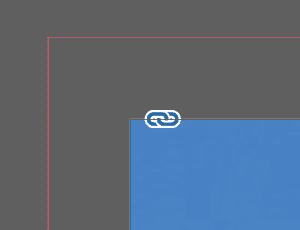
A few quick steps, and you’ll have artwork that bleeds without having to resize the existing image and worry about crucial details being moved out into the bleed (and probably trim) area. Here’s the workflow:
With the Selection tool, select the graphic frame containing the image you need to expand.
Enlarge the frame to fill the bleed area.
Choose Window > Contextual Task Bar.
On the Contextual Task Bar, select Generative Expand, and then click Generate, leaving the Prompt field blank. After a moment, InDesign (with the help of Firefly) will fill in the empty parts of the graphic frame as if the photograph had originally occupied those previously empty areas.
Just be aware that there are some down-sides to using image generation features in InDesign, as described in this post. If any of them are dealbreakers for you, simply use Photoshop instead to generate additional bleed area for your image.
10. Sketching and Iterating Ideas
Stop me if you’ve heard this one: You’re sitting in a meeting with a potential client who is describing how they want you to design something for them that pops, that stands out, and that is jazzy. The logo they want you to design for them has wings like their three other competitors and a capybara like this other company’s brand identity they admire. They haven’t yet decided on brand colors, so anything is on the table—as long it includes neon green, hot pink, lavender, and lemon drop yellow like these three brands they like. Oh! And they need their logo to feel modern but classical, cutting edge but traditional, TRON: Ares meets Casablanca. Do you understand the design? Because the client really needs someone who is 150% on the same page, who instantly understands the synergistic values of the disruptive, dichotomic brand based on that description, and they need to know now—right now—whether you are that designer who gets their vision. There are representatives of three other firms waiting in the lobby right now in what can only be described as a spectacularly unprofessional auditioning process. But you need the gig.
No longer does this job have to devolve into an excruciating string of meetings in which you present designs that the client shoots down or asks you to revise with instructions that grow increasingly contradictory.
With the help of AI, you can get consensus, at least in the broad strokes, before you ever leave that first meeting. Even better, you can email the results within minutes, before any stakeholder has a chance to find something that jazzes even more.
Pull out your laptop and try this in Illustrator:
Create a new document, but don’t draw a thing.
Go to Object > Generative > Generate Vectors.
In the Generate Vectors dialog box (Figure 7), choose a model, whether the latest version of Firefly or a partner model (Figure 8). Set the Content Type to Subject for a logo (use Icon or Scene for other types of drawings), and then describe the client’s request in the Prompt field.
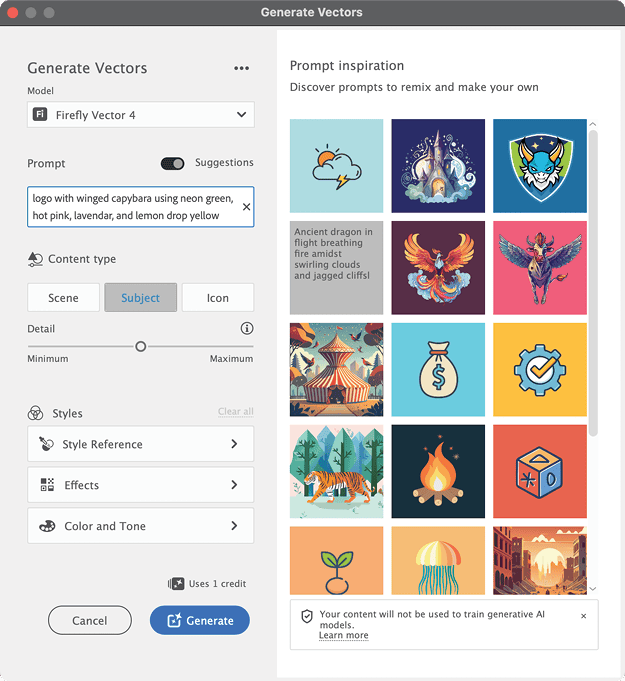
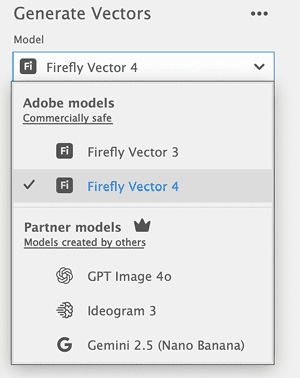
If you like, you can set additional options (in most cases, I wouldn’t at this point in the process), and then click the Generate button.
Show the result to the client and watch them recoil in revulsion at the design they just described (Figure 9).
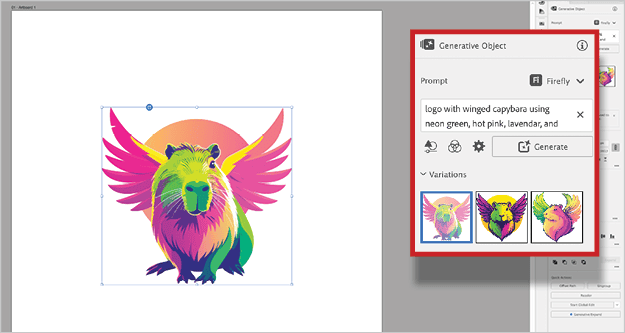
Time from pitch to abandonment? 36 seconds. Now you can get to work refining the original idea, translating client-speak into designer-ese, using the generative AI features of Illustrator to instantly (well, at least faster than any of us can draw) visualize the client’s ideas and yours into rough sketches until you get close to something the client actually wants. Before you leave their office, explain you’ll be back with something drawn correctly by you in a few days. You even can leave the rough JPG or PNG exports from Illustrator as reminders of that consensus while you work on refinements.
Adobe’s generative AI features are not a replacement for your creativity or intended to produce final, client-ready designs. Like any good assistant, however, they can help you shave time off the grunt work stages. Even better, they enable you to provide instant visual feedback to non-visual people and generate faster-than-napkin-sketch iterations of ideas.
AI Ain’t All Bad
Have I persuaded you that the pachyderm in the proverbial corner is not out to get you? My hope is that this article will help you find something that AI can do for you, some way in which the genie that won’t be put back in the bottle can work magic to help you succeed at your goals. Because, no matter what marketing departments worried about their budgets say, no matter what fantasies CEOs and shareholders desperate to cut costs and increase share prices indulge in, generative artificial intelligence is years away from even scratching the surface of what trained graphic designers can do. In the meantime, it can do a lot for graphic designers.
Commenting is easier and faster when you're logged in!

Recommended for you
Free Webinar: Cross App Power Hour with Illustrator, InDesign, and Firefly
Explore practical AI-powered tools in Illustrator, InDesign, and Firefly that wi...

Editor’s Picks for The Design + AI Summit 2025
Our Editor in Chief lists his must-see sessions for The Design + AI Summit 2025.
Interview with Jigyasa Grover, Author, Instructor, and Machine Learning Engineer
Q&A with Jigyasa Grover, who is presenting at The Design + AI Summit 2025