



1. Creating Swatches. To create a process color swatch, select an object with the color you want, or use the Color Picker or the Color panel to define the color, then drag the color to the Swatches panel or click the New Swatch button.
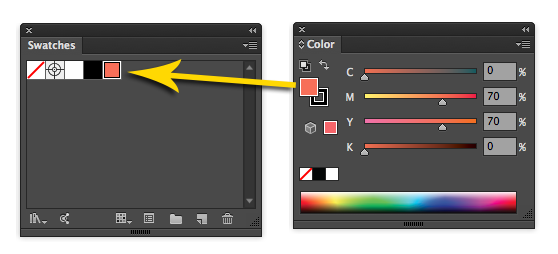
To define the swatch as a spot color, hold Command/Ctrl as you drag or click the New Swatch button.
2. Control the Swatch panel display. You can create swatches to save named colors, tints, gradients, and patterns in the Swatches panel. You can filter the display by choosing a specific type of swatch from the Show Swatch Kinds menu at the bottom of the panel.

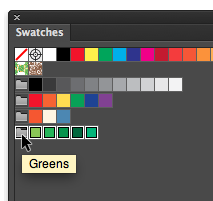
3. Create groups of swatches to organize them in the panel. To add color swatches to a group, select the swatches and click the New Color Group icon at the bottom of the Swatches panel and give the group a name.
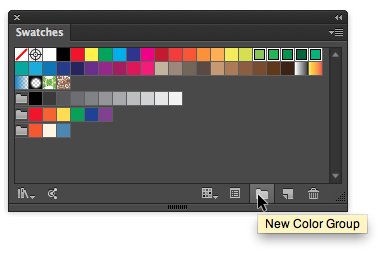
A color group appears with a folder to the left of it when the panel is in thumbnail view, and as a collapsible list when the panel is in list view.

4. Edit swatches. Double click on a swatch thumbnail to open the Swatch Options dialog box where you can change a color’s name, definition, color type, color mode, etc.

You can also just double click on a swatch name or a color group name to change it.
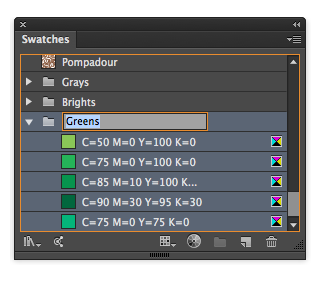
5. Using Global Swatches. Process colors can be either global colors or local colors. If you want a process color to be automatically updated throughout your document when you edit that color, make it a global color in the Swatch Options dialog box.

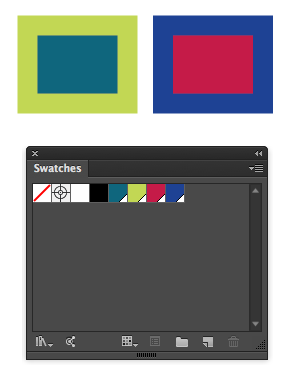
A global color has a square icon to the right of its name when the Swatches panel is in list view,
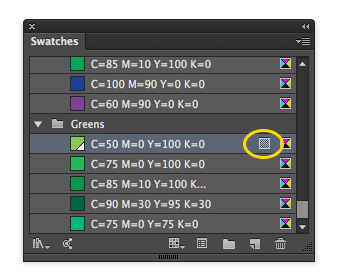
and a triangle in the lower corner of its thumbnail when the panel is in thumbnail view.

6. Replacing Swatches. To replace a swatch, hold down Option/Alt and drag and drop a color or gradient onto the swatch you want to replace. You can drag colors from several places including the Color panel, the Tools panel, the Gradient panel, or an object in your document.
7. Using Swatch Libraries. Illustrator comes with several collections of colors, patterns, and gradients called swatch libraries. Some are ink libraries like PANTONE, Trumatch, etc, and others are thematic libraries like Skintones, Wood, Metal, Water, Pastels, etc. To access these libraries, choose Open Swatch Library from the Swatches panel menu.
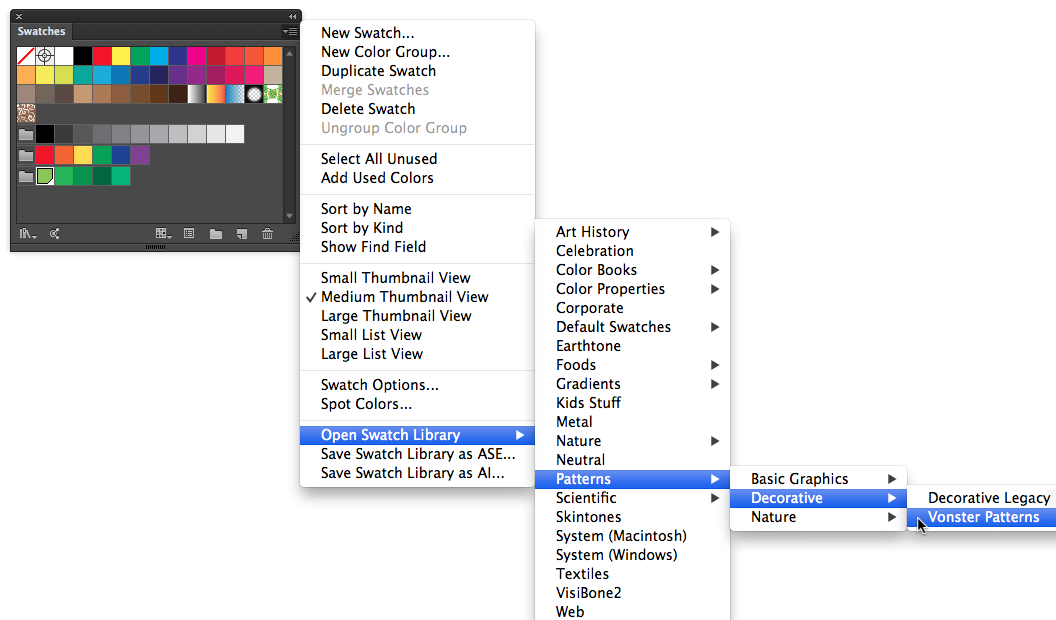
Swatch libraries open in separate panels.

You can make them appear each time Illustrator is opened by selecting Persistent from the library panel menu.
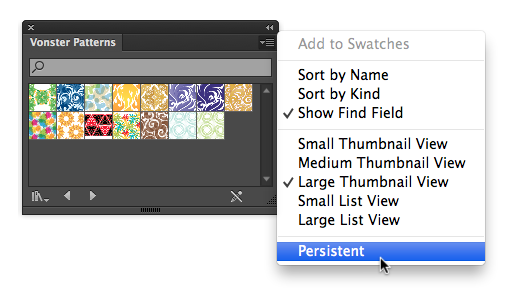
And you can also add an individual swatch or a group from a swatch library to the Swatches panel, by dragging and dropping it to the Swatches panel.
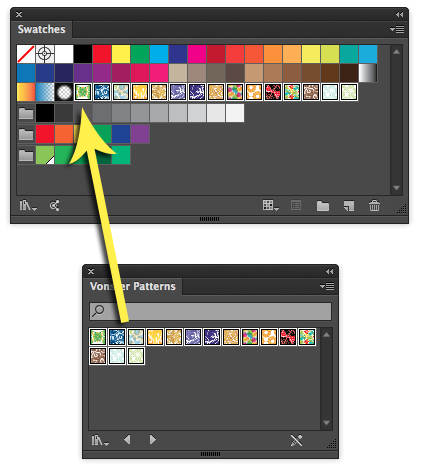
8. Merging Swatches. To merge multiple swatches, select two or more swatches, and select Merge Swatches from the Swatches panel menu. The name and color value of the first selected swatch replaces all other selected swatches.
9. Adding Colors as Swatches. To add colors from a selected object, choose Add Selected Colors from the Swatches panel menu. The new swatches will be global.

You can also click on the New Color Group button at the bottom of the the Swatches panel.
To add all colors in a document, make sure nothing is selected and choose Add Used Colors from the Swatches panel menu.

10. Searching Swatches. When you have a large collection of swatches it can be hard to locate the exact one you want. Fortunately, you can choose Show Find Field from the panel menu, and then enter the word(s) that will filter the display so it shows only the swatches you want.

This article was last modified on September 22, 2023
This article was first published on July 10, 2013
Commenting is easier and faster when you're logged in!

Recommended for you
Meet the Neo SmartPen: A New Way to Draw
As an artist who specializes in combining traditional and digital tools, I’m alw...

The Digital Art Studio: Rescuing Old Photos #1
As the representative digital professional in my family, I’m frequently tapped t...

Free 3D Photoshop Objects from Pixelsquid
Online image libraries come and go, and the good ones get swallowed up by Getty....