



This tip was sent to Tip of the Week email subscribers on June 4, 2015.

Sign up now and every week you’ll get a new InDesign Tip of the Week and Keyboard Shortcut of the Week, along with roundups of new articles at InDesignSecrets and CreativePro, plus exclusive deals sent right to your Inbox!
Just scroll all the way down to the bottom of this page, enter your email address, and click Go! We’ll take care of the rest. Now, on with the tip!
A couple weeks back, I wrote a tip for using the Story Editor to view and edit overset text that you can’t access in the layout. But what if you need to locate the overset text first because you’re working with an especially long or complex layout?
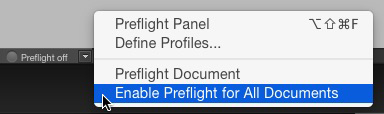
After a pause you’ll see the preflight status off the document. If errors were found, a red dot appears. Double-click the word “error” next to the red dot to open the Preflight panel.

If there are problems with overset text, they’ll be listed under the TEXT category. Click on the small triangles to reveal the exact instances of overset. Then click on a page number to jump to a specific overset text frame.
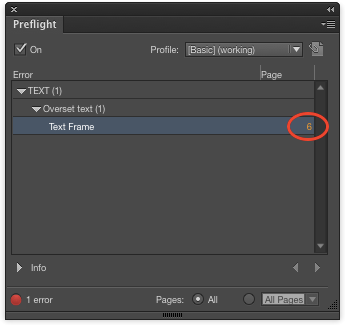
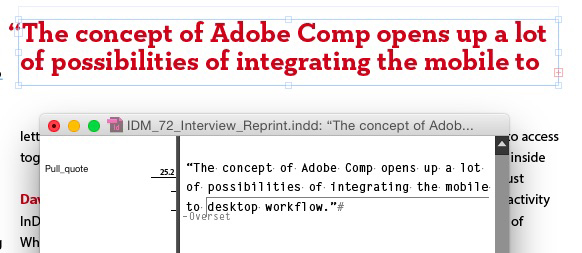
The frame will be selected and you can immediately press Command+Y (Mac) or Ctrl+Y (Windows) to open the Story Editor and see/edit the overset text.
This article was last modified on July 25, 2019
This article was first published on June 9, 2015
Commenting is easier and faster when you're logged in!

Recommended for you

Tip of the Week: Toggling Find/Change Direction
This tip was sent to Tip of the Week email subscribers on February 19, 2015. Sig...
Tip of the Week: Showing Hidden Panels
Sign up for the InDesign tip of the week to get a new tip, roundups of new artic...

CreativePro Tip of the Week: Viewing Illustrator Artwork as Outlines
This CreativePro tip for viewing Illustrator artwork as outlines was sent to Tip...