




We’ve talked quite a bit about InDesign’s Data Merge feature over the years, and I’m recording an in-depth title on the subject for lynda.com (should be out by spring). But one problem which often plagues hopeful data-mergers is the situation when sometimes a data field has some content and sometimes it doesn’t.
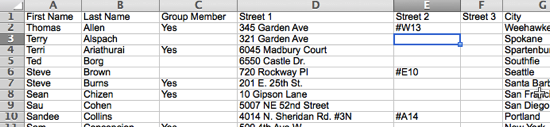
For example, in this spreadsheet, the Street2 field is often empty, but sometimes it’s present:
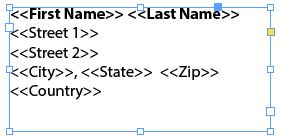
So if you take that data file and build a Data Merge template with it, it might look like this:
But when you merge your document, you may see a blank line after the first address field!
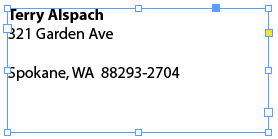
That’s horrible. Fortunately, there’s a simple fix: Before you generate the merge, select Content Placement Options from the Data Merge panel menu and turn on the Remove Blank Lines for Empty Fields checkbox.

If you’ve already merged your document, you’ll have to regenerate a new merged document. (In other words, this dialog box doesn’t fix it retroactively.)
This article was last modified on December 30, 2021
This article was first published on December 14, 2013
Commenting is easier and faster when you're logged in!

Recommended for you

Duplicate Formatting with These PowerPoint Tools
Use the Format or Animation Painters to apply styles with a single click!


Livestream Video: Creating Retro Looks & Type Treatments in Photoshop
Making new things look old is always a fun challenge!