




Need to reduce the file size of a Photoshop document? You may be able to significantly reduce the file size by either cropping or flattening.
If you have a layered file, notice the document sizes in the Status Bar below the image. The two values correspond roughly (sometimes very roughly) to the size of your image as a flattened file (on the left), and as a layered file (on the right).

If you don’t need to preserve the separate layers, flatten the image by choosing either Layer > Flatten Image or Layer > Merge Visible.
If you do need to preserve layers in the file, try cropping the image.
Select the Crop tool and press Return or Enter. You will see a crop overlay fitting the canvas, and any pixels that were outside the canvas will be visible but dimmed.

Press return or Enter again to crop the image to the canvas, discarding any pixels outside that area. The values in the Status Bar will update immediately to reflect the reduced file size.

If just one layer is causing bloated file size, you can crop it and leave the others alone. Target the guilty layer in the Layers panel, and Select All pixels on the canvas (Command/Ctrl+A). Then press Command/Ctrl+J to copy just the selected pixels to a new layer. Then delete the original layer.
This article was last modified on January 12, 2026
This article was first published on April 10, 2017
Commenting is easier and faster when you're logged in!

Recommended for you
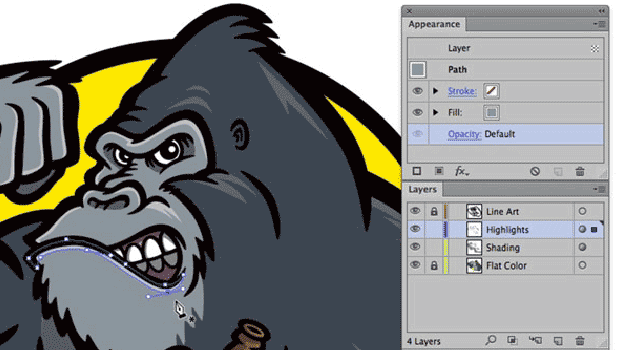
Illustrator WOW! Techniques: Flexible Shading and Highlighting Effects
Would you like to add richer shading and highlighting effects to your vector art...
Balancing Text Columns in InDesign
Did you ever resize a multi-column text frame to balance out the depth of the te...

Tip of the Week: Choosing the Right Folder for Relinking
This tip was sent to Tip of the Week email subscribers on May 7, 2015. Sign up n...