




Make sure you use colours that work well with the colour of your foundation.

Creating a Flower Shape With Wrinkle, Warp, Twirl, Scallop, Bloat and Pucker Tools
In the next example you’ll get a chance to use tools such as Wrinkle, Warp, Twirl, Scallop, Bloat and Pucker Tool. All of these alter the paths in different ways that will make your final design more elaborate and visually interesting. Use Bloat, Pucker and Warp tools to manipulate the path in more subtle ways, or Twirl and Scallop Tools for a more detailed look.
For frilly petals I used the Twirl Tool.

In order to avoid overcomplicating the design, I used a larger angle value when rotating and copying the petal (45°). For more complex flower designs such as this one, I suggest using the Outline mode from the Pathfinder window. It will give you a better overview of the outlines and allow you to plan your colour palette and its application a bit easier.

Play with different shades and opacity. Imagine what the flower petals look like when overlapping.

There’s likely to be some parts that are too tiny to be coloured individually (and still look good), especially as you get closer to the middle, so feel free to add the same colour to 2 or more neighbouring pieces.
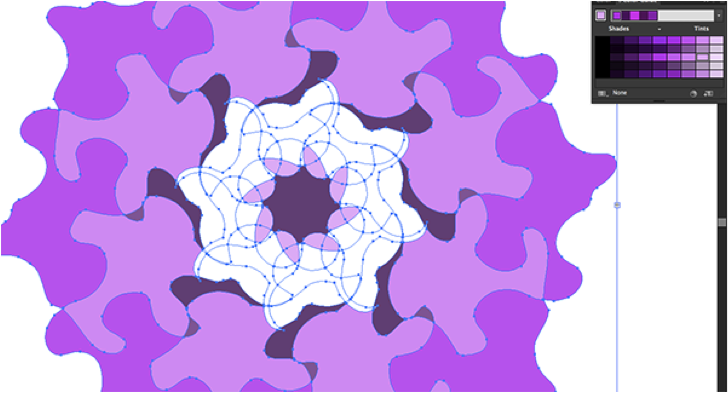
Deselect the shape to see what it looks like without paths showing. You can still use the Live Paint Bucket tool on it; a red outline will appear when you hover over the area you’re about to fill.

Don’t be afraid to leave some areas empty, as doing so can add a nice contrast to the design.

Now when you’ve mastered the basics, there are plenty of possibilities for you to explore. Try using different angle values (15, 30, 45, 60, 75, 90), different colour palettes, and combining more flowers into one design or patterns.
***
Ben Richardson is director of Acuity Training an IT training business based in Guildford, UK and is sharing some of the tips that delegates have found more useful from their Photoshop courses.
This article was last modified on February 11, 2015
This article was first published on February 11, 2015
Commenting is easier and faster when you're logged in!

Recommended for you
Top Tips for Illustrator Book Now Available!
Our most popular Illustrator tutorials collected in a convenient PDF book format

Illustrator: How to Recolor Artwork Selectively
In this “Three Minutes Max” video, Laura Coyle shows us some new tricks to using...
How to Create a Geometric Unicase Font in Illustrator
Learn how to create a unicase font in Illustrator using the Live Paint bucket an...