



[Editor: Note that this article is no longer relevant in CS6 and later.]
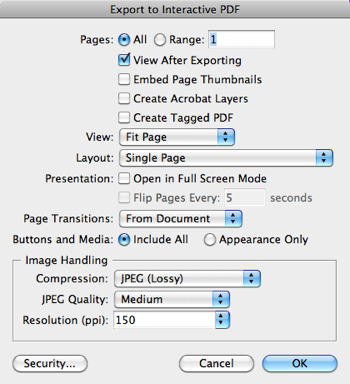
It was long-time reader Eugene T. who first pointed out that the new PDF (Interactive) export setting in CS5 had a little problem: It’s missing a number of the features from the PDF (Print) export dialog box. Most of these omissions aren’t that important (after all, you don’t need trim marks or transparency flattening in an interactive PDF). But there is one very important feature missing that can cause some grief: Spreads.
The Spreads checkbox in the PDF (print) dialog box lets you tell InDesign whether to merge left- and right-pages in a spread together into a single page in the PDF. For example, if you have a Letter-sized page in InDesign, and your document is set up for Facing Pages, then pages 2 and 3 appear to be two Letter sized pages in InDesign. However, when you export the document with the Spreads checkbox on, pages 2 and 3 are fused together into a single 17″ x 8.5″ page, called page 2.
So it’s rare that you’d turn Spreads on. Perhaps for proofing, or printing on a big laser printer. But when making a PDF? Rare.
However, there is no Spreads checkbox in the PDF (Interactive) dialog box… and Spreads is always turned on. So if you have Facing Pages documents in InDesign CS5 and you export as PDF (Interactive), the spreads always end up as spreads. Bad, bad, bad…
The solution is fortunately relatively simple: Open File > Document Setup, turn off Facing Pages, export the document, then Undo (to get back to facing pages).
But with every silver-lining, there is a cloud. As Eugene pointed out: “?The problem with the solution is the running heads for verso and recto can be different at times, and that’s where the Facing Pages is really needed, breaking this means I no longer have alternating running heads.”
Indeed: When you turn off Facing Pages, all the pages become “left” pages, so any items on your right master pages disappear!
The only other solution is to export as PDF (Print) and then add the interactive features manually in Acrobat, which is not much fun.
We hope that Adobe sneaks a Spreads checkbox into that export dialog box. Or, even better in my opinion, merge the PDF dialog boxes into a single export dialog box again so we have all the controls in one place.
This article was last modified on December 20, 2021
This article was first published on August 16, 2010
Commenting is easier and faster when you're logged in!

Recommended for you

Creating Multiple Page Sizes in CS5 Part 2
InDesign lets you mix page sizes in some new ways, yet the pages can still be pr...
How to Convert from Print to Web Intent in InDesign CS5
The New Document dialog box lets you choose Intent, but how to change it after t...
CS5 bug with anchored objects on spreads
Beware of this bug that can make anchored objects fail to print or output to PDF...