




PowerPoint, like all programs, provides built-in keyboard shortcuts for most typical functions. But unlike Adobe, Microsoft does not allow you to modify shortcuts or create new ones. Fortunately though, if you’re a Mac user, you can take advantage of keyboard shortcuts at the macOS level to personalize and seriously speed up your PowerPoint experience. Here’s how to do it:
First, make a note of the exact command name and the menu where it resides in PowerPoint.
Then, click the Apple icon at the top left of your desktop and choose System Preferences. In the dialog box, select Keyboard > Shortcuts > App Shortcuts. You’ll see a list of a few applications at first. Clicking the plus sign below the list will open a menu listing all the applications installed on your Mac. Scroll down and select Microsoft PowerPoint. Then type in the Menu Title where the command appears and your desired Keyboard Shortcut. As long as a function appears in one of PowerPoint’s File menus (not the Ribbon), you’ll be able to override the default keyboard shortcut or enter a new one if it doesn’t already exist.
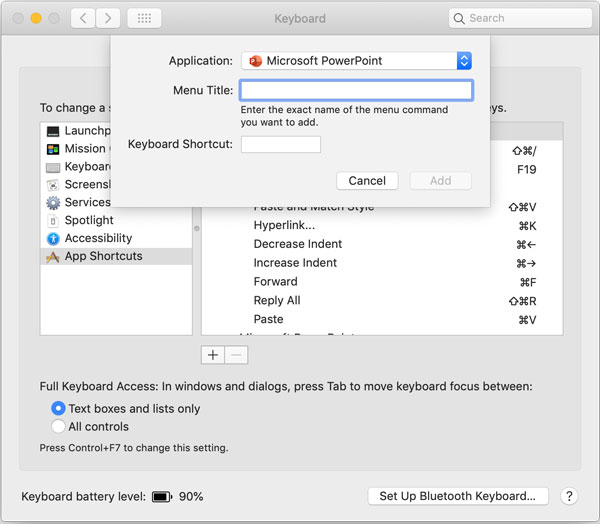
Choosing Intuitive Shortcuts
The keyboard shortcuts you create or change are entirely up to you, but one thing I like to do is make my shortcuts consistent across all programs. For example, I like using F5 for all Export functions, so that’s what I’ve set for the File Menu function “Export…” in PowerPoint. Note that you must type in a File Menu function exactly as it appears in the target app for the shortcut to work. Once you create your custom shortcut, your new key command will appear in the app’s file menu.

Choosing Which Commands Get Shortcuts
I tend to use custom shortcuts only for the functions I use regularly, including the all-important alignment tools which are buried in submenus without built-in shortcuts. To solve this frustration, I have assigned Shift+Command+Right Arrow for Align Right, Shift+Command+Left Arrow for Align Left, etc. Send to Back/Send to Front are Shift+Command+Left Bracket/Right Bracket. Here’s a list of my programmed shortcuts:

What About Windows?
One last note: Windows does not have a similar system-level customization tool, but it does have an accessibility feature whereby pressing the Alt key will bring up a grid of letter mapping that allows you to access tools via the keyboard. It’s not as smooth as pure keyboard shortcuts, but some folks make use of this feature to speed up their PowerPoint work.
This article was last modified on January 30, 2021
This article was first published on December 29, 2020
Commenting is easier and faster when you're logged in!

Recommended for you

How to Convert PowerPoint Slides to Google Slides
Learn how to convert your PowerPoint deck to Google Slides and how to fix the th...

PowerPoint How-To: Hide Onscreen Content in Slideshow Mode
See how you can have content on your PowerPoint slides that will print but not s...

Ten Great Scripts for Illustrator
Enhance your Illustrator workflow with these automation goodies