




TypeTalk is a regular blog on typography. Post your questions and comments by clicking on the Comments icon above. If Ilene answers your question in the blog, you’ll receive one Official Creativepro.com T-Shirt!
Q. Is there a way to control line spacing in a Microsoft Word document besides the limited single, 1.5, and double options?
A. Yes, though it’s hidden away. This very useful feature can help fine-tune your layout and maximize readability as well as save paper by reducing the number of pages printed.
Here’s how to control line spacing in existing documents:
1. Insert your cursor within a paragraph or select any text.
2. Right-click or go to Format > Paragraph.
3. Select Indents and Spacing.
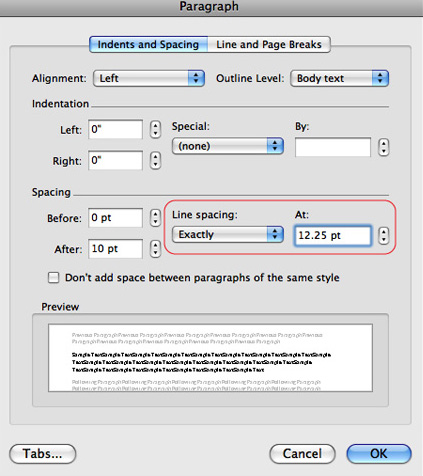
4. Under Spacing, go to Line spacing and select either At least or Exactly. Use the up/down arrow or type in your desired value. This field accepts percentages in the hundreds.
5. Click OK.
Figure 1. Adjusting line spacing in Word is a snap once you know where to look!
Love type? Want to know more? Ilene Strizver conducts her acclaimed Gourmet Typography workshops internationally. For more information on attending one or bringing it to your company, organization, or school, go to her site, call The Type Studio at 203-227-5929, or email Ilene at in**@***********io.com. Sign up for her e-newsletter at www.thetypestudio.com. You can also follow Ilene on Facebook and Twitter.
This article was last modified on May 15, 2023
This article was first published on July 29, 2009
Commenting is easier and faster when you're logged in!

Recommended for you

Understanding Overprints
Overprinting lets you stretch your print budget by combining inks on press. Here...

Creating a Reverse Indent
Recently Jerry asked, “I’m using InDesign to lay out a book in which...

InQuestion: Automatic Table and Figure Numbering
Jamie McKee shows how to use defined lists to take the time and toil out of numb...