




A friend called me with what I thought was a simple request: find a way to search in an InDesign document for numbers that are spelled out, like one thousand forty-seven and twelve hundred six. “No problem,” I said naively, and whipped up a simple GREP search expression that he could enter in InDesign’s GREP Find/Change dialog box, thinking that would be the end of it. Instead, I soon discovered that this was a much harder nut to crack, and I began a long journey to try to find a complete answer to the problem. First, a bit of background. In most technical, scientific, and other long, complex documents, common editorial convention is to spell out numbers less than 10, except for fractions and decimals. There is some slight variation on this practice, depending on audience, country, and other variables. For more details, see this article at Wikipedia and this one at Grammarly.com. The problem faced by my friend was several hundred pages of text where the authors had spelled out numbers greater than ten, and he faced the daunting challenge of reading through the text to locate these and replace them with numerals (changing two thousand four hundred twenty-two to 2422, for instance). This turns out to be a much more complex issue than it first appears, and for some reason, like a dog with a bone, I couldn’t let it go. The problem is that the English language is highly irregular when it comes to how we spell out numbers, with lots of exceptions. Here are just a few examples:
- 21 might be written as twenty one or twenty-one
- 1202 might be written as one thousand two, one thousand and two, twelve hundred-two, or twelve-hundred and two.
- Years are expressed
differently than numerals, such as seventeen seventy-six or twenty twenty one.
Then, to make this even more challenging, I thought it would be helpful if we could also search for the numerals 0–9 when they aren’t spelled out, because they usually should be, except when…
- In fractions, such as ¾, ½, etc.
- In decimal fractions, such as .7 or 2
- Before a comma followed by another numeral, like 1,234
And for good measure I decided we also need to search for 1st, 2nd, 3rd, etc. because those should be replaced with first, second, third, and so on. Each case that I describe above poses a particular problem in GREP. But if you’ve ever written a GREP expression, you know that the tiny Find What field in InDesign’s GREP Find/Change dialog box is ridiculously small (Figure 1). And, the GREP expression I was creating was quickly becoming huge.

Figure 1. The tiny Find What field in the GREP Find/Change dialog makes entering and editing complex GREP expressions very difficult. There’s got to be a better way!
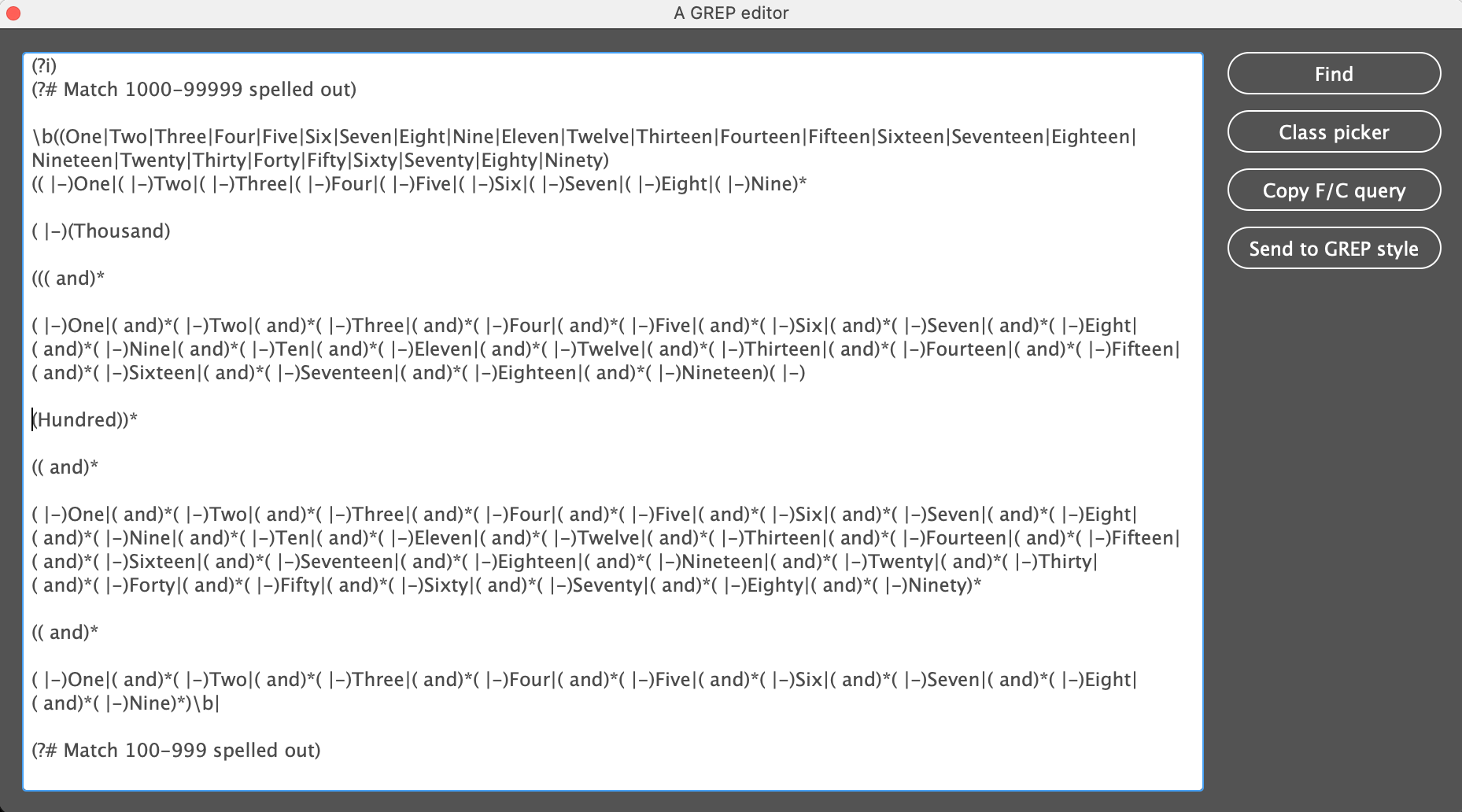
Figure 2. Peter Kahrel’s GREP editor script makes typing long GREP strings much easier. You can even include space, returns, and comments to make your GREP string more clear. This usually works very well, but the length of the GREP expression I was writing pushed it over the edge.
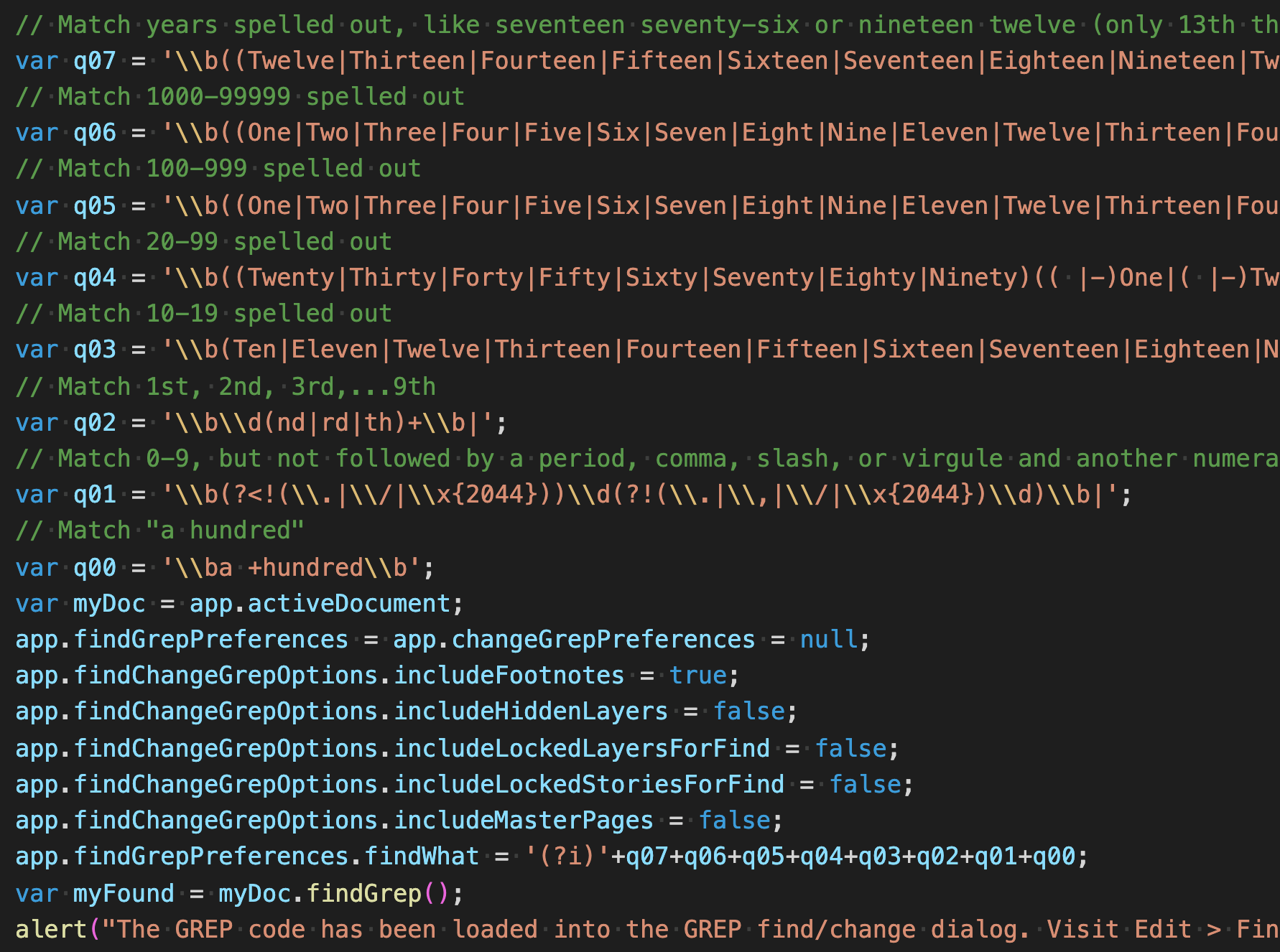
Figure 3. A screenshot of a portion of the script that breaks the very long GREP string up into eight smaller parts.
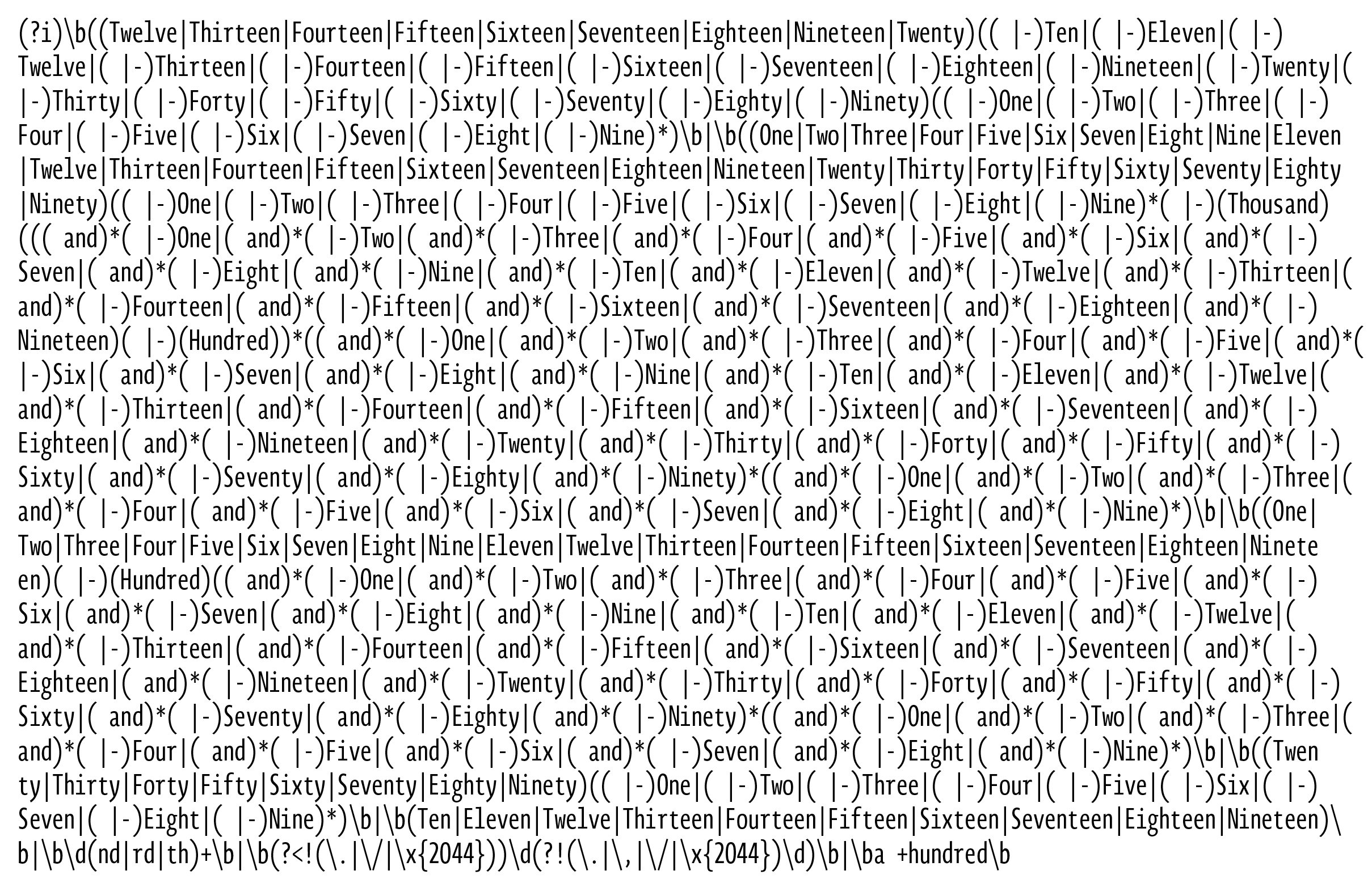
Figure 4. The final GREP expression. Much too long to edit in the Find/Change dialog!
Commenting is easier and faster when you're logged in!

Recommended for you

Using Adobe Stock with InDesign
Back in June, Adobe launched a new service for Creative Cloud users, Adobe Stock...
Exploring OpenType Pro Fonts, Part 1
OpenType fonts may include an expanded group of characters useful for the typogr...
Tip of the Week: Alphabetizing Menus
This tip was sent to Tip of the Week email subscribers on October 16, 2014. Sign...