




It’s time to reveal the solution—and the winners—for this month’s InDesignSecrets contest!
Here’s the scenario:
You open an InDesign file for a book project and notice a spelling error on one of the document pages. But when you click on the text with either the Type tool or Selection tools, nothing happens.

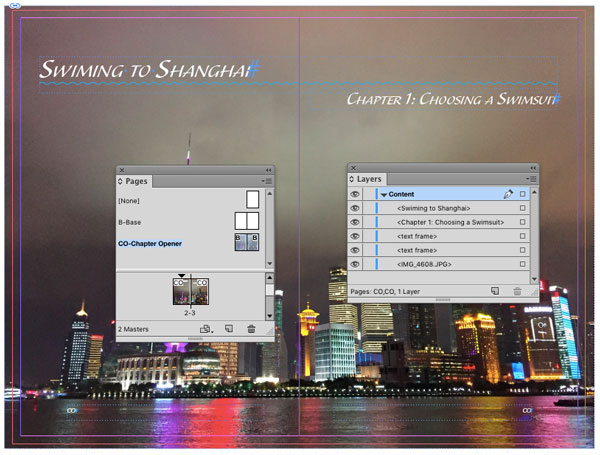
To check if the text frame with the spelling error is locked, you open the Layers panel and see that the text frame isn’t listed there. In fact, no items at all are listed in the Layers panel! It’s empty!

There’s only one layer in the document. It is unlocked, and if you hide it, all the content on the spread is hidden.

Why does the Layers panel appear empty even though you can see content on this spread?
The answer is that all of the content on the spread was on the master page. When you’re viewing a document spread, master page items that have not been overridden do not appear in the Layers panel. If you want to work with those items in the Layers panel, view the master spread.
And the winner of this contest are…
Youri Penders
Melise Gerber
Both win an activation code for FrameReporter from Rorohiko!
Thanks to everyone who entered, and be on the lookout for another contest with a new great prize next month!
This article was last modified on July 25, 2019
This article was first published on May 16, 2016
Commenting is easier and faster when you're logged in!

Recommended for you

The Fashion Fonts of Moshik Nadav
If you don’t think an inanimate entity can be sexy, you might change your...

Troubleshooting Adobe Creative Cloud Services
Don’t let problems in the cloud rain on your parade.

Scanning 101: No More Moiré
In your career as a graphics pro, sooner or later you’ll encounter a moiré...