



They say the difference between comedy and tragedy is that tragedy is something bad happening to you, comedy is when it happens to someone else. So you may get a laugh out of this story.
Or maybe someday, you’ll be the one with wrong styles showing up in an InDesign table of contents and you’ll remember reading this article. Oh who are we kidding, you probably won’t remember it at all, so I’ll just leave it here for you to find when you Google, “InDesign TOC hyperlink wrong style.”
Once upon a time, I was building a TOC that contained headings harvested from another document in an InDesign book. In that document, the headings were all hyperlinks to web pages. The headings didn’t have any special formatting to indicate they were hyperlinks. However, hyperlinks elsewhere (like in body text) did get underlined via a character style.
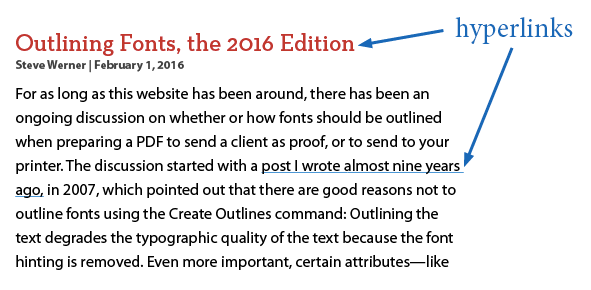
The headings were not supposed to be underlined when they appeared in the table of contents.

Follow me so far?
As part of my normal production work, I’d create hyperlinks in the body text, and apply the Hyperlink character style in the New Hyperlink dialog box.

And if I came across a heading, I’d create a hyperlink there too. But because the Character Style setting in the New Hyperlink dialog box is “sticky,” I’d find much to my dismay that the character style got applied to the heading.
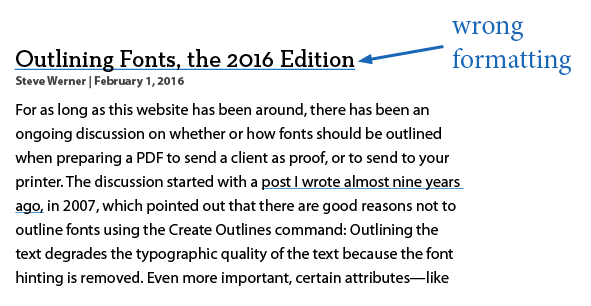
So being the lazy guy I am, I simply removed the character style formatting from the heading by selecting the text and applying the [None] character style.

Everything looked fine on the page. But when I updated the TOC, this is what I saw:
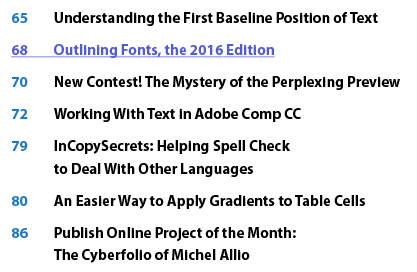
The Hyperlink character style was added to the table of contents document and applied to this entry! What the heck? I had manually removed the character style from the heading. Why was it still being put into the TOC where I didn’t want it?
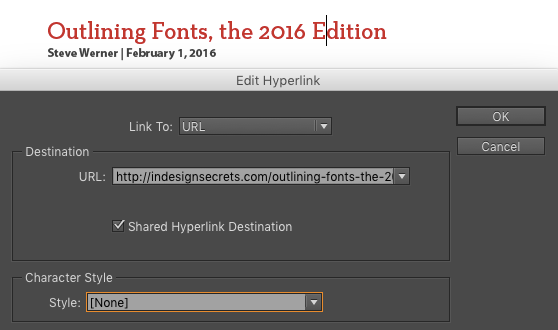
The answer is that I didn’t remove the character style in the Hyperlink dialog box.
Remember, it’s “sticky.” Very sticky. So sticky that it will stick even if you manually remove the style from the source of the hyperlink on the page. So I double-clicked the hyperlink in the Hyperlinks panel to edit it. In the dialog box, I set the character style to [None] and clicked OK.
Then I updated the TOC (Layout > Update Table of Contents), everything was as I wanted it.
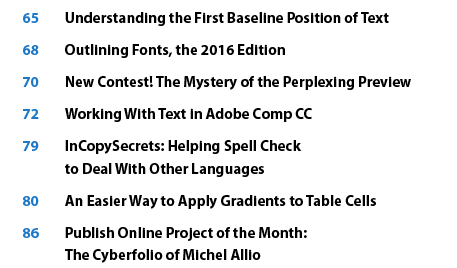
So to sum up, if you have mysterious unwanted text formatting in a TOC, go to the source of the TOC entry and check if it’s a hyperlink. There might be a character style selected in the Hyperlink dialog box that is being passed on to your TOC.
This article was last modified on July 25, 2019
This article was first published on March 23, 2016
Commenting is easier and faster when you're logged in!

Recommended for you

New InDesign Features Revealed at Adobe MAX
Adobe demonstrated the upcoming third version of Adobe InDesign CC 2015 (dubbed...

Adobe GoLive 9 Ships (Finally!)
You might not have noticed if you wandered by Adobe.com recently, but Adobe just...
Fix Font Problems Correctly
Those who have worked with fonts for a long time have developed a lore about the...