



This tip was sent to Tip of the Week email subscribers on August 13, 2015.

Sign up now and every week you’ll get a new InDesign Tip of the Week and Keyboard Shortcut of the Week, along with roundups of new articles at InDesignSecrets and CreativePro, plus exclusive deals sent right to your Inbox!
Just scroll all the way down to the bottom of this page, enter your email address, and click Go! We’ll take care of the rest. Now, on with the tip!
We all know that pressing Command+N/Ctrl+N will get you the New Document dialog box. And probably a lot of you know that pressing Command+Option+N/Ctrl+Alt+N will allow you to skip the dialog box and immediately create a new document with the last used document preset (Print, Web, or Digital Publishing).
But what you might not know is that you can assign keyboard shortcuts to two document presets, including custom ones that you create yourself. This can be a great timesaver if you’re often creating documents of a specific size and want to start fresh instead of from a template file.
First, create the document presets you want by choosing File > Document Presets > Define. In the dialog box, click New and set up the options you want.
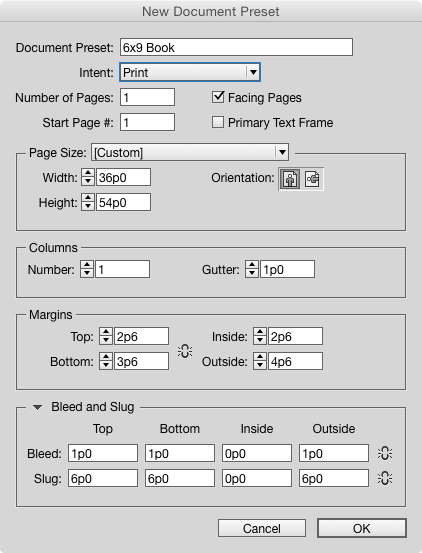
You can only assign shortcuts to the first two document presets in the list after [Default]. You can’t rearrange the order of presets, so if there are existing presets that are in the way, delete them or duplicate them and delete the original copies so they appear in the list after the ones you want to assign shortcuts to.
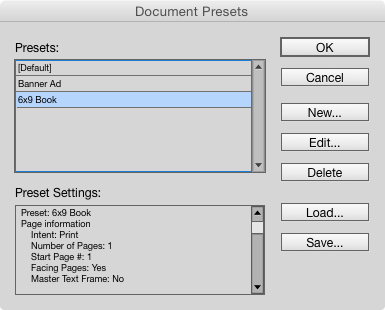
Next, go to Edit > Keyboard Shortcuts. Create or choose an existing custom shortcut set. Then choose Product Area: File Menu. Click on Document Presets: Document Preset 1.
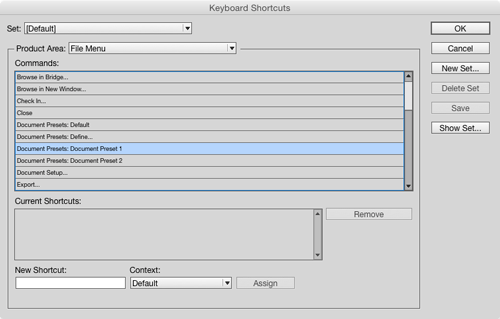
Click in the New Shortcut field and type the shortcut you want to use to create a new document with your first custom preset.
Do the same for the second preset.
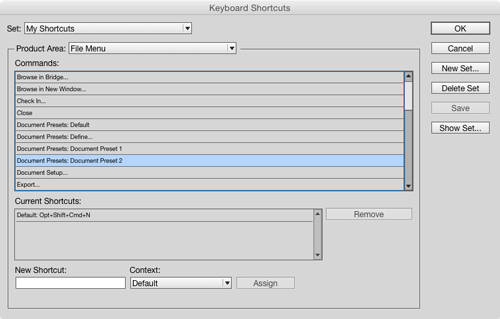
Now try out your shortcuts and see just how fast you can create new document exactly as you want them.
If you can’t remember your custom shortcuts, just check File > Document Presets.

This article was last modified on July 25, 2019
This article was first published on August 18, 2015
Commenting is easier and faster when you're logged in!

Recommended for you

Tip of the Week: Copying and Pasting Guides
Guides can be copied and pasted in InDesign, just like regular objects!

Tip of the Week: Customizing the Control Panel
This tip was sent to Tip of the Week email subscribers on July 30, 2015. Sign up...
Tip of the Week: Controlling the Glyphs Panel Display
This tip was sent to Tip of the Week email subscribers on March 26, 2015. Sign u...