



In the recent releases of InDesign, many new features have been presented quite boldly in the user interface. Even after we’re familiar with these new features, they’re still prominently displayed, whether we’re using them or not. Good examples are the Welcome screen, the Colour Theme Tool, CC Libraries, and the Content Grabber, also known as “the donut.”
One relatively new feature that I consider essential for working with long documents, flew under the radar of many InDesign users: the Split Window feature (also known as Split Layout View). Unlike some features of InDesign that are hard to miss, this one is hard to find, which is why it can be easily overlooked. It was mentioned briefly here when it was introduced into InDesign CS6, but not in a great deal of detail. So let’s take a closer look at Split Window.
What Does Split Window Do?
The feature simply splits the document window into two halves vertically, allowing different portions of a document to be visible at the same time.

How Do You Access It?
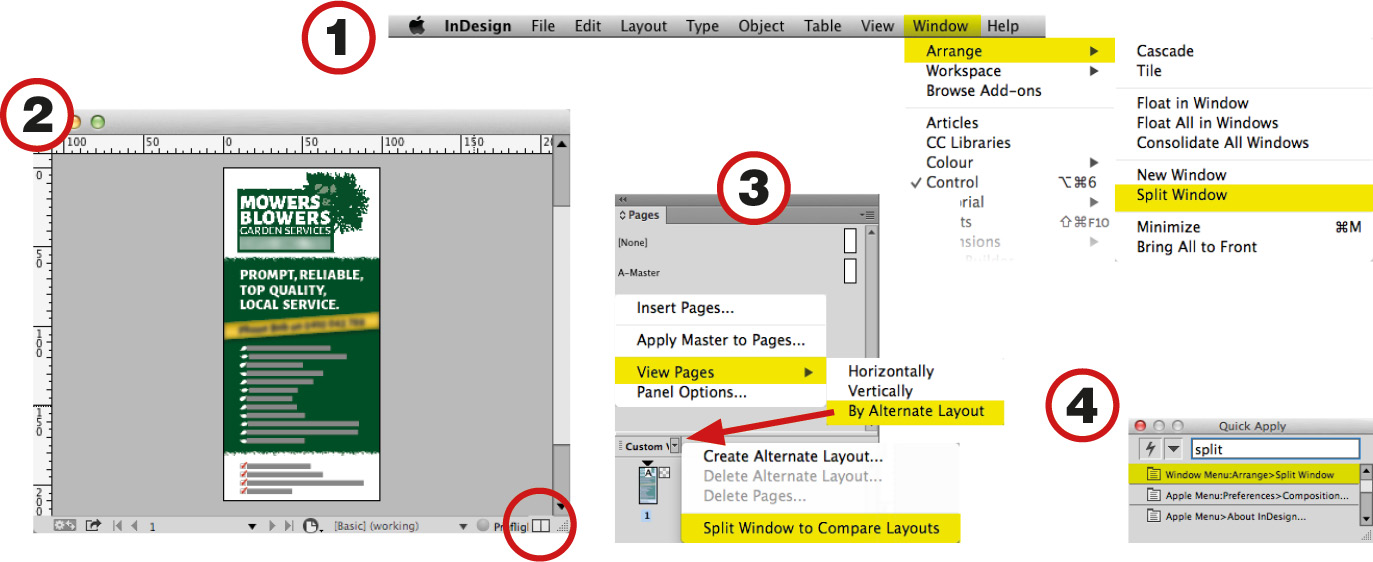
By default, there are four ways to access this feature:
- Via the Window menu
- By clicking the icon in the bottom right of the window
- When the pages in the Pages panel are displayed By Alternate Layout, Split Window can be activated via a tiny drop-down icon just to the right of the layout name.
- Via the Quick Apply feature
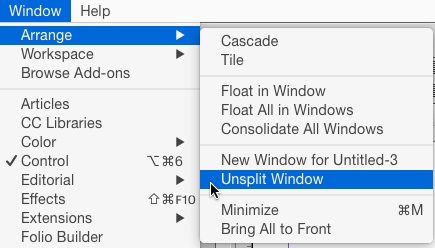
You can also unspilt a window in all these same places.
When Would You Use It and Why?
- If you’re working with two different layout styles (e.g. a landscape version and a portrait version for a DPS project).
- When you’re working with long documents, Split Window makes it easier to compare references from one page to another (e.g. cross references, index entries, or table of contents entries).

- It allows you to see the results of edits to a master page on document pages as you make the edits.

- It offers a way of maintaining focus following interruptions. For example, when a client who has previously provided a “laundry list” of alterations, then rings up and requests more alterations to be done while the file is open. With Split Window, you can keep one window dedicated to tackling the “laundry list,” while devoting the second window to the alterations you have to handle right now.
- It allows quick drag-and-drop copying from different parts of a document that may be dozens – or even hundreds of pages apart.
I’m sure I’ve only scratched the surface of the benefits of Split Window, but as an InDesign user who is regularly making long documents, this is one feature that I’m glad I discovered. Try it out; you’ll be glad you did.
This article was last modified on July 25, 2019
This article was first published on March 25, 2015
Commenting is easier and faster when you're logged in!

Recommended for you

Tip of the Week: Rotate the Spread View With a Gesture
This tip was sent to Tip of the Week email subscribers on September 3, 2015...
Designing Books
In in-depth look at the process of designing a book from start to finish, throug...

10 Rules for Establishing Visual Hierarchy in Graphic Design
Visual hierarchy helps viewers process information by highlighting the most impo...