


Customize and Shrink PDFs Exported from QuarkXPress 6.5



One of the most praiseworthy additions to QuarkXPress 6.5 was PDF generation from within the application itself. To this end, Quark incorporated Global Graphics’ Jaws PDF creation technology and made it integral to the XPress application; no separate program is required.
The XPress implementation is somewhat limited, but it is highly useful, and there’s no need for Distiller to be present on the system, nor does one have to have an OS that provides PDF output. (Wintel users rejoice!) The resulting PDFs look good on screen and can be used to proof and to archive layouts.
Where Do You Find It?
The way to get a PDF of your layout is via File > Export > Layout as PDF…, which gives the dialog you see in Figure 1.
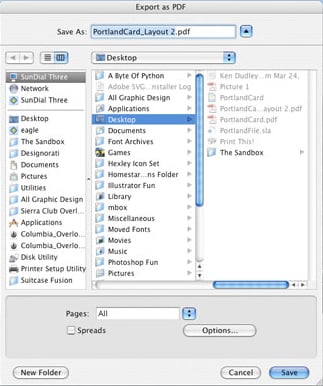
Figure 1. The PDF Export dialog from QuarkXPress 6.5.
If there are multiple pages, or if the user wants the layout exported as spreads, these can be specified in the lower part of the dialog box.
At this point, if the user wants to drop the PDF and go, all that’s required is to click “Save” and the PDF exporting will begin with no further ado. After a couple of minutes (depending on speed of hardware), a PDF with the layout name will appear where the user directs. (I like leaving mine on the desktop.) The document is a PDF 1.4 file, which is suitable for many uses and can be opened in Acrobat 5 or later.
What Else Can You Do?
The seasoned PDFer may find this procedure too cut-and-dried. There are two routes to altering settings.
First, in the PDF Export Dialog, note the “Options…” button, which is below and to the right of the “Pages” dropdown in the lower part of the dialog. Clicking that brings up another dialog box (Figure 2), titled “PDF Export Options for Layout,” with five tabs:
- Layout Info, which allows the user to embed Title, Subject, Author, and Keyword metadata
- Hyperlinks, which specifies how hyperlinks in the layout are to be embedded and displayed
- Job Options, which allows specification of font embedding and subsetting and compression options for graphics
- Output, allowing specification of color output (Composite or Seps) and Print Color Models (B&W/Grayscale/CMYK/RGB/As Is/Device N), as well as OPI, registration, and bleed
- OPI, allowing on/off for OPI and specification for TIFF and EPS images
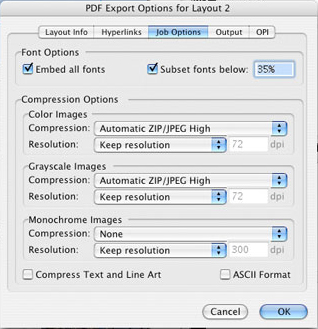
Figure 2. QuarkXPress 6.5’s PDF Export Options dialog with the “Job Options” tab selected. It allows the user to specify image-compression levels for the resulting PDF.
Put Your Images on a Diet
There is a great deal of control in the Export Options dialog, and the prudent PDFer will spend a great deal of time working with the settings in the Job Options tab, which offers various levels of compression between Manual JPG and Automatic ZIP/JPEG, in five degrees for each (High, Med High, Med, Med Low, and Low), manual 4- and 8-bit ZIP compression, and upsampling/downsampling options to user-specified resolutions.
The compression technology implemented by Quark has been criticized for producing overly large PDF files, but judicious use of the Job Options specifications can save a lot of space. My test XPress layout was 12.8 MB, and it was about that large when exported to PDF with all defaults, but when I selected High compression for images, the resulting PDF was 420 KB. (I also selected centered registration so I could specify crop marks-registration in the Output tab, where mark offset can also be specified.)
The Other Path
The second way to PDF output control in QuarkXPress 6.5 is via Preferences, where default workflow and output options can be specified. If one wishes to set application-wide preferences, this is the way to go.
Call up the Preferences dialog and click on PDF in the sidebar (Figure 3). The pane provided allows the user to select between PDF file production or PostScript file rendering for distilling at a later time — there is also a way to specify an Adobe Distiller “Watched Folder” that the PS file can be automatically saved to. Virtual memory can also be set here, as can the automatic default format for the PDF file’s saved name.
Figure 3. QuarkXPress Preferences dialog with PDF Options pane selected.
Of particular interest here is the “Default Options…” button. This button brings up the same Options dialog as the “Options…” button in the PDF Export dialog.
Ups and Downs
While the native PDF Export within the QuarkXPress 6.5 application is particularly welcome and seems to work basically well, there are a few caveats to keep in mind when using it.
First, the PDF repertoire is limited to just one version — PDF 1.4 — in contrast to Adobe’s InDesign, which offers PDF/X versions. A great many workflows can succeed with 1.4, but some demanding users may find XPress’ PDF Export insufficient.
Second, use of PDF Export requires more than a bit of getting to know the Options interfaces. Accepting the defaults result in very large PDFs, but knowing what to compress will reduce sizes substantially.
Third, PDF options cannot be captured as presets as they can with InDesign; in QuarkXPress, options should be reviewed each time the document is exported.
Fourth, and a little harder to pin down, are reports of unexpected results from the 6.5 PDF Export implementation. My test file exported correctly, and I had no problem outputting to a desktop printer (HP 6110 Inkjet), but some users have reported problems in printing on presses even though the PDF looked fine in Acrobat. (The Quark Forums PDF topic has ongoing conversations on this and other problems.) Query your service providers to see if they have problems with XPress 6.5 PDFs.
There is hope on the horizon, though; QuarkXPress 7’s PDF Export promises to be more robust than 6.5’s.
In the meantime, despite version 6.5’s flaws, XPress’ PDF Export is quite useful and a welcome addition to the program that stands to save the layout artist a step or two in the workflow battle. It’s well worth exploring.
An independent designer, writer, illustrator, and self-made digital design guru in training, Samuel John Klein is a native-born Oregonian who lives in Portland. He is currently deeply involved in Designorati.com, editing D:Cartography and D:Typography, and is an associate editor at QuarkVSInDesign.com. He can be reached at sa**********@***il.com.
This article was last modified on January 10, 2022
This article was first published on April 5, 2006
Commenting is easier and faster when you're logged in!

Recommended for you

Tip of the Week: Export Page Items as JPG or PNG at the Right Size
There are three new Links panel icons in InDesign CC that you'll see when workin...
Creating Backward Bullets in InDesign
Did you ever wish you could put a bullet at the end of paragraph instead of at t...

iPhotographer Magazine Free Issue
iPhotographer magazine covers world of mobile photography with inspirational ima...