




InDesign CS2 has a powerful automation capability that very few people use: its Data Merge feature. This feature originated in Adobe PageMaker, and was enhanced and brought into InDesign CS if you bought the PageMaker Plug-in Pack. It arrived as a stealth feature in InDesign CS2 with little fanfare.
Data Merge can create documents which have personalized, or variable, information such as business cards, mailing labels, form letters, even simple catalogs. The data for the personalization comes from the structured information in a database. But you can use a wide range of sources: Any data source that can create comma- or tab-delimited text is fair game (including Excel spreadsheets, database files, or Microsoft Word documents with tabbed text). You can, of course, do a mail merge in Word, but in InDesign, you have access to all its typographic refinements.
Data Merge can’t be described adequately in a single blog entry. Instead I’ll spread this description over several weeks. Today, I’ll describe what I’ll be creating in this series, and introduce you to preparing data for Data Merge. In subsequent weeks (I’m hoping to post weekly), I’ll cover creating frame placeholders in InDesign, importing the data and previewing it. We’ll also cover including images in the data, and laying it out with multiple records per page. (David also posted a blog entry in December 2006, answering a question about Data Merge. It pointed to a free article on Data Merge from InDesign Magazine by Rufus Deuchler.)
We’ll be creating two documents for an imaginary veterinary hospital: The first is a card to remind its clients that their pet needs to be brought in for its annual checkup. The reminder card will have variable data for the name of the pet, the date of the last visit, and so on. And there will be three different images used, depending on if the pet is a cat, a dog or a bird.



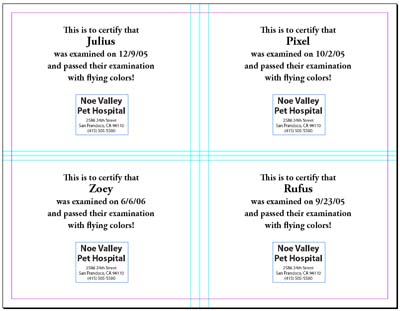
These cards display the variable data all on one page. But frequently we want to print multiple instances of the data on a single sheet. For our example, we’ll imagine that after the exam, the veterinary hospital sends out an examination certificate which is printed 4-up on a page. It will use the same data as the reminder card.
If you’re not familiar with data sources, it’s helpful to understand their language: A data-source file (which contains the structured information of a database or spreadsheet) is made up of fields and records. A field is a category of information – for example, an address or a zip code. A record is the complete set of fields that extend across a row of the data: Each field is separated with a tab or comma character, and each record is ended with a return character. Here are two more bits of terminology: The InDesign document that contains data-field placeholders is called the target document. It may also contain other boilerplate information, in this case the reminder letter copy, that remains the same in each iteration of the data merge. The merged document is the InDesign document that contains the boilerplate information, repeated as many times as it takes to accommodate each record selected from the data source.
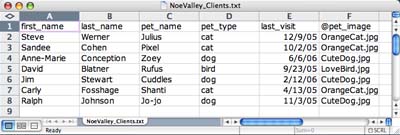
Open up your data-source file (for example, the Excel document shown below), and save it, if necessary into a tab-delimited text (.txt) or into comma-delimited text (.csv) file. Notice that the first line of the data must list the names of each field; you’ll use these in your InDesign layout to designate where the variable data will go.
We’ll cover how to set up your InDesign document in next week’s blog.
This article was last modified on December 18, 2021
This article was first published on February 4, 2007
Commenting is easier and faster when you're logged in!

Recommended for you

Resizing InDesign Layouts with AI
Most designers don’t create a single deliverable anymore. They create campaigns....

Editor’s Picks for The Design + Accessibility Summit 2026
Our Editor in Chief lists his must-see sessions for The Design + Accessibility S...
Livestream Video: Creating Retro Looks & Type Treatments in Photoshop
Making new things look old is always a fun challenge!