




One of the hottest new features in Acrobat 8 Professional is its Run Form Field Recognition (RFFR) feature. Almost everyone needs to work with forms sometimes, and often we’d like to create a “live” PDF form which can be filled out and submitted with a web browser or emailed. Forms have been part of Acrobat for several versions, but the downside of creating them has been the tedious labor of manually creating form fields, one by one.
With Acrobat 8 Professional, if you have a relatively simple form composed of lines, checkboxes, and form field labels, RFFR uses some artificial intelligence to automate the process. To use the feature, you simply choose Forms > Run Form Field Recognition. RFFR can recognize many of the features of a form, and can often deduce from the placement of labels where form fields can be placed. Here’s an example of such a form and the results of the default conversion:
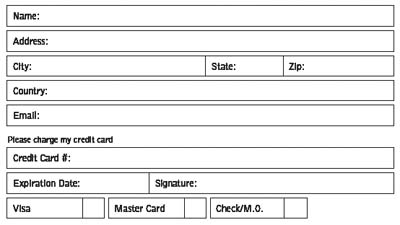

The results aren’t perfect, but it’s a great time-saver. Often, for a simple form, you only have to do minor tweaking to get a useful form. Carl Young and Ted Padova have written tutorials on using the feature in the Adobe Acrobat User Community website. (Acrobat 8 Professional also has other new form features: There’s a Distribute Form wizard that lets you send a PDF form to a number of recipients by email, and makes it easy for them to return the forms to you. When returned, you can aggregate the returned forms, and even export the data to a spreadsheet or database.)
So what does this have to do with InDesign? Of course, InDesign is the application of choice for us to create forms. We use InDesign’s powerful features to add tints, gradients, transparency, and so on to create a graphically rich and aesthetically pleasing form. Unfortunately, this graphic richness may make it difficult for the form fields to be recognized by Acrobat.
What’s the answer? Ted Padova’s posting points out that we can make use of the layers feature in InDesign and Acrobat to get both an aesthetically pleasing form and the form fields that we need. Below is a form where the fields are indicated by the contrast between white fields and a tinted background. Unfortunately, Acrobat doesn’t recognize these as form fields at all!

But we can add a layer to the file, and on that layer, create the lines that RFFR needs to recognize the form fields:

To save the layers for Acrobat, you need to directly export a PDF file. In the Export PDF dialog box, choose Acrobat 6 or higher compatiblity and check the Create Acrobat Layers option. As I pointed out in another posting, only directly exporting saves this information.

When opened up in Acrobat, the layers appear on the Layers panel found in the Navigation pane (click on the Layers icon on the left side of the screen to see them). Now if you run the RFFR feature, it correctly recognizes the form fields you need.

The final step is to hide the temporary layer you created with the lines. Click the eyeball icon to hide it. Then choose Flatten Layers from the panel menu to return the form to the good looking one you designed?but now with form fields!

Thanks to Ted Padova for this great tip!
This article was last modified on December 18, 2021
This article was first published on January 6, 2007
Commenting is easier and faster when you're logged in!

Recommended for you
Where is my font?
Keith tackles a thorny issue where certain styles of a large type family seemed...
InDesign CS3 Inside InDesign CS3!
One of the most useful features in InDesign CS3 is also one of the most unexpect...
Checking for flipped images
Here's a handy script that will alert you to any graphics that have been flipped...