



A recent posting on the InDesign Adobe Forum revealed that two of the standard Macintosh OS X fonts are poorly constructed, and won’t properly embed in a PDF file. The fonts, Thornburi Bold and Thornburi Regular, contain the character sets for several languages, but are primarily used for the Thai language.
To give a little background, when you create a PDF to send to a printer, you want to make sure that all the fonts are embedded. InDesign does this by default, unless a font is set to prevent it from embedding. If it cannot be embedded, you’ll get the error message below when you try to create a PDF file:
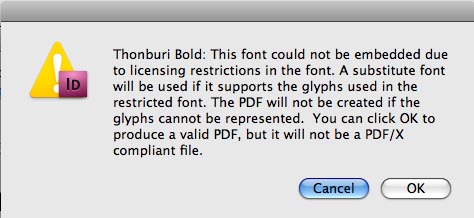
Most purchased fonts come with an End User License Agreement (EULA) which specifies how the font can be used and whether it can be embedded. While the vast majority of fonts (including all those from Adobe) can be embedded in a PDF or EPS file, some vendors may have restrictions which “protect” them, and prevent them from embedding. In the thread referred to above, Dov Isaacs, Adobe printing guru, points out that “various Apple-provided system fonts over the years have had embedding restrictions.”
So, when you’re preparing a document for print, it’s essential that you know whether your fonts are protected (not embeddable), or not protected. You can consider this to be part of the process of preflighting your job for print. This is the first time in years that I’ve actually encountered a protected font, so I thought I’d do a little investigation to see how whether the tools I have at hand identify this problem.
Apple provides a font utility called Font Book, which while not as full featured as a font manager like Font Agent Pro or Extensis Suitcase Fusion, provides many font management features including providing information about installed fonts. Unfortunately, Font Book incorrectly identifies both Thornburi Regular and Bold as embeddable and not protected.

InDesign has had a Preflight feature since version 1. If you have a version of InDesign through InDesign CS3, you can check whether a font is protected in a document by choosing File > Preflight. Fonts used in the document are listed in the Fonts panel. A font which is protected should show Yes in the Protected column in this display. Sadly, when I created an InDesign CS3 file with the two Thornburi fonts, Preflight failed to detect the problem (see below). Yet, when I tried to create a PDF file, I got the error message shown above.

Beginning with InDesign CS4, Live Preflight creates a much more robust and customizable way of preflighting files. In my opinion, this is one of the best reasons to upgrade to CS4. You can (and should!) create a Preflight profile which checks for the attributes which are important for the print workflow that you use. I described how to do this in a previous posting.
To search for whether fonts are protected, in the TEXT section of the Preflight Profiles dialog, check Font Types Not Allowed, then check Protected Fonts.

When I did this in InDesign CS4, and created the same test as in InDesign CS3, Live Preflight immediately detected the error, as shown below. I could immediately jump to the error and see what the problem was.

The solution to this problem, as is pointed out in the Adobe InDesign Forum is to use a different font which contains the Thai characters. In the case referred to in the InDesign Adobe Forum, the font was supplied by a client. It’s much easier to deal with this kind of problem when a file is being constructed rather than at the end when you’re rushing to send a PDF to the printer! Clearly, at least in this case, Live Preflight provided the best way to check for font embedding problems.
This article was last modified on December 19, 2021
This article was first published on July 2, 2009
Commenting is easier and faster when you're logged in!

Recommended for you

Format page numbers using grep styles
I was working on a project recently and decided to use old style figures in the...

InDesign How-to: Change the Date Format in Captions
Learn where you can go to customize the date format InDesign uses for Static and...

Helvetica: A Feature Length Film About a Typeface
After working in book publishing and producing numerous feature documentaries, a...