



The InCopy workspace resembles that of InDesign in many ways, with the ability to dock panels to the left and right sides of the workspace. But InCopy offers a unique addition to panel docking, allowing users to dock some panels to the top and bottom of the workspace as well. This can easily be seen if you make the Essentials workspace active. You’ll notice that in addition to the Command bar at the top of the screen, the Character and Paragraph panels are docked there as well.

To undock one of these panels, click on the Gripper area of the toolbar and drag down into the document area, the panel expands into a floating panel.

The gripper area of the toolbar
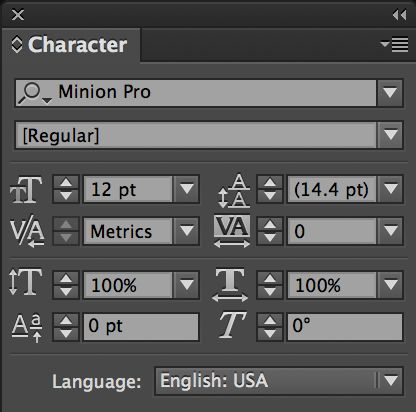
The same panel as a floating panel
To dock a floating panel to these areas, drag the tab of the panel up or down until you see a blue vertical bar appear. When it does, release your mouse and the panel will dock at that location.
Not all panels can do this. There are a chosen group of panels that are blessed with this behavior. These panels include:
- Change Info
- Copyfit Info
- Galley & Story Appearance
- Character Styles
- Paragraph Styles
- Character
- Paragraph
- Swatches
- Track Changes
The interesting thing about this behavior is that InCopy is quite flexible about how many panels can be docked in these designated areas. You can actually create multiple rows of these toolbars at the top and bottom of the screen opening up your workspace possibilities exponentially!
The rhyme and reason behind which panels can dock at the top and bottom of the workspace and which panels can’t, seems to pertain to panels that can logically display information in this limited area. For example, how would you easily display swatches in one of those areas? Either way, taking advantage of InCopy’s unique docking behavior can really streamline your workspace. If you have a unique way that you take advantage of InCopy’s workspace, we’d love to hear about it! You can tell us in the comments below!
This article was last modified on December 30, 2021
This article was first published on April 28, 2014
Commenting is easier and faster when you're logged in!

Recommended for you

How to Mirror a Layout
Flipping a whole layout from a left to a right hand page doesn't have to be a pa...

TypeTalk: Top Ten Type Resources Online
TypeTalk is a regular blog on typography. Post your questions and comments by cl...