




Nothing profound here, just a few odds and ends.
1. Since InDesign CS4 has tabbed documents, I got a kick out of assigning Command-t as the keyboard shortcut for the New default document command. With tabbed documents on, it basically functions as “New Tab.” Just like a browser. Yes, this means Command-t no longer brings up the Character panel, but it seems like a small sacrifice since all that stuff is also in the Control panel.

2. It’s cool to be able to load up your cursor to place multiple graphics, but it’s even cooler that the Links panel shows you which one you’re about to place. The foremost graphic has an “LP” for Loaded Place Cursor as its location. In CS4, it’s highlighted too.
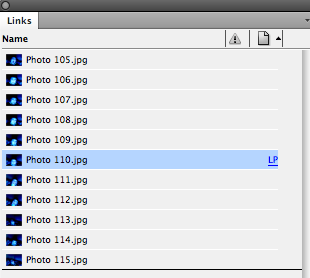
You can use your arrow keys to cycle through the loaded graphics and select the one you want to place next. If you need more graphics, you can still choose File > Place and add them to your already loaded cursor. Hmmm. I wonder what’s the limit on the number of graphics you can load into your cursor before it explodes. Fritz? Also, you can press Esc to unload graphics before they ever hit the page.
3. Plain old “w” is great keyboard shortcut to get into Preview mode. But you can’t use it when you have your cursor in a text frame, otherwise you’d type a “w.” Instead, Option-click/Alt-click on the icon at the very bottom of the Tool panel.

You can continue Option/Alt-clicking on the icon to cycle through the four window modes (Normal, Preview, Bleed, and Slug).
4. If you want to delete a parent style on which you have based other styles, you’ll be confronted with the following dialog box, asking you what to replace the parent style with.
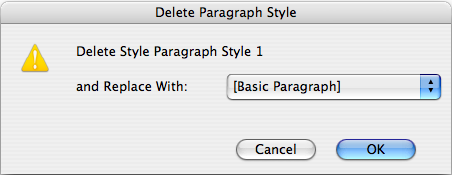
If you choose [Basic Paragraph], as InDesign seems to be suggesting, a child style will become based on [Basic Paragraph], and lose the formatting it inherited from its former parent. Instead, select [No Paragraph Style], and Preserve Formatting.

The formerly inherited attributes become part of the newly independent style.
5. To quickly select the top-most object on a spread, deselect everything, then click on the Select Previous Object button in the Control panel. Likewise, to select the bottom-most object, deselect everything, then click on the Select Next Object button.

This tip is easy to remember since clicking on the top icon gets you the top-most object, clicking on the bottom icon gets you the bottom-most object.
This article was last modified on December 19, 2021
This article was first published on April 14, 2009
Commenting is easier and faster when you're logged in!

Recommended for you

15 Years of Type for Independent Minds
Since FontFont was founded in 1990 by Erik Spiekermann and Neville Brody, FontSh...

Building Better Bevels
Get way more "Awesome" out of InDesign's Bevel effect with these tips and tricks...

OnRequest Images Launches "The Visual Brand Project" to Measure Impact Imagery Has on Brand Equity
OnRequest Images, the world’s leading provider of OnBrand custom photograp...