



If the global economic meltdown has your pockets feeling empty, here’s a fun way to pick up some spare change with InDesign. Make a bet with one of your geek friends that you can use InDesign CS3 to change a low-res RGB graphic into a high-res CMYK version, merely by exporting a PDF.
Now, to be perfectly clear: the point of this exercise is just for fun, and to learn a few things about what happens when you flatten transparency. There are plenty of other ways to change the resolution or color space of placed graphics (e.g. export to JPEG or EPS, print to PostScript, etc). I’m not recommending you add this technique to your prepress workflow.
Here’s the trick to show your friend. First, find a low-res RGB graphic. Anything under 96 ppi will do. Here’s one.

Place it into a new InDesign CS3 document. Note that I put a blue background in the frame just so you can see the logo better.
Next, if the graphic doesn’t already have transparency, give it some: change its opacity to 99.9%, give it a blend mode other than Normal, yadda yadda yadda.
Last, export a PDF, applying the PDF/X-1a:2001 standard. Ta da! Your low-res RGB is now a high-res CMYK. To prove it, open the PDF in Acrobat and use the Preflight command to list all images.
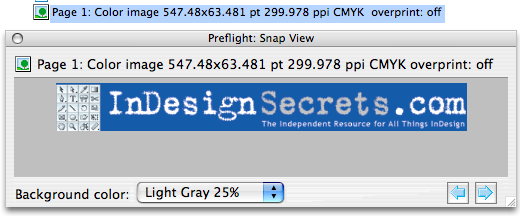
What was 72 ppi, RGB is now 300 ppi, CMYK. Collect your cash, and or beverage.
But wait, your friend is a geek too. She rightly says that the PDF/X-1a:2001 PDF settings convert colors to the destination color space, so of course your graphic will be CMYK.
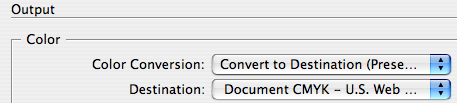
You reply, “OK. Change it to No Color Conversion.”

Export another PDF. Ta da-again!. The graphic is still high-res CMYK.
Not exactly what you might expect from a setting called “No Color Conversion.”
So how did this happen? A good magician never reveals his secrets, but I’m a pretty lousy magician. Three things conspire to change the graphic. First, the PDF/X-1a settings have a Compatibility level of Acrobat 4 (PDF 1.3), which means transparency will be flattened during PDF export.

Second, the X-1a settings use the [High Resolution] Transparency Flattener Preset. The [High Resolution] preset uses a Gradient and Mesh Resolution of 300 ppi.
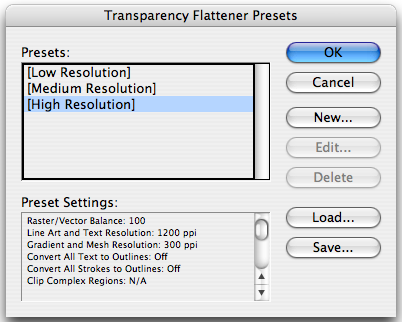
Third, in CS3, Gradient and Mesh resolution is applied to flattened graphics by themselves when they fall below 96 ppi effective resolution. Your graphic can be just sitting there, minding its own transparent business, and the flattener will come along and upsample it. The same trick won’t work in CS4, which does away with upsampling in unmixed regions.
OK, so now we know why our logo became high-res, but why was it converted to CMYK when we specifically asked for No Color Conversion? Answer: the Transparency Blend Space, which is by default, set to CMYK.

In fact, anything on the spread would be converted to CMYK, whether or not it interacted with transparency. To illustrate, I’ll add another low-res RGB graphic. Say, this one, which I like to call Cubzilla.

The Flattener Preview indicates that Cubzilla will not be affected by flattening.
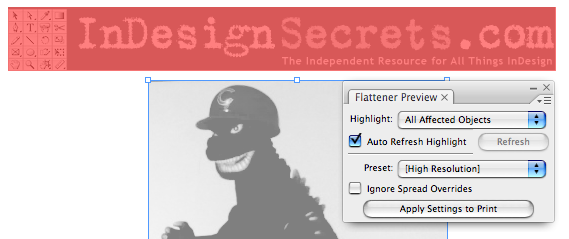
And yet, he is converted to CMYK in the PDF. I’d call that “affected.”
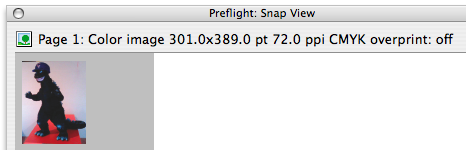
Unlike the logo, Cubzilla is not upsampled, because he doesn’t interact with transparency. Still with me?
The situation gets more interesting when you have a mix of resolutions and transparency. Say we scale Cubzilla down, so he’s 225 ppi, and lower his opacity to blend him with the logo. Now we have a region where 72 ppi mixes with 225 ppi. During flattening, the highest resolution wins, and the region is rasterized at 225 ppi.
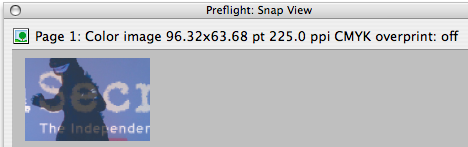
The upsampling still happens to the other regions at the Gradient and Mesh resolution, 300 ppi.

The moral of the story is this: When you invoke the flattener, it will do what it must to rasterize certain regions, and that may include upsampling and changing the color space of graphics. In most cases, you can avoid the upsampling by keeping a consistent effective resolution for your graphics that matches your Gradient and Mesh resolution.
Caveat Flattener.
Now watch me pull a rabbit outta my hat. (Aw, that trick never works).
This article was last modified on December 19, 2021
This article was first published on April 21, 2009
Commenting is easier and faster when you're logged in!

Recommended for you

A Down and Dirty Way to Lock Content
Prevent accident changes to finalized content by exporting to InCopy.

Style Highlighting
A new free script can reveal at a glance where any style has been applied in you...
Quickly add metadata to InDesign and PDF files
Metadata is a term that we’re hearing more and more these days. So what is...