




As a Photoshop user, one of the kindest things you can do for anyone who has to work with your files (including yourself) is to keep the Layers panel organized. As you build a composition it’s all too easy to end up with a bunch of layers that don’t actually contain any content. You could go through the panel manually, looking for empty layers and deleting them, but with complex files that’s time-consuming and it’s hard to tell from the thumbnails in the panel if a layer is truly empty. A much easier method is to use a script that comes with Photoshop.
Choose File > Scripts > Delete All Empty Layers. And just like that, all truly empty layers will be gone.
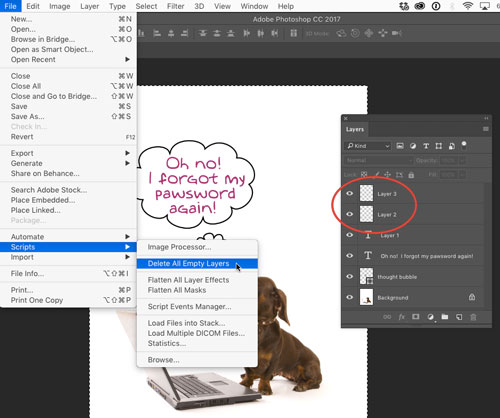
Note that the script works only on pixel layers. It won’t touch type layers, even if they contain no text.

This article was last modified on April 20, 2021
This article was first published on March 13, 2017
Commenting is easier and faster when you're logged in!

Recommended for you

Convert Fonts to Graphics with Font Pestle
We’ve had stories about amazing scripts that can build custom fonts from a...
How to Create a Snow Scene in Photoshop
Too late to get your Christmas cards printed? You can still make an email card a...