



InDesign makes it easy to make a systematic grouping of color swatches — called a Mixed Ink Group — out of two or more process and spot colors. For example, 10% spot + 10% black, then 30% spot + 10% black, then 50% spot + 10% black, and so on. Unfortunately, Mixed Ink Groups must always include one spot color. But what if you want a group of swatches based on process colors instead?
Fortunately, there’s always a workaround. Let’s say you just want various process-color green swatches, made of different percentages of cyan and yellow inks.
First, you need to make a “dummy spot color swatch” — just a white-colored spot color. Then, choose New Mixed Ink Group from the Swatches panel menu. Turn on the “checkboxes” next to the inks you want (in this case, cyan, yellow, and the dummy spot color) and then fill out the beginning values, repeats, and increments. Leave both the Initial and Repeat fields for the spot color set to 0 (zero). Always remember to click Preview Swatches before clicking OK to make sure you’re not accidentally generating a thousand swatches or something.

Then, after clicking OK, you will see all the mixed ink swatches listed in the Swatches panel, under a “master” swatch. The swatch naming isn’t very useful, but if you hover the cursor over one of these, a tooltip displays the ink makeup.

Of course, each swatch here includes zero-percent of the spot color. This is fine except that when you print, you will get an extra blank plate for the spot color. There are two ways to avoid this. First, you can double-click on the group (master) swatch to open the Mixed Ink Group Options dialog box, then select the Convert Mixed Ink Swatches to Process checkbox. When you click OK, InDesign will converts all the swatches to normal process-color color swatches.
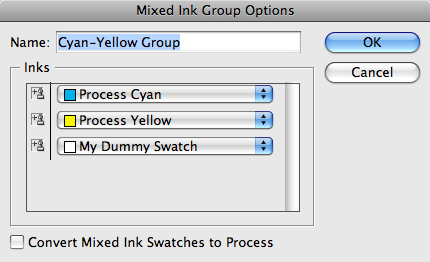
Works great, but you lose the option of adjusting your group ink colors later. That is, what if you decide you’d rather have this be Cyan and Magenta instead? You’d lose the option of switching colors.
So instead: Choose Ink Manager from the Swatches panel and click on the “checkbox” next to the Dummy ink — that converts it to a process color upon export or print, so you don’t have to worry about a separate plate.

Now, if we could only talk Adobe into making those mixed ink group swatches named something descriptive…
This article was last modified on December 19, 2021
This article was first published on January 13, 2009
Commenting is easier and faster when you're logged in!

Recommended for you

Making a Die Cut Shape in InDesign
Need to cut a hole in (or apply a spot varnish to or emboss) your InDesign docum...

The Mystery of the Empty Swatches Panel Contest Answer and Winner
Solve this InDesign mystery for a chance at winning a great prize.
Naming and Renaming Pantone Colors
Renaming a spot color is a bad idea, but this trick lets you do it safely!