




Here’s a little trick that Olav Martin Kvern taught me, and we use it all the time in Real World InDesign and at InDesign Magazine. Screen captures are bitmapped images, and are, therefore, big rectangular grids of pixels. But some screen captures (a.k.a. “screen shots” or “screen grabs” or whatever else you want to call them) aren’t meant to be rectangular. For example, a menu sticking out the side of a panel. If you try to put one of these non-rectangular puppies over a colored background — or you want to put your own drop shadow behind it — you’ll quickly find yourself with a lot of white.

That’s not very attractive. Here’s what we do. First, open Object > Clipping Path > Options, and choose Detect Edges. Set the Threshold to 1 and the Tolerance to zero. Click OK.

Now you have a clipping path around the image, which looks pretty good. Of course, this only works because you don’t have smooth curves. We’re just grabbing nice sharp corners.
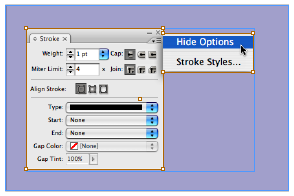
You could stop there, but I prefer to change the shape of the frame, rather than use a clipping path. So I like to convert the clipping path into a frame by choosing that option from the Object > Clipping Path menu (or from the context menu). A lot of people don’t realize you can convert clipping path to frame!

The result is a non-rectangular frame shaped like the image. You can now put a stroke around it, apply a drop shadow to it, or whatever suits your fancy:

Yes, it takes a little work, but it’s just a much nicer, finished look in my opinion.
This article was last modified on December 19, 2021
This article was first published on October 8, 2008
Commenting is easier and faster when you're logged in!

Recommended for you
How to Crop Images with Shapes in PowerPoint
Learn how to use a shape as an image frame in PowerPoint, set the shape’s aspect...


Editor’s Picks for The Design + Accessibility Summit 2026
Our Editor in Chief lists his must-see sessions for The Design + Accessibility S...