




Don’t know why, but I’ve received a number of inquiries from users this past week about how to export “all the text, formatted, from InDesign, so that non-ID users can edit it in Word.” Some clients needed one single text file with all the stories concatenated within, others needed one text file per story. (And I kept confusing who asked for which method in my replies ;-))
So here’s the post I’ll send future requests to…
Export Stories as Separate Files
To export each story to its own file, use the ExportAllStories.jsx script that you’ll find in Windows > Automation > Scripts > JavaScript:

The script is installed by default in CS3. In CS2, you’ll have to grab it from the Resources CD that came with the InDesign installer disc.
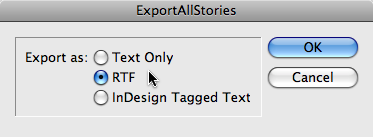
Double-click on the script and choose a format:
You’re prompted for a folder location in which to export the stories and zip-zap, you’re done. You have no control over filenames, they’re named according to the internal Story ID:
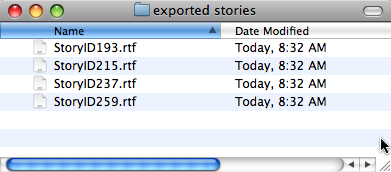
I don’t think it’d be too hard to adjust the script so it picks up the first word of the story as its title, or the Script Label if you apply one to each story. But then, I’m not a scripter.
Remember that each story becomes a separate file, and a threaded series of frames equals one story. So, if an article consists of multiple unthreaded frames (title, byline, captions, sidebars), and you want all related article text to end up in a single text or RTF file, you should thread them to each other before running the script. After you start clicking with the Selection tool to thread them, don’t worry over how text ends up in the wrong frames-after you export, just choose Undo (or run the script on a “for exporting” version of the layout).
Export Stories into a Single File
To export all the stories to a single text or RTF file, use Rorohiko’s free TextExporter plug-in. It works on Mac/Windows for CS1, CS2 and CS3 versions of InDesign. Once it’s installed (the URL and the readme that accompanies the download has full download instructions), you’ll have a new API menu in InDesign, listing all the Rorohiko plug-ins that use their API (“APID ToolAssistant”) architecture:

Choosing TextExporter gives you this dialog box:
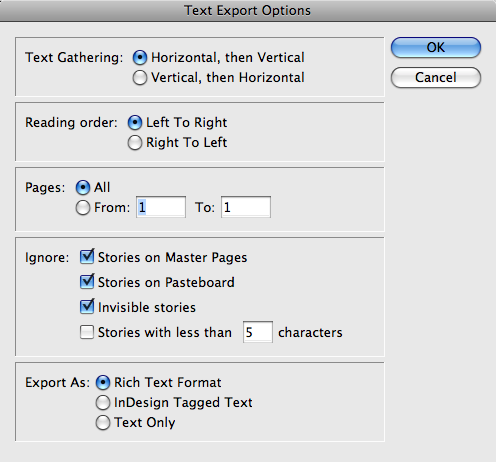
I like that you can choose to not export invisible text frames (ones on hidden layers) because that gives you some control over what gets exported. You could even hide everything else *except* for all the stories that make up a section or individual article (move them to their own layer and hide the other layers), and thus get the best of both worlds, no threading necessary.
The first 20 days that you use any of Rorohiko’s free InDesign plug-ins (there are lots to choose from) you get full access to all possible features. For TextExporter, that includes the ability to ignore invisible items, as well as do dialog-less exporting and scripting. If you pay the measly $25 license fee for the APID Tool Assistant (you just pay it once, regardless of how many free plug-ins you use with it) you have permanent access to all the regular and extended features.
Rorohiko is not a huge company – basically, it’s the wonderful Kris Coppieters – so any support you can send his way would be much appreciated I’m sure. More information is available at Rorohiko’s site.
Start from a PDF
Of couse, you can always export the layout to PDF and copy/paste from there or use one of the Save As or Export commands to save out plain text or as a Microsoft Word document. For longer documents, though, I think either the script or the plug-in gives you faster and better results.
This article was last modified on December 19, 2021
This article was first published on August 5, 2008
Commenting is easier and faster when you're logged in!

Recommended for you

TypeTalk: How to Work with a Lettering Artist
Best practices to follow when the best typographic solution for a design project...

Making Page Numbers as Words Instead of Numbers
Recently, I came upon a script that is so awesome that I have to share it with y...
Scanning Around With Gene: And a Trophy for the Winner!
About five years ago I left the scene of a local jewelry store’s going-out...