



An InDesign user e-mailed this question:
Can I create bullets on a curved vertical line in InDesign without needing to do it manually? I’ve found that I can create the bullet but I can’t set the text in the style sheet to flow along the curve with the same space after each bullet (I have to set a specific distance between the bullet and text which doesn’t work on a curved path).
Here’s the example he sent (I blurred out the company name):

Looks pretty, doesn’t it? But as the user found, if you try to curve hanging bulleted or numbered lists in InDesign the “normal” way—by overlapping a curved shape and turning on text wrap (Window > Text Wrap) set to Wrap Around Object Shape—you’ll quickly get frustrated, because the spacing and indents go all wonky.
[[Editor’s Note: In Adobe InDesign 2023 and later there is an option that fixes the problem that is described in this article… You can choose “Honor Text Indents in addition to Texts Wrap” in the Composition panel of the Preferences dialog box.]]
Case in point, here’s an auto-bulleted list curving around an ellipse’s text wrap:
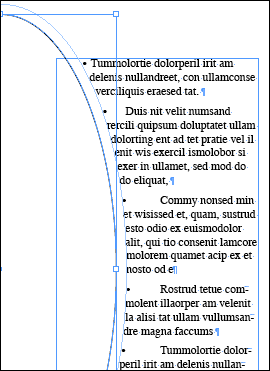
Doesn’t look much like the first example, does it?
But it actually is quite easy to achieve the correct effect in InDesign:

All you need to do is follow two rules: First, use an Em Space, not a Tab, as the character following the bullet (or number, or whatever you’ve got hanging out there). If you’re creating the hanging indent manually, you can insert an em space after your hanging character from the Type > Insert White Space submenu. If you use the Auto Bulleted or Numbered List feature in InDesign CS2 or CS3, you can specify an Em Space for the field labeled “Text After” in the Bullets & Numbering dialog box or equivalent panel of the list’s paragraph style:

(The ability to change the “Text After” character is a new feature in CS3. In CS2 you’re limited to the tab character in auto bullets. You can use auto bullets to get you started, but to get this tip to work you’ll have to convert the bullets to text and then replace the tabs with em spaces, as explained below in comment #7.)
The second rule is that you can’t rely on text wrap—you actually have to curve the side of the list’s text frame itself. You can do this with the Pen tool if you want, but I find it easier to just drag out an empty shape with the Ellipse Tool over the list’s text frame, as though I were going to use Text Wrap (I usually turn on Text Wrap for it anyway to get a rough idea of the curve) to force the left indent to curve.
Make sure that the shape forcing the curve is above (stacking order-wise) the text frame with the list. Then select both frames with the Selection tool and choose Object > Pathfinder > Subtract, which subtracts the top shape from everything underneath it, effectively “punching a hole” in the text frame and changing its shape.
Here’s the sample before, using an Em Space and a text-wrapped ellipse (I’ve converted the auto bullets to text so you can see the em space’s hidden character):

And here’s the same text after I subtracted the ellipse’s shape from the text frame shape with the Pathfinder command:

This solution even works for single text frames with multiple columns, like so:

You can use the Direct Selection tool to edit the path of that interior circle—the hole punched into the frame—if you want.
This article was last modified on October 25, 2022
This article was first published on July 11, 2008
Commenting is easier and faster when you're logged in!

Recommended for you

Color Swatches That Won’t Delete
Delia wrote: I recently worked on an internal design for a book, using black plu...
Underline Every Line of a Paragraph, All the Way to the Edges
It's not hard to make custom underlines, but what if you want them to extend to...
Control Panel Keyboard Shortcut
Tom e-mailed this question: In Quark one had access to the control bar with a ke...