



David (not me!) writes:
I have created a 230-page document that has rows of photos and captions, and somewhere along the way without my noticing, the layout of all the content got shifted, such that all all left pages have their content too close to the center spine, and the same with the right page. Is there some global way to restore a larger margin near the spine and take away space from the outer edges of both right and left pages?
You have run into a sad fact of life: If you’re working with a facing pages document (one that has left and right, or verso and recto pages) and you add or remove an odd number of pages at the beginning or in the middle, all the subsequent pages get messed up. Curiously, it doesn’t always happen… it depends on your page layout, what’s touching margin guides, and so on. But when it does happen, it’s ugly!
Fortunately, there’s a script that can help in most cases. And it’s really easy! And it’s free!
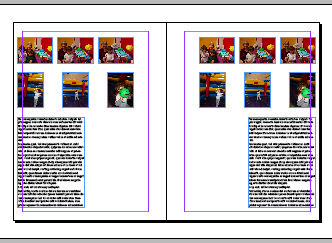
Here’s an example of a facing pages layout (notice the objects are placed really near the outside of the spread):
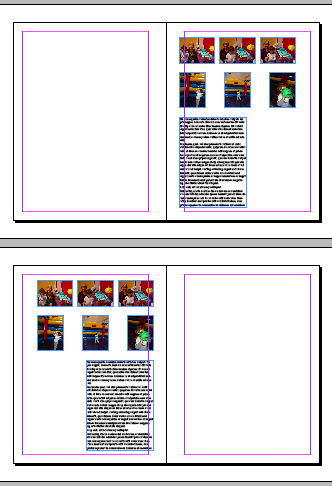
Here’s the same layout after I removed a single page before the spread (notice how the objects all got moved because versos became rectos, and vice versa):
So what’s to be done? InDesign ships with a free script called AdjustLayout. (In CS2, you need to get it from the installation disks.) Open Window > Automation > Scripts, and then open the Samples folder. If you look inside the JavaScript folder, you’ll find AdjustLayout.jsx. Double-click on it and InDesign asks you how much you want to move your objects around:
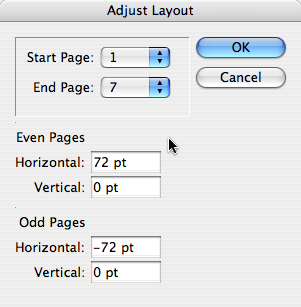
(Come to think of it, it’s probably a good idea to figure out how far you want those objects to move before you start the script. In fact, I usually like to do a Save on the file before I run a script like this. That way, if I got the number wrong, or something doesn’t look right, I can use Revert to get back to where I was.)
When you click OK, InDesign moves the objects around and…

It’s a good thing. Thanks, Ole!
This article was last modified on December 19, 2021
This article was first published on June 12, 2008
Commenting is easier and faster when you're logged in!

Recommended for you

Control Panel Keyboard Shortcut
Tom e-mailed this question: In Quark one had access to the control bar with a ke...
Sandwiching Text or Logos Inside an Image
Joe wrote: I notice on every magazine out there -- such as Maxim, Stuff, or any...
Find All Headings Based on a Pattern
Here's a short and easy GREP pattern you can use to find one-line paragraphs