




E.R. wrote:
After seeing your corner-only border segment, it reminded me of a problem that I hadn’t been able to solve: I want to make the right- and left-hand side of the text frame a square bracket so that anything I typed into it would elongate the brackets as I typed. Alas, I’ve never found a solution.
I banged on this problem for a bit, too, and was about to give up when Sander Pinkse from the Netherlands sent me the answer from out of the blue. Not only that, but he showed how to make a rounded-corner table (sort of), which many people have also requested!
Let’s do the brackets first. This trick relies on combining two other tricks: First, the corner-frame trick that Rufus came up with a couple of years ago and which I wrote about recently. Next, it makes use of another classic trick: putting text inside a one-celled table in order to create cool effects.
After you have created a “corners-only custom stroke,” you can put a bracket around some text by making a one-celled (one column, one row) table and placing the text inside it. Now select the cell (not the text) by pressing Esc (or choosing Table > Select > Cell) so you can adjust the strokes on each of the four sides. Set the thickness of the solid line stroke in the Stroke panel or the Control panel.
Now for the trick: De-select the left and right strokes of the cell in the Control panel or the Strokes panel, and then (while only the top and bottom strokes are selected) choose the corner-only stroke. The result is simply delicious:

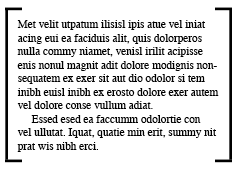
As the amount of text changes, the bracket gets taller or shorter automatically.
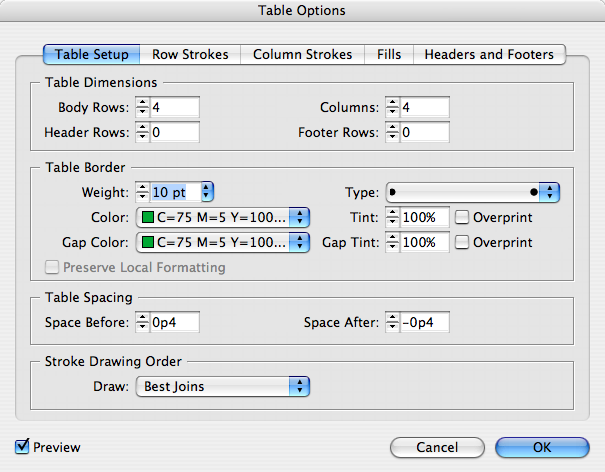
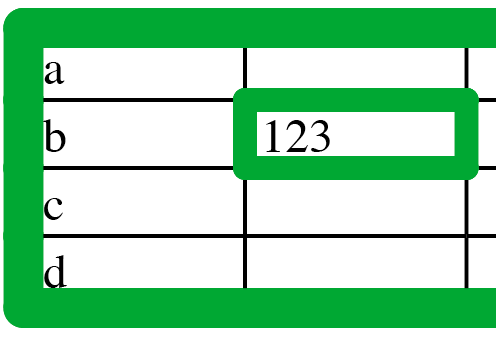
The rounded corner tables aren’t exactly what I had always hoped for, but they are certainly a pretty cool application of tables and the corners-only trick. Basically, Sander pointed out that you can make a Dotted stroke with a large Pattern Length, then set that stroke as the table border in the Table Options dialog box. (Or, alternately, set it as the stroke in Cell Options.) Finally, make the stroke weight thick and make sure the Color and the Gap Color are both set to the same swatch!
This article was last modified on December 18, 2021
This article was first published on April 8, 2008
Commenting is easier and faster when you're logged in!

Recommended for you
How to Balance Text Columns Automatically and with Baseline Grid
Bring balance to your InDesign spreads with this Text Frame Option.

Quick Wins: Adjusting Color in Photoshop
Use these five resources to get better at adjusting color in Photoshop
Create Flawless Fractions with OpenType
Choose your font carefully if you need flawless fractions!