




A reader in Texas wrote to us with a problem: he was using the tip about highlighting one or more words in a paragraph using a custom underline, but the highlight hugged the sides of the text too closely:
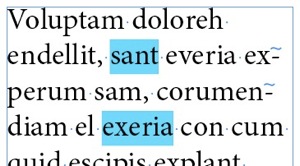
It would be nice if the highlight extended a bit past the left and right edges of the word, no? Well, the trick is to add spaces — actual spaces (either the regular spacebar character, or a thinner or thicker space, which you can find from Type > Insert White Space). The “highlighter” character style applies to those spaces, too, giving a buffer of space around the text.
As I was thinking about that solution, I realized you could actually automate the highlighting a bit by using those spaces and the GREP Styles feature.
First I made a character style for my highlight:

Then I applied it in a grep style inside a paragraph style:

The grep style I used was:
(?<=).+?(?=)
This grep code just looks for text that is in between two spaces. That is, it looks for a space-space before the text and after it, and then applies the highlight character style to the text and just one space on either side of the text:

The great thing about grep styles, of course, is that you don’t have to apply the style manually — in this case, you just type an extra space before and after the word or phrase you want to highlight and it’s done!
(Beginner’s Note: The little dots between the words in the images above are regular spaces; we’re seeing those because I first selected Type > Show Hidden Characters. That’s helpful for seeing where normally-invisible characters, such as spaces, are.)
The nice thing about the code is that it works for any whitespace character, not just the spacebar. So you could, for example, use Type > Insert White Space > Thin Space instead.
Of course, the problem with grep styles like this is that it’s really easy to make a mistake? just press two spaces after a dot at the end of a sentence, for example, and the mistake will be, er? unmistakable!
This article was last modified on December 21, 2021
This article was first published on December 27, 2012
Commenting is easier and faster when you're logged in!

Recommended for you

GREP Styles to Local Character Styles
For various reasons it can be beneficial to apply a document's GREP styles as lo...

A Script to Convert GREP Styles to Character Styles in InDesign
Use this free script to replace GREP Styles with locally applied Character Style...

How to Remove a Color From a Character Style in InDesign
Learn how to remove a color from a character style in InDesign, so that the text...